
Sequential practice: a unit's question bank, one by one
Let students work through a unit's whole question bank in order, one question at a time, with instant feedback and saved progress. How to turn it on, what students see and how a round ends.
On this page
In this topic 10
- Practice bank vs. exam bank: question types, including SAT-style grid-ins
- Import questions from CSV or Excel (with grid-in answers)
- Create timed exams: practice tests, practice exams and official exams
- Written-answer questions (short and essay) and manual grading
- Gradebook and grade weights: how the final grade is calculated
- Generate questions with Quiddy (syllabi, laws and math)
- Question challenges: when a student reports a wrong question
- Practice tests vs. official exams: how tests work and their settings
- Sequential practice: a unit's question bank, one by one
- Set a close date for exams and unit tests
In this guide
- What sequential practice is and when to use it.
- Turn it on for a unit.
- What students see: topics, order, questions and feedback.
- The end of a round and starting over.
- Sequential practice in card mode (Tests).
What it is
Random unit tests pick a few questions each time. Sequential practice does the opposite: students go through the unit's whole question bank from first to last, one question at a time, and see right away whether they got it right, which answer is correct and its explanation. Their progress saves automatically, so they can stop and pick up where they left off, even on another device.
It's practice: it doesn't count toward the grade. There's no question limit, and only multiple-choice and numeric questions are included.
Turn it on for a unit
-
Open the unit
Go to Courses → Subjects, open the subject and, in the Content tab, click Edit unit on the unit you want.
-
Check the unit question bank
Sequential practice uses the topics ticked under Unit question bank, the same ones as the unit's random tests. Tick at least one topic with questions.
-
Switch on Sequential practice
Turn on Sequential practice. Below it, Shuffle answer order decides whether each student sees the options in a different order. Leave it off if any question depends on the order of its options, for example “Both A and B.” Click Save.
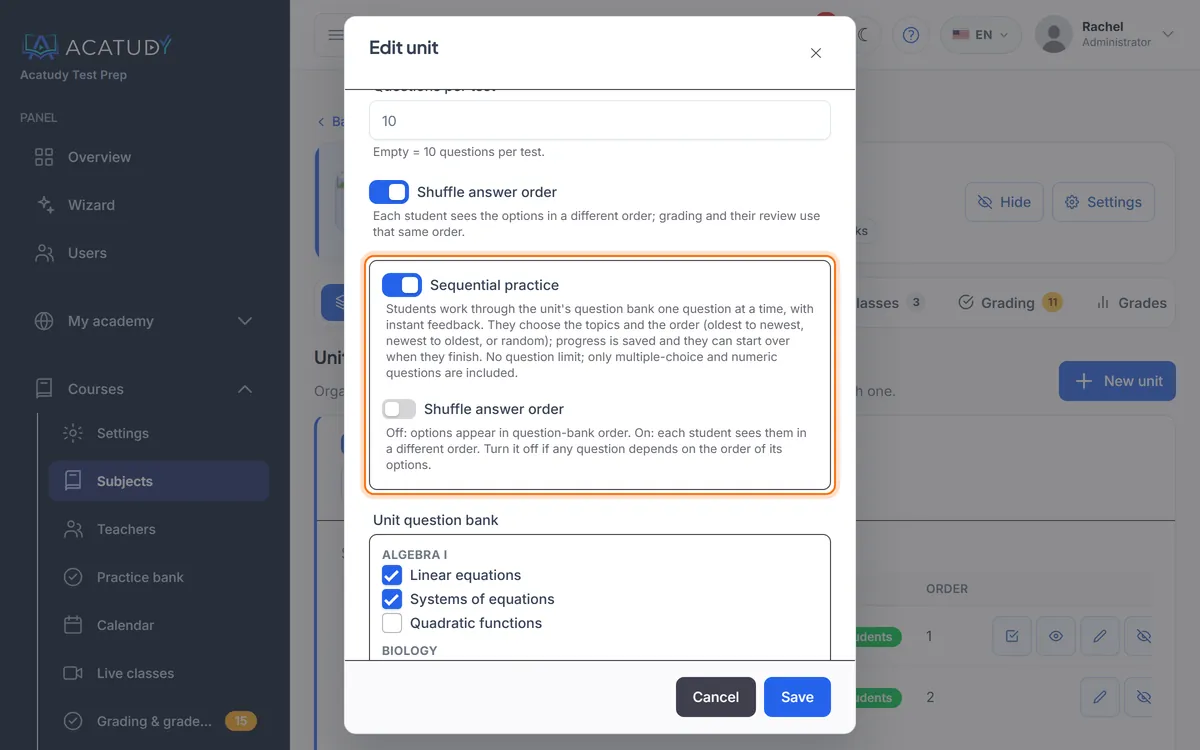
Edit unit → Sequential practice.
What students see
-
A new row in the unit
Inside the unit, students see Sequential practice with the number of questions and a Practice button.
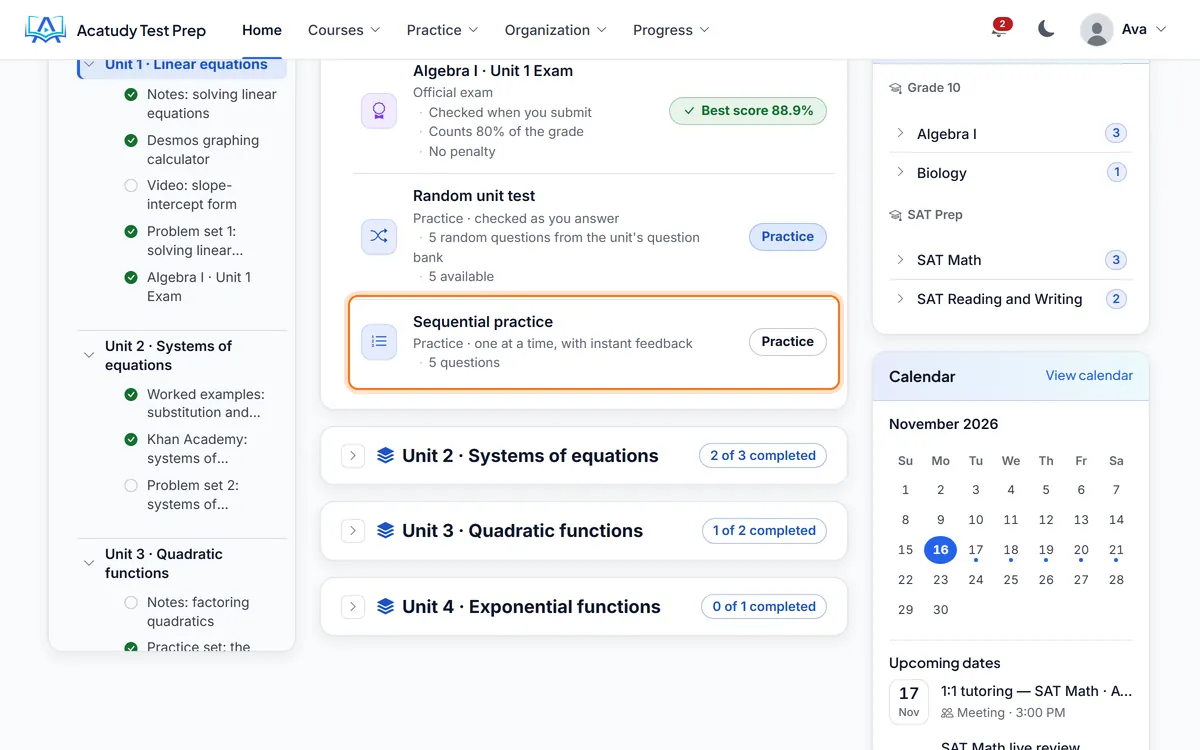
The Sequential practice row inside the unit. -
Choose topics and order
Under Choose the topics they tick the topics they want (Select all and Clear all help) and see the Questions selected count. In Question order they pick Oldest to newest, Newest to oldest or Random. Then they click Start practice.
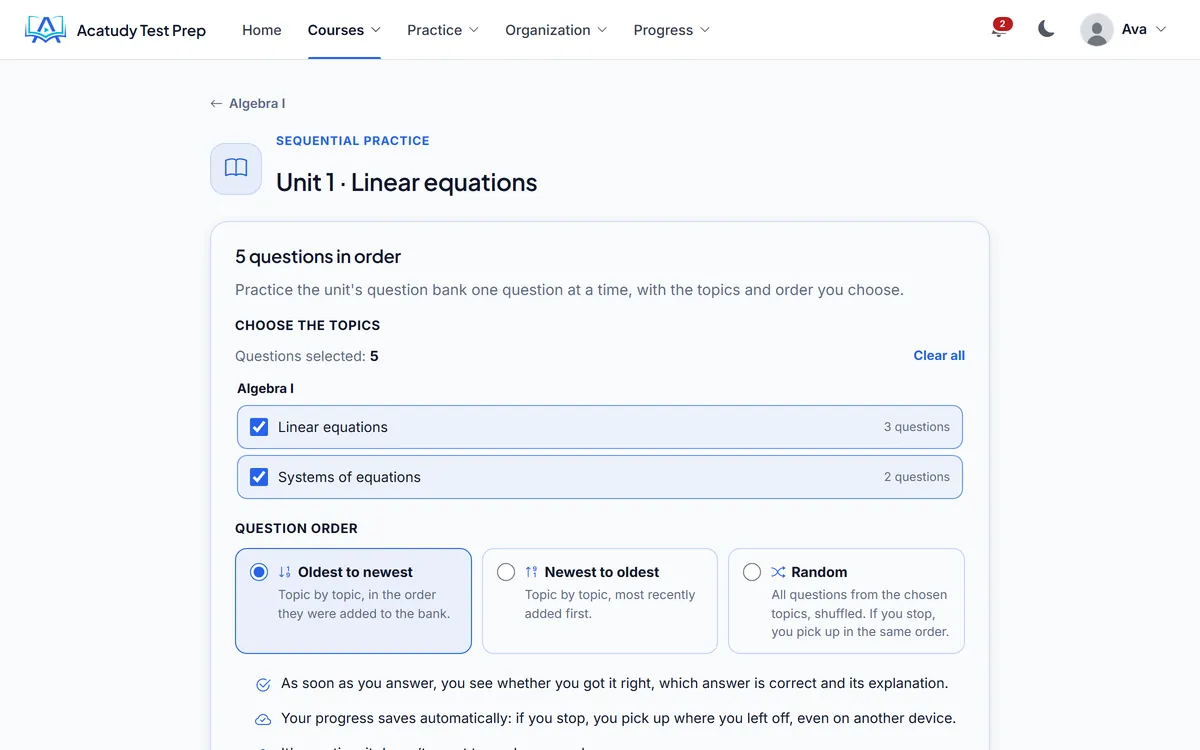
Topics, question order and Start practice. -
Answer with instant feedback
Each question shows “Question 3 of 25.” Students click an option (or press keys A–E or 1–5); numeric questions have a Check button. They see at once whether they're right, the correct answer and its Explanation, then click Next or press Enter. The Question map shows correct, wrong and pending questions, and the progress ring shows how far they are.
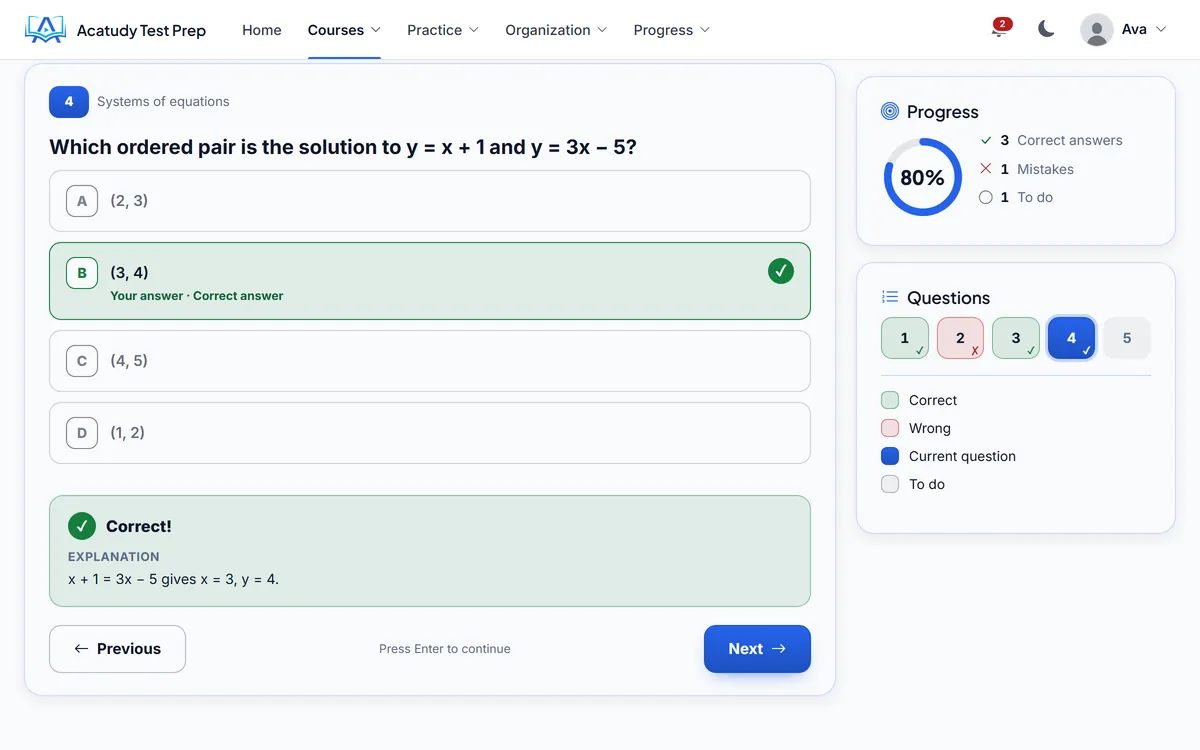
Instant feedback, explanation and question map. -
Finish the round
At the end they see “Round 1 complete!” with their correct answers, mistakes and accuracy. From there they can Start over from question 1, Change topics or order, Review my answers or go Back to subject.
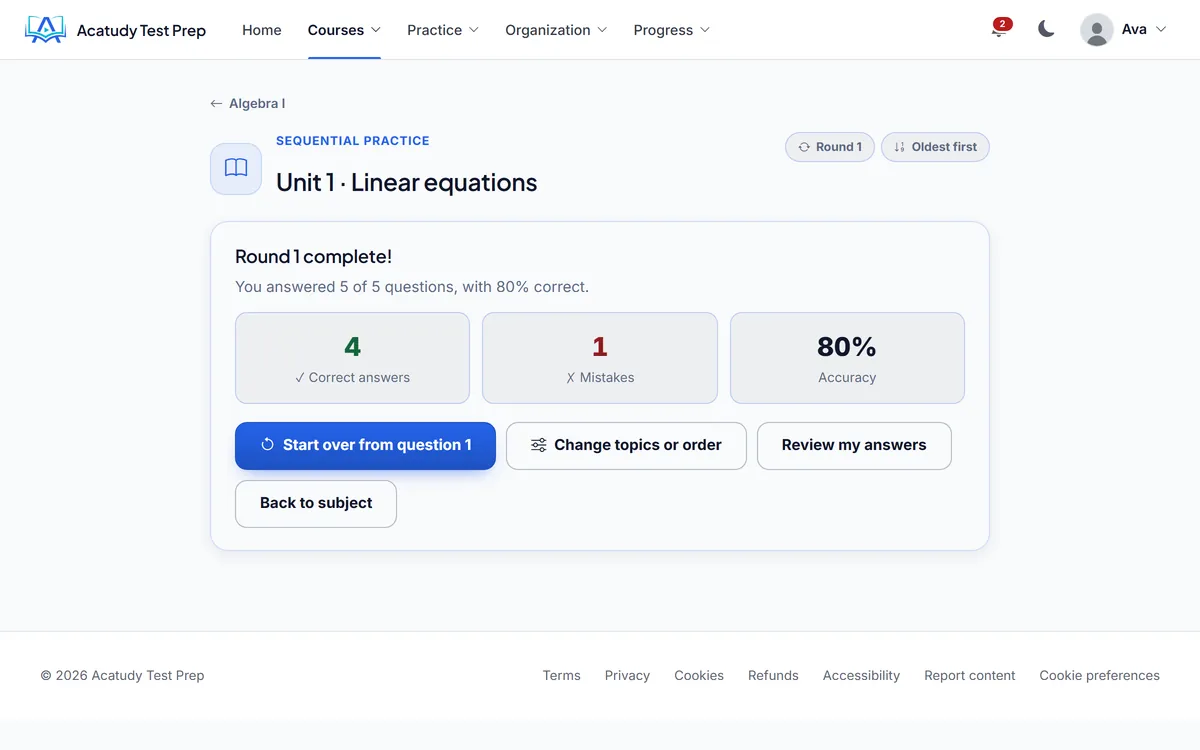
Round summary.
Good to know
If a student starts a new round before finishing, the unfinished one is saved as incomplete under Previous rounds. If you remove a question from the bank in the middle of a round, it's skipped and marked as such.
In card mode: from Tests
If your academy uses card mode, there are no units: students practice the question bank by topic from Tests. There they see a Sequential practice card and an In order button on each topic. They choose topics and subtopics and the order, and the rest works exactly as above: instant feedback, saved progress, summary and Start over. They only see topics from the subjects they have access to.
It's on by default. To turn it off, or to shuffle the answer order, go to My academy → Modules and, in the Practice bank card, use Sequential practice in Tests and Shuffle answer order. Click Save modules.
Frequently asked questions
Does it count toward the grade?
No. Sequential practice is practice only; official exams are what count toward the grade.
Which questions are included?
Every multiple-choice and numeric question in the topics the student picks from the unit question bank. Open-answer questions aren't included.
Can I use it together with random unit tests?
Yes. Both use the same unit question bank and can be on at the same time. See Practice tests vs. official exams.
Follow this guide in your own academy
Create it free in a couple of minutes on the Free plan: it never expires and needs no credit card. Keep the dashboard open next to this guide.
Open a ticket from Help → Support in your panel: we reply within 24–48 h depending on your plan.
