
Gradebook and grade weights: how the final grade is calculated
Each subject gets a final grade out of 10: official exams 80% and assignments 20% by default, with practice tests not counting. Change the weights per subject, read the gradebook and export it to Excel.
On this page
In this topic 8
- Practice bank vs. exam bank: question types, including SAT-style grid-ins
- Import questions from CSV or Excel (with grid-in answers)
- Create timed exams: practice tests, trial exams and official exams
- Written-answer questions (short and essay) and manual grading
- Gradebook and grade weights: how the final grade is calculated
- Generate questions with Quiddy (syllabi, laws and math)
- Question challenges: when a student reports a wrong question
- Practice tests vs. official exams: how tests work and their settings
In this guide
- How the final grade of a subject is calculated.
- Change the weights of a subject.
- Read the gradebook and export it to CSV or Excel.
- What students see.
How the final grade is calculated
Every subject has a final grade out of 10 built from three components. These are the default weights:
| Component | Default weight | What counts |
|---|---|---|
| Official exams | 80% | For each official exam, the student's best score in exam mode. All official exams of the subject weigh the same. |
| Assignments | 20% | Graded submissions, as score ÷ maximum × 10. Pass/fail assignments count as 10 or 0 (or you leave them out). |
| Practice tests | 0% | Unit practice tests and fixed practice tests. They don't count unless you give them a weight. |
- Trial exams (timed rehearsals) never count: the gradebook shows them as Not graded.
- Practice attempts (practice tests and the question bank) never count for official exams, and official exams have no practice mode. An abandoned attempt counts as 0.
- Assignments not yet submitted or not yet graded are simply left out; they don't count as 0.
- If a component has no scores yet, its weight is shared among the others. Example: with no graded assignments, official exams count 100% for now.
- Scores are shown with two decimals. A final grade under 5 is shown in red.
Learn more about each exam type in Create timed exams and about grading submissions in Assignments.
Change the weights of a subject
Example: in Algebra I you want unit exams to count 60%, homework 30% and practice tests 10%.
-
Open the subject's Settings
Open the subject, click the Settings tab and scroll to Grade weights. From the gradebook, the Change weights link takes you straight there.
-
Tick the components and type their weights
Tick Exams, Practice quizzes and Assignments as needed and type each Weight (%). The Total weight line updates as you type and must be 100%. A component you untick counts 0.
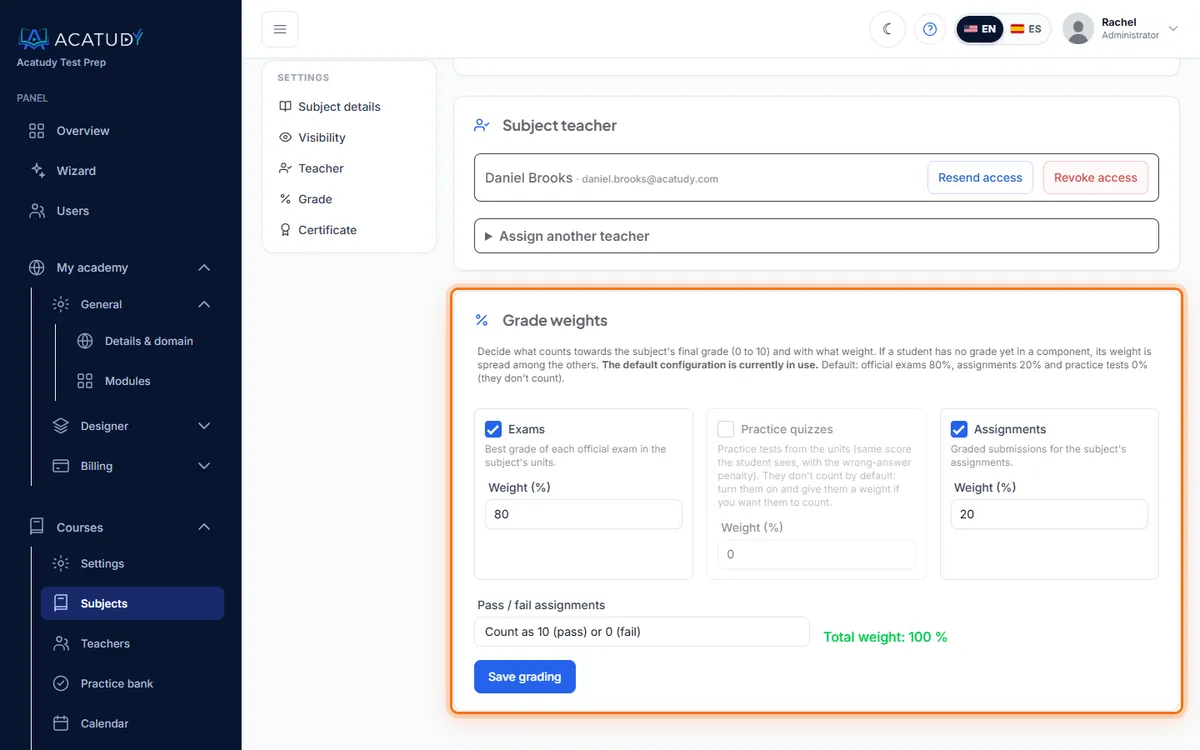
Grade weights: the total must be 100%. -
Decide on pass/fail assignments
In Pass / fail assignments, choose Count as 10 (pass) or 0 (fail) or Not included in the average.
-
Click Save grading
The button only works when the total is 100%. Grades are recalculated at once. Restore default brings back 80 / 20 / 0.
Weights are per subject
Each subject keeps its own weights, and subjects you already customized keep theirs if the defaults change. Teachers can change the weights of the subjects they teach.
Read the gradebook
-
Open Grading & gradebook
In the menu, open Courses → Grading & gradebook and click the Gradebook tab. Filter by Course if you have several, and click Open gradebook on a subject.
-
Read the table
One row per student and one column per official exam, practice test and assignment, grouped by component with its weight. The Final score column is on the left and the Class average at the bottom.
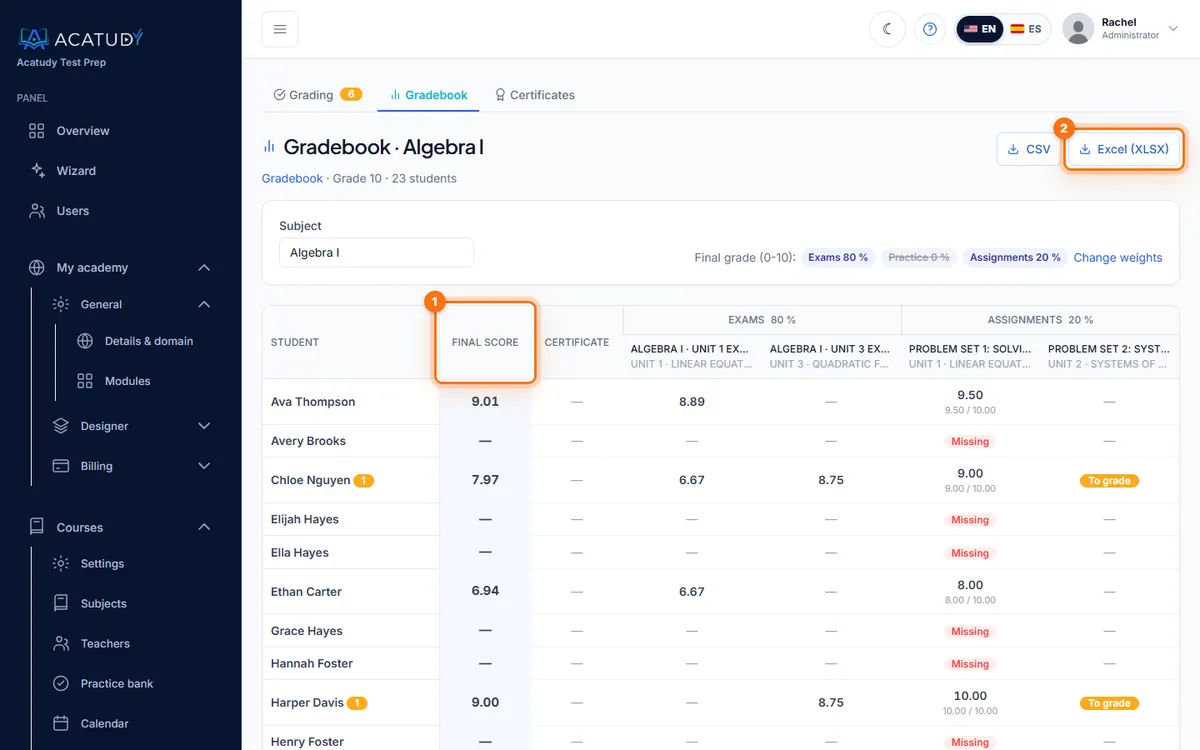
The gradebook of a subject, with its weights at the top. -
Spot what needs attention
Cells can show To grade (an answer or submission is waiting for you), Missing (an exam date or deadline passed without an attempt), Practice mode only or Abandoned. Click a student's name for their full history, with Grade and View submission buttons.
Export to Excel or CSV
Click Excel (XLSX) or CSV at the top of the subject's gradebook. You get one student per row, one column per activity, the items waiting to be graded, the final score and a last row with the class average. Teachers only see and export the subjects they teach.
What students see
- Next to each exam: Counts 80% of the grade (the component's weight) or Not graded for practice tests and trial exams.
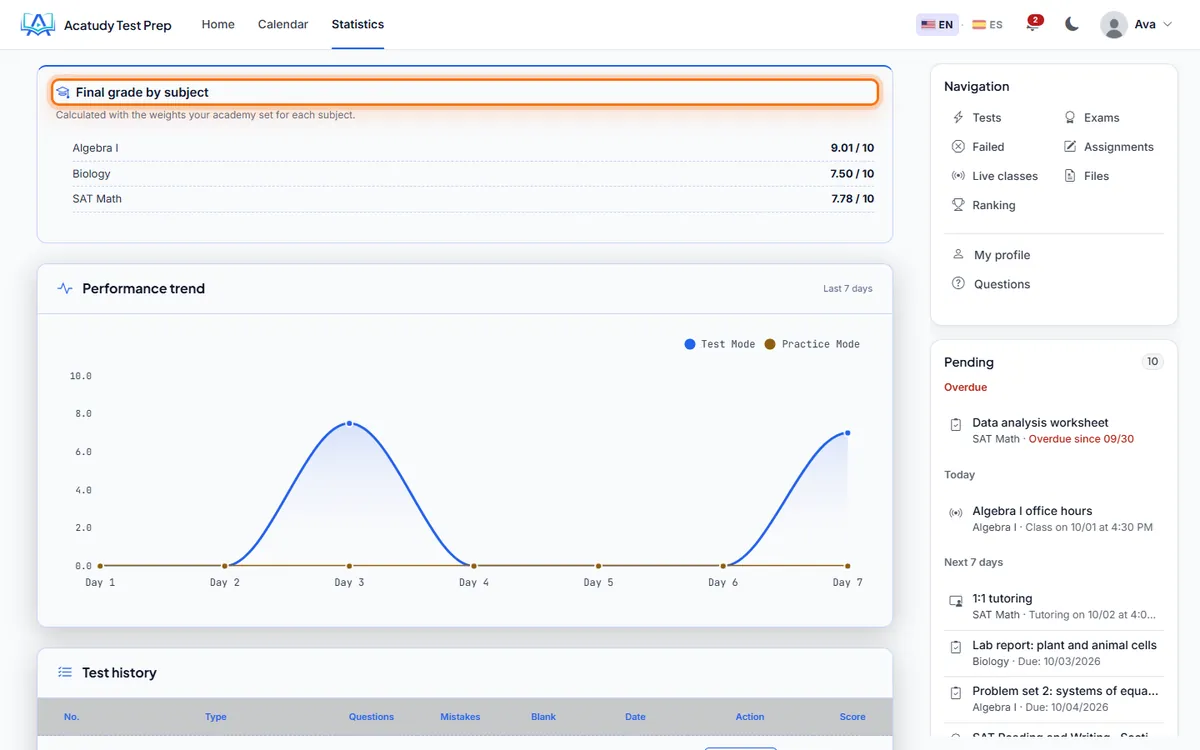
- In Statistics: the Final grade by subject block, with each subject that already has a grade.
- In visual (cards) mode, the subject page also shows a Subject grade card with the breakdown by component.
Frequently asked questions
Can I give one exam more weight than another?
Not individually: weights are per component, and all official exams of a subject weigh the same. If an exam matters more, split the subject's content so it has fewer, bigger exams.
Can I set a pass mark or letter grades?
No. The final grade is out of 10, and grades under 5 are highlighted in red.
Can I edit a grade by hand in the gradebook?
No. Grades come from exams and graded submissions: grade or regrade the submission or written answer, and the gradebook updates.
Follow this guide in your own academy
Create it free in a couple of minutes and keep your admin panel open next to this guide.
Open a ticket from Help → Support in your panel: we reply within 24–48 h depending on your plan.