
Assignments: deadlines, submissions, grading and last-minute reminders
Post homework with a due date, require students to watch or read material first, collect files or text answers, grade with a score or pass/fail, and let Acatudy remind anyone who hasn’t turned it in.
On this page
In this guide
- Create an assignment with a due date and required materials.
- What students can submit and what happens after the deadline.
- Grade with a score or Pass/Fail, feedback and a corrected file.
- Automatic reminders: 48 hours before and during the last hour.
Example: Algebra II → Unit 2 → "Problem Set 2.3: Graphing quadratics", due Friday at 11:59 PM, graded out of 10.
Create an assignment
-
Open Assignments
Go to Courses → Assignments (visual mode) or the subject's Assignments tab (vertical mode) and click New assignment. Teachers find the same option under Assignments in their own menu.
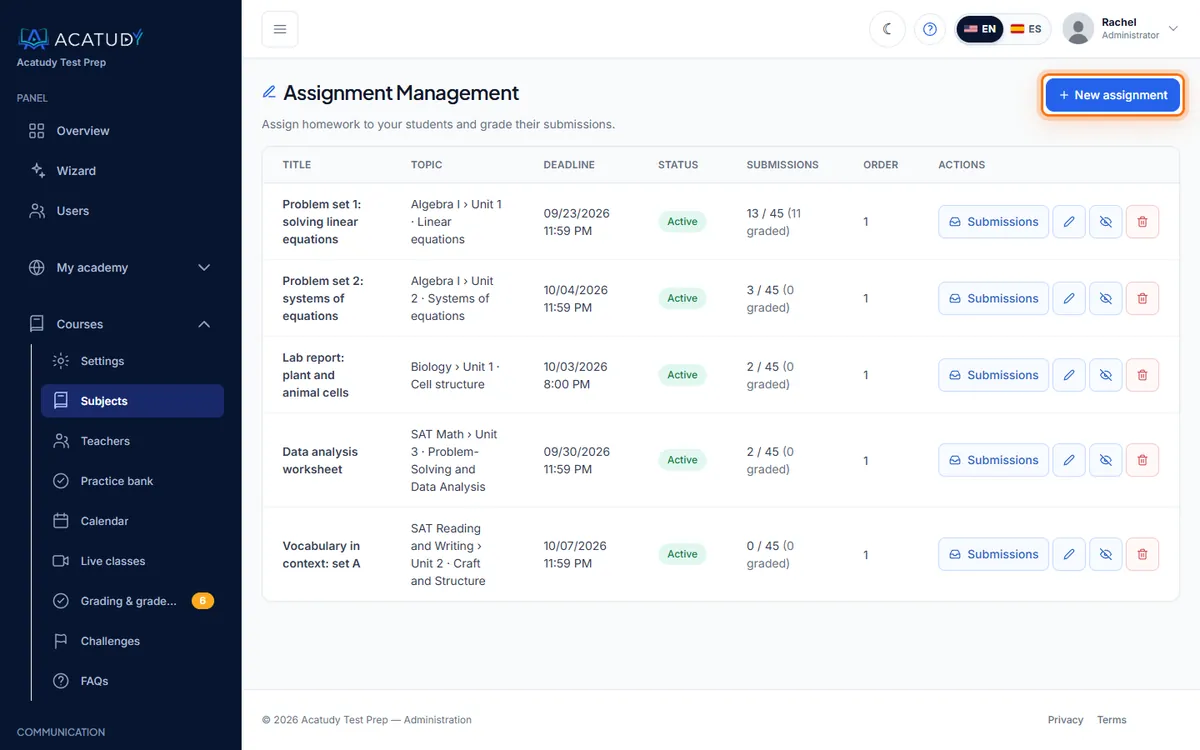
Assignments list with the New assignment button. -
Write the title and instructions
Be specific: what to do, the format you expect and how it will be graded. "Complete problems 1–20 on page 84. Show your work and upload a single PDF or clear photos."
-
Link it to a unit
Choose the Linked unit so the assignment appears inside the right unit of the subject, or leave it as a standalone assignment.
-
Choose how you'll grade
Grading type: By score (0-10) with a Highest score you can raise (e.g. 100 points), or Pass / Fail.
-
Set the dates
Visible from (optional) hides the assignment until a date (great for scheduling a whole term in advance). Deadline (optional) is the due date: it's added automatically to the calendar as "Due: Problem Set 2.3".
-
Decide the details
- Mandatory assignment: counts as required work for the subject.
- Allow text answer: students can type their answer instead of (or in addition to) uploading a file.
- Associated quiz (optional): attach a test to the assignment.
-
Add required materials
Under Assignment materials (mandatory viewing/reading), attach the videos and documents students must finish first. They can't submit until they've watched those videos in full and read those documents to the end.
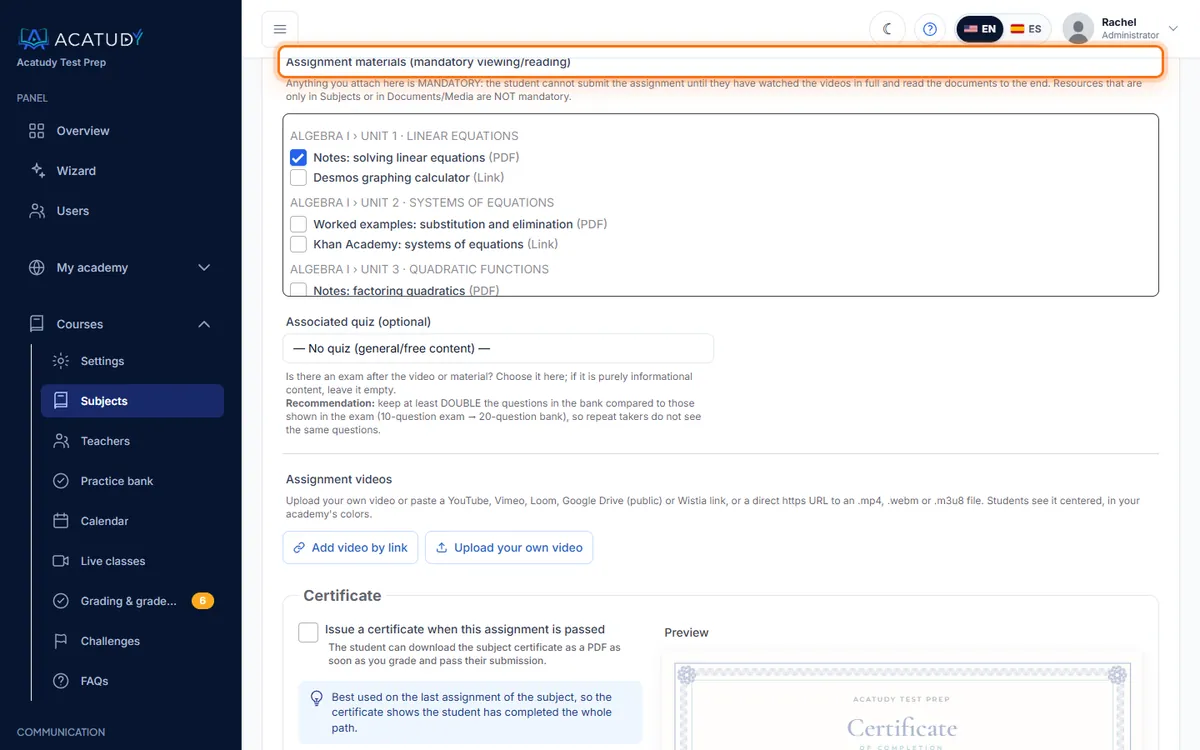
Assignment materials (mandatory viewing/reading) in the assignment form.
Tip: flipped classroom
Attach the 10-minute lecture video as a required material: students watch it at home, and the problem set unlocks only when they've seen it. Class time goes to questions, not re-explaining.
What students submit
- A file: PDF, JPG, PNG, DOC, DOCX or ZIP, up to 20 MB, and/or a text answer (up to 20,000 characters) if you allowed it.
- They can resubmit (replacing the previous file) as many times as they like until you grade it.
- Submitting after the deadline isn't blocked: the submission is marked Late, so you decide how strict to be.
Each submission shows a status: Pending, Submitted, Late or Graded.
Grade submissions
-
Open the submissions
From the assignment, click View submissions. Teachers see a "submissions to grade" counter on each of their subjects.
-
Grade and give feedback
Enter the score (up to the highest score) or Pass/Fail, write Feedback (optional) (up to 5,000 characters) and, if you marked up their work, upload a Corrected file (optional) of up to 20 MB.
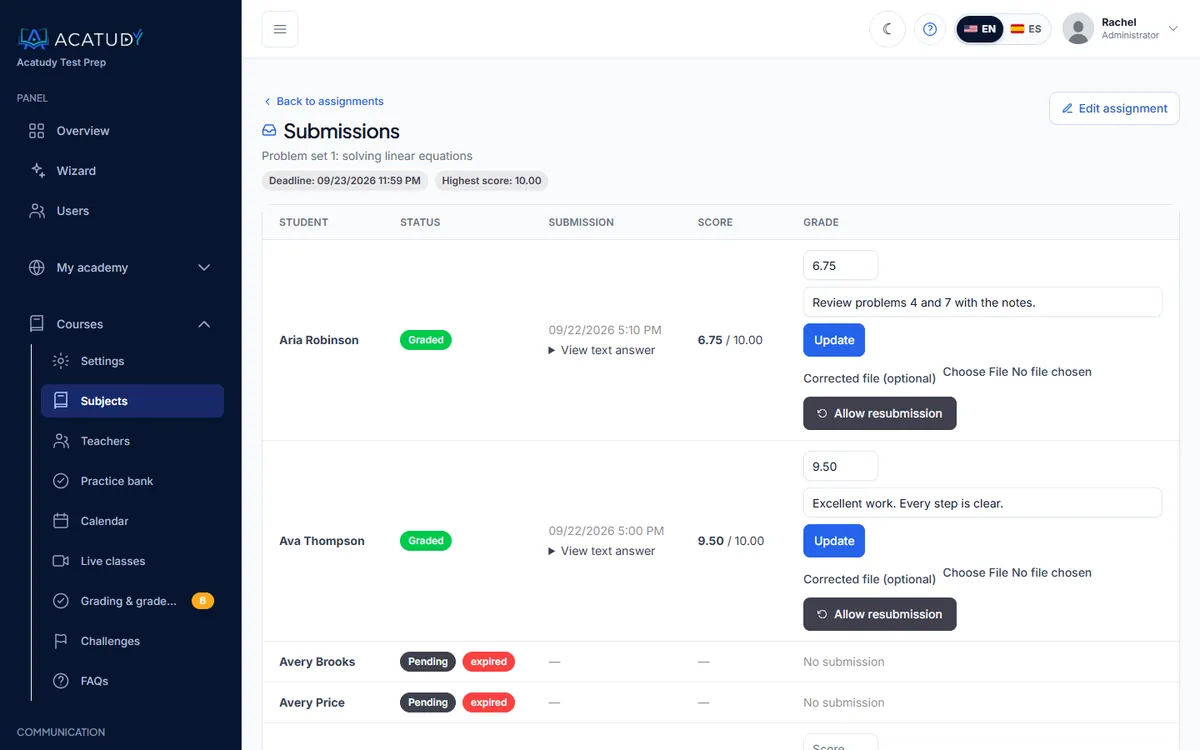
Submissions page with score, feedback and corrected file. -
Students are notified
The student gets a notification with the grade and sees your feedback in their area. Once graded, they can no longer replace the submission.
Automatic reminders
Acatudy reminds students who haven't submitted yet, so you don't have to chase them:
| When | Message |
|---|---|
| Once a day (morning), for assignments due within 48 hours | "The assignment “Problem Set 2.3” is due in less than 48h" |
| During the last hour before the deadline (checked every 5 minutes) | "Less than 1 hour left to submit “Problem Set 2.3”!" |
Reminders appear in the student's notification bell. They require the Assignments and Notifications modules (My academy → General → Modules).
Certificates from an assignment
An assignment can also issue a certificate when the student passes it, with your choice of template and colors. Use it on the final project of a subject. See Certificates.
Frequently asked questions
Which plan includes Assignments?
Assignments are included from the Basic plan.
Can I see all upcoming deadlines at once?
Yes. Every deadline appears in the calendar for you, the teacher and the students of that subject.
How much do assignments weigh in the final grade?
You set it in the subject's Settings → Grade weights (default: official exams 80%, assignments 20%, practice tests 0%). See Gradebook and grade weights.
Follow this guide in your own academy
Create it free in a couple of minutes and keep your admin panel open next to this guide.
Open a ticket from Help → Support in your panel: we reply within 24–48 h depending on your plan.