
SEO and Google Search Console: sitemap, robots.txt and site verification
Your academy website gets its own sitemap.xml and robots.txt automatically. Verify it in Google Search Console by pasting the meta tag in your settings, submit the sitemap and optimize every page’s title and description.
On this page
In this topic 7
- Design your student area: styles, logo, colors, home and menu
- Build and publish your website with the Website Builder
- Connect your own domain (CNAME or A record) with automatic HTTPS
- SEO and Google Search Console: sitemap, robots.txt and site verification
- Design your sign-in and sign-up pages: 14 layouts with your image and text
- FAQs for your students and visitors: help center, order and FAQ rich results
- WordPress plugin: sell your courses and add single sign-on
In this guide
- What Acatudy does for your SEO automatically.
- Verify your website in Google Search Console with the HTML tag.
- Submit your sitemap and connect Google Analytics.
- Write titles and descriptions that get clicks.
What's automatic
- sitemap.xml: every page you publish in the Website Builder (home first) is listed at
https://yourslug.acatudy.com/sitemap.xml, with its last update date. - robots.txt: lets search engines crawl your public pages and keeps private areas out (student area, login, registration, password pages and API), and points to your sitemap.
- Your custom domain wins: once a custom domain is verified, the sitemap and all URLs use it, so Google indexes
learn.brightpathtutoring.com, not the acatudy.com address.
You'll find all of this in My academy → General → Academy details, in the Customization section, card Google and search engines, with a direct link to your sitemap.
Not ready to be found yet?
Untick Allow Google and other search engines to show my website while you build your site. Your pages get a noindex tag and robots.txt blocks crawling. Tick it again when you launch.
Verify your site in Google Search Console
-
Add a URL-prefix property
Open Google Search Console, click Add property and choose URL prefix. Enter your website address exactly, e.g.
https://learn.brightpathtutoring.com(orhttps://brightpath.acatudy.comif you don't have a custom domain). -
Choose the HTML tag method and copy the tag
Google shows something like:
<meta name="google-site-verification" content="dBw5CvburAxi537Rp9qi5uG2174Vb6JwHwIRwPSLIK8" /> -
Paste it in Acatudy and save
In My academy → General → Customization → Google and search engines, paste it into Google Search Console verification. You can paste the full tag or just the code inside
content="…". Save.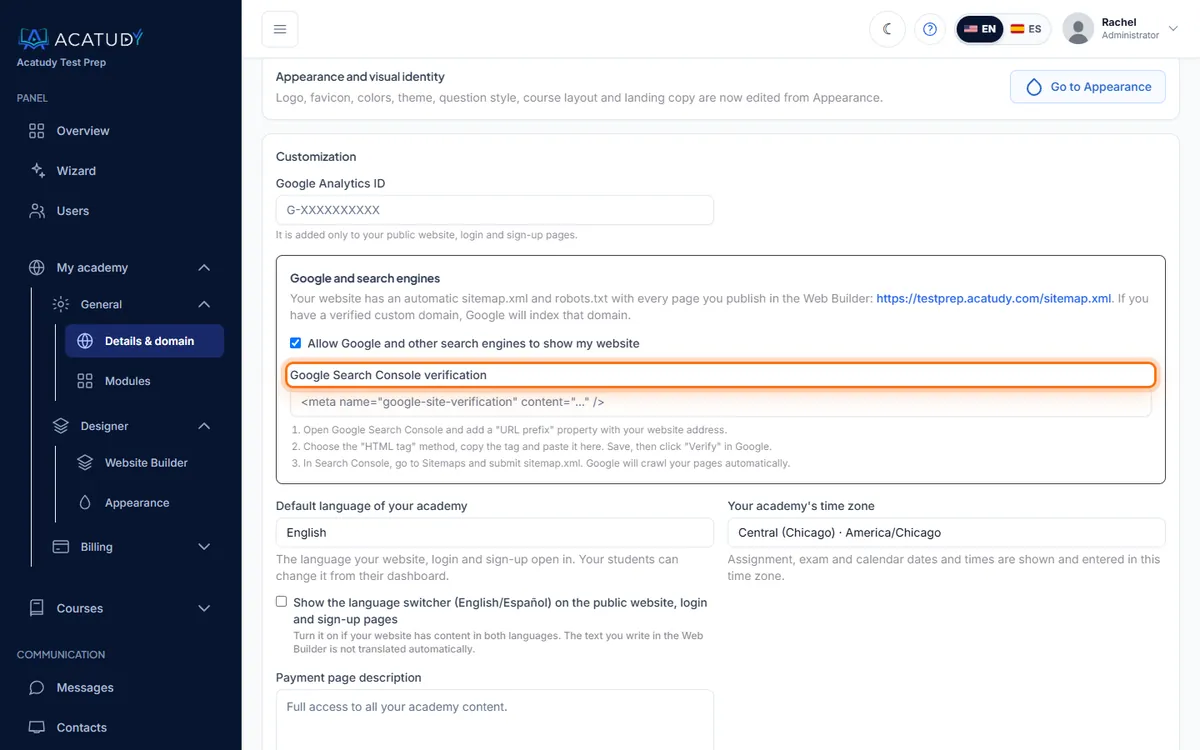
Google and search engines card with the Search Console verification field. -
Click Verify in Google
Back in Search Console, click Verify. The tag is already on your public pages, login and sign-up, so verification is instant.
-
Submit your sitemap
In Search Console, go to Sitemaps, enter
sitemap.xmland click Submit. Google will crawl your pages automatically from then on.
Tip: verify the address you'll keep
If you plan to use a custom domain, connect it first (guide) and verify that address in Search Console. If you move later, add a new property for the new domain.
Connect Google Analytics
In the same Customization section, paste your GA4 measurement ID in Google Analytics ID (format G-XXXXXXXXXX). It's added only to your public website, login and sign-up pages, not to the student area.
Optimize each page
In the Website Builder, open Page SEO on each page:
- SEO title (up to 190 characters, aim for ~60 visible): service + city + brand, e.g. SAT Prep Classes in Austin, TX | Brightpath Tutoring.
- Meta description (up to 300, aim for ~155): a benefit and a call to action, e.g. Small-group SAT prep with weekly full-length practice tests. Average score gain of 150+ points. Book a free diagnostic today.
- Open Graph image: 1200×630 px, shown when your page is shared on Facebook, LinkedIn or WhatsApp.
- Slug: short and descriptive, e.g.
/sat-prep-austin.
Frequently asked questions
Will Google index my students' content?
No. The student area, login and registration are always excluded; only your published website pages are in the sitemap.
How long until my site appears on Google?
Usually a few days to a few weeks after submitting the sitemap. Use Search Console's URL Inspection → Request indexing to speed up important pages.
Where do I set the favicon?
In My academy → Designer → Appearance: see Brand your academy.
Follow this guide in your own academy
Create it free in a couple of minutes and keep your admin panel open next to this guide.
Open a ticket from Help → Support in your panel: we reply within 24–48 h depending on your plan.