
Use the academy calendar: classes, due dates and exam days
One calendar for everyone: assignment due dates and scheduled exams appear automatically, and you add classes, parent meetings and key dates with your own colors.
On this page
In this guide
- What appears in the calendar automatically.
- Create an event for a subject or the whole academy.
- Switch views, filter by type and customize colors.
- Who sees what: admins, teachers and students.
What shows up on its own
- Assignment deadlines: every assignment with a due date creates a "Due: …" event.
- Official exams with a date: scheduled exams appear on their day.
These events are marked as automatic and read-only: to move them, change the date in the assignment or exam and the calendar follows.
Create an event
-
Open the calendar
Go to Courses → Calendar and click New event.
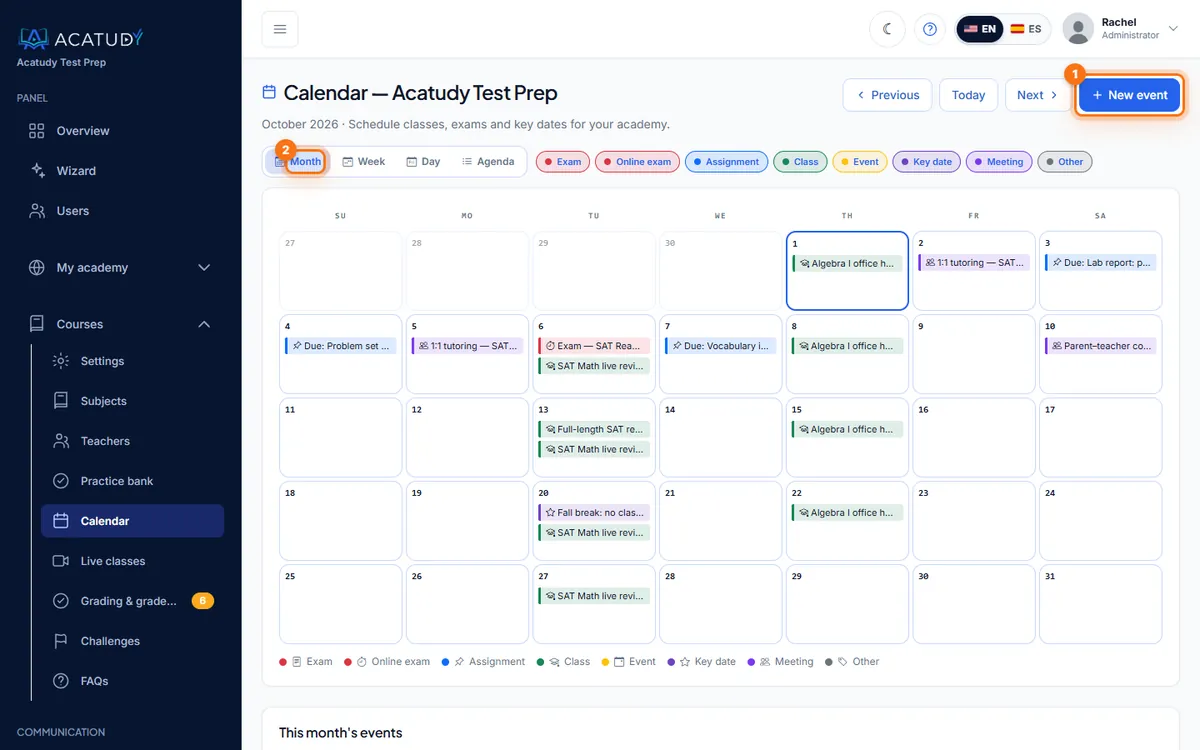
Academy calendar with the New event button. -
Fill in the details
- Title: e.g. AP Biology review session.
- Subject: pick one so only its students see it, or — Whole academy — for everyone (e.g. Thanksgiving break — no classes).
- Type: Exam, Online exam, Assignment, Class, Event, Key date, Meeting or Other.
- Start and End (optional), plus a description (room, Zoom link, what to bring).
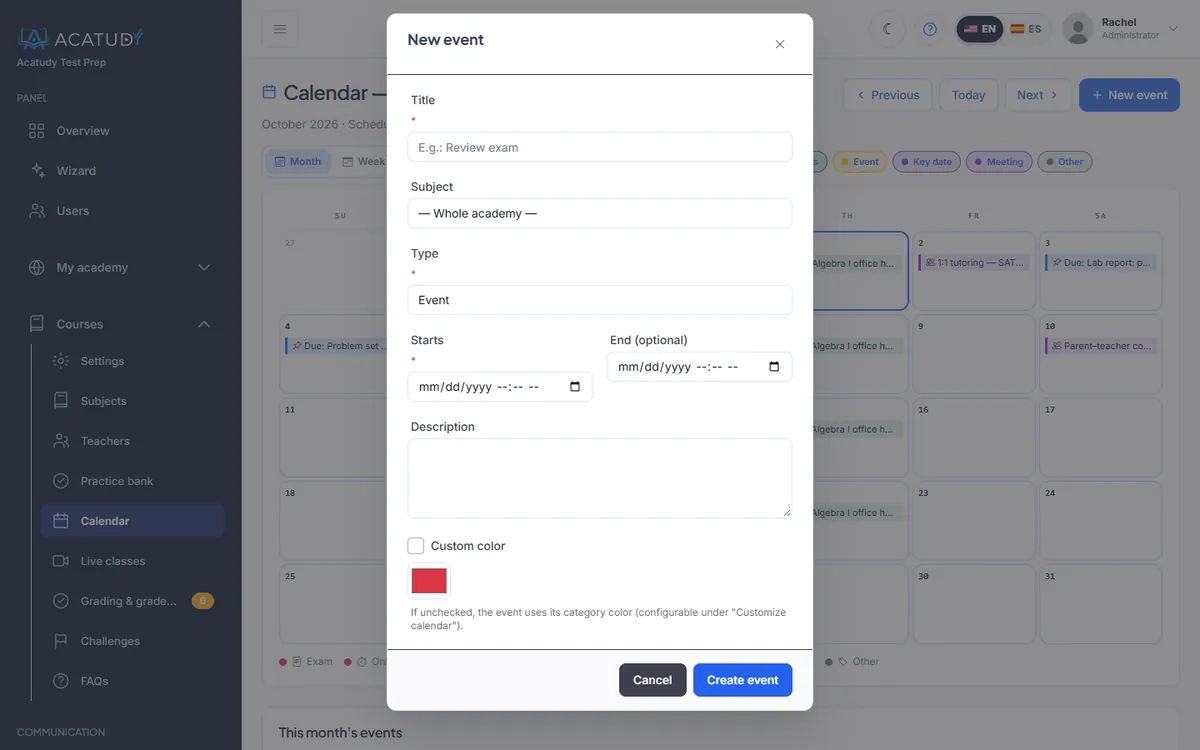
New event form with subject and type. -
Save
Students of that subject see it in their calendar right away, and they get a notification for new events.
Views, filters and colors
- Views: Month, Week, Day and Agenda (the next 30 days as a list, great on a phone).
- Filters: show or hide event types; Clear filters brings everything back.
- Colors: Customize calendar sets a color per type (e.g. exams in red, classes in blue). Restore defaults undoes it. A single event can also have its own Custom color.
Tip: plan the semester in one sitting
Add the key dates first (first day of classes, holidays, SAT test dates, report card day), then the assignments with Visible from and Deadline. The calendar builds itself and students always know what's next.
Who sees what
| Role | Sees | Can edit |
|---|---|---|
| Admin | Everything | All manual events |
| Teacher | Events of their subjects | Events of their subjects |
| Student | Academy-wide events plus those of their subjects, including due dates and exams | Nothing |
Frequently asked questions
Can I add a calendar block to the student home?
Yes. In My academy → Designer → Appearance → Student home, turn on the Calendar block and move it with the arrows to the position you want.
Does the calendar need a module?
Yes, the Calendar module, included in every plan. Turn it on in My academy → General → Modules if you don't see it.
Follow this guide in your own academy
Create it free in a couple of minutes and keep your admin panel open next to this guide.
Open a ticket from Help → Support in your panel: we reply within 24–48 h depending on your plan.