
How courses, subjects and units fit together
Plan your catalog like a US school: courses (Grade 10, SAT Prep) contain subjects (Algebra II, Biology), and each subject is split into units with lessons, assignments and tests.
On this page
In this topic 5
In this guide
- The three levels of your catalog and how students see them.
- Create courses and clone one for next school year.
- Create subjects and split them into units.
- Don't mix them up: question-bank Topics and Units are a separate taxonomy.
The big picture
Your catalog has three levels. Here's how Brightpath Tutoring organizes it:
Course            Grade 10                     SAT Prep 2026
  └─ Subject        Algebra II   Biology         SAT Math   SAT Reading & Writing
       └─ Unit        Unit 1: Linear functions     Unit 1: Heart of Algebra
                      Unit 2: Quadratics           Unit 2: Problem Solving & Data
└─ videos, PDFs, links, assignments, unit test- Course (Courses → Courses): a grade level or program. Students are assigned here and see every subject inside it.
- Subject (Courses → Subjects): what you teach, with its own cover, color, teacher, certificate and grading weights.
- Unit: a chapter inside a subject that holds the lessons: resources, videos, assignments and a random unit test.
What your plan limits
Plans limit the number of courses (Free 1, Basic 3, Professional 10, Institutional 20), not subjects or units. A single course can hold as many subjects as you need.
Create a course
-
Open Courses
Go to Courses → Courses and click New course.
-
Name it the way families say it
Enter a Name (up to 120 characters), e.g. Grade 10, AP Prep 2026–27 or SAT Bootcamp — Summer, and an optional description. Click Create course.
-
Add subjects and students
Each course has two panels: Subjects in this course and Students in this course. Tick the students and click Save students. If you only have one course, every student sees it automatically.
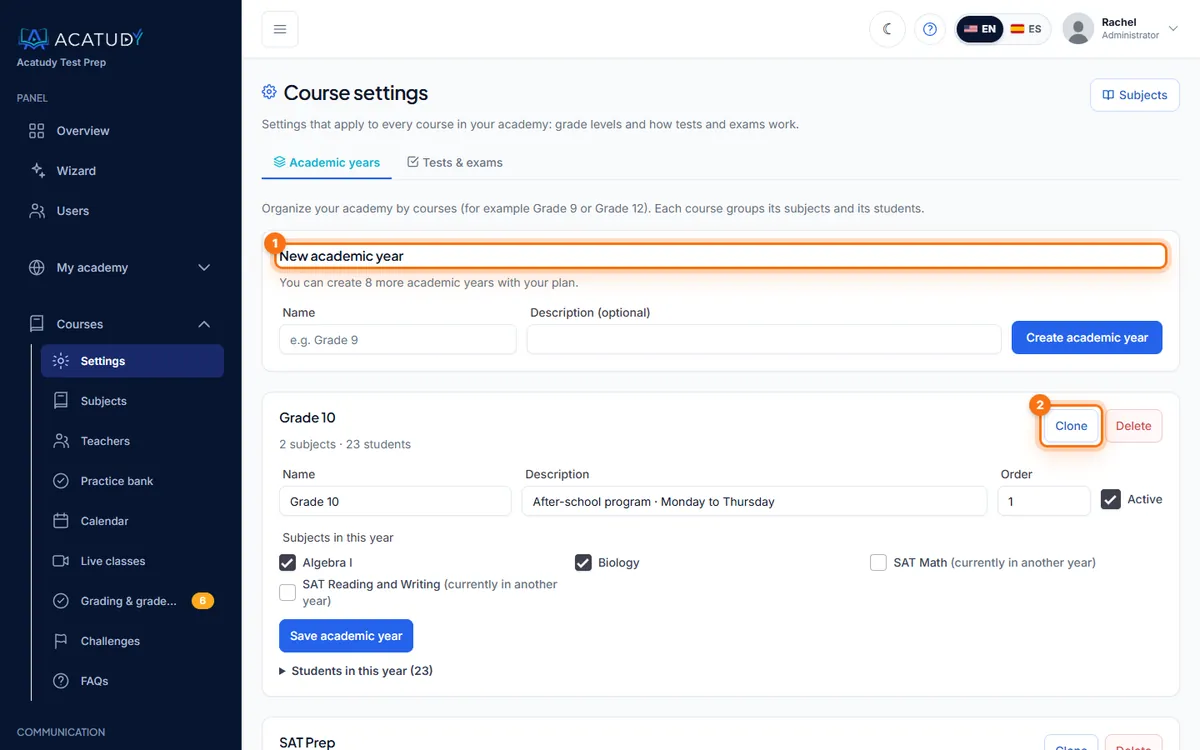
Courses page with New course and Clone.
Tip: clone last year in one click
At the start of a new school year, use Clone on Grade 10 (2025–26) and name the copy Grade 10 (2026–27). Subjects, units, resources, assignments, tests, videos and files are copied; students, teachers, submissions and grades are not, so you start clean.
Create a subject
-
Open Subjects and add one
Go to Courses → Subjects and create a new subject. Give it a Title (e.g. Algebra II), choose its Course (or leave it without one to make it common to the whole academy) and add a description.
-
Make it recognizable
Upload a cover image (max 2 MB) and pick a block color and icon: this is the card students see on their home.
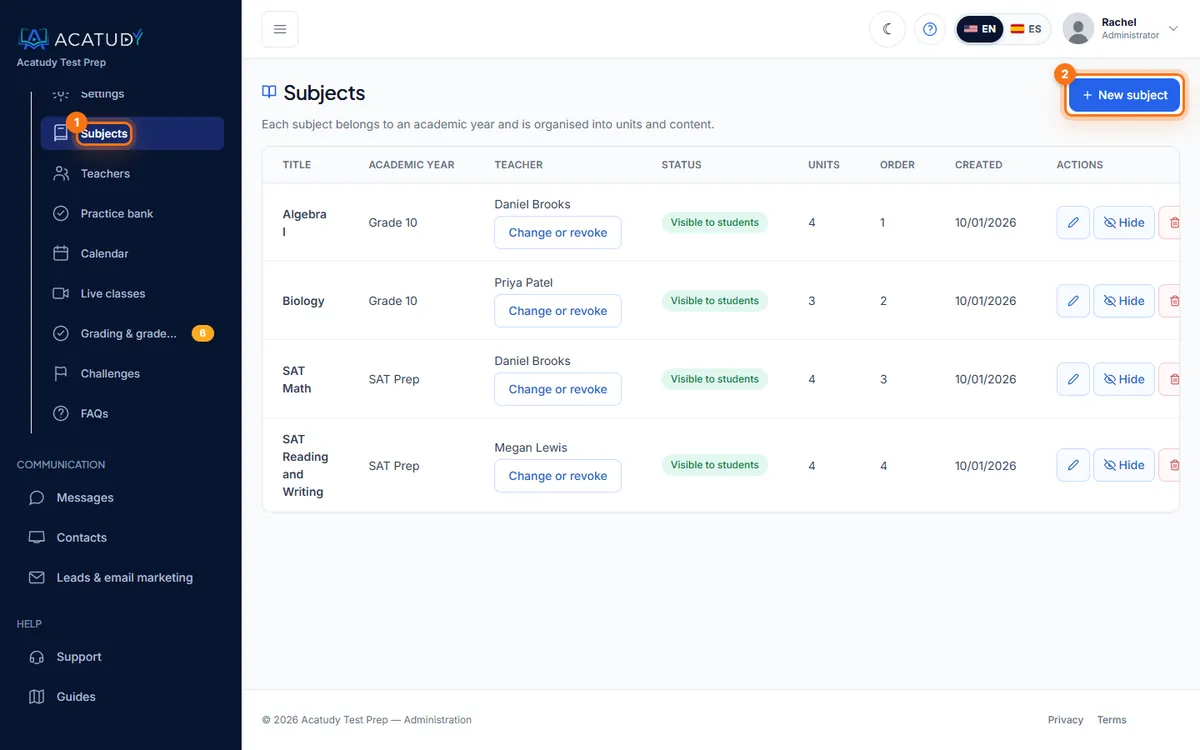
Subjects list with course, teacher and units. -
Create and add units
Click Create and add units. The subject is created active and you land on its edit page.
On the subject page you'll find all its settings: Student view (inherit from the academy, vertical or visual blocks), Sequential progress (lock content in order), block customization, Certificate, Units, Evaluation (grading weights) and Teachers.
Split the subject into units
-
Add a unit
In the Units section click New unit, enter a title (e.g. Unit 2: Quadratic functions), a description and, optionally, a unit color. Click Create unit.
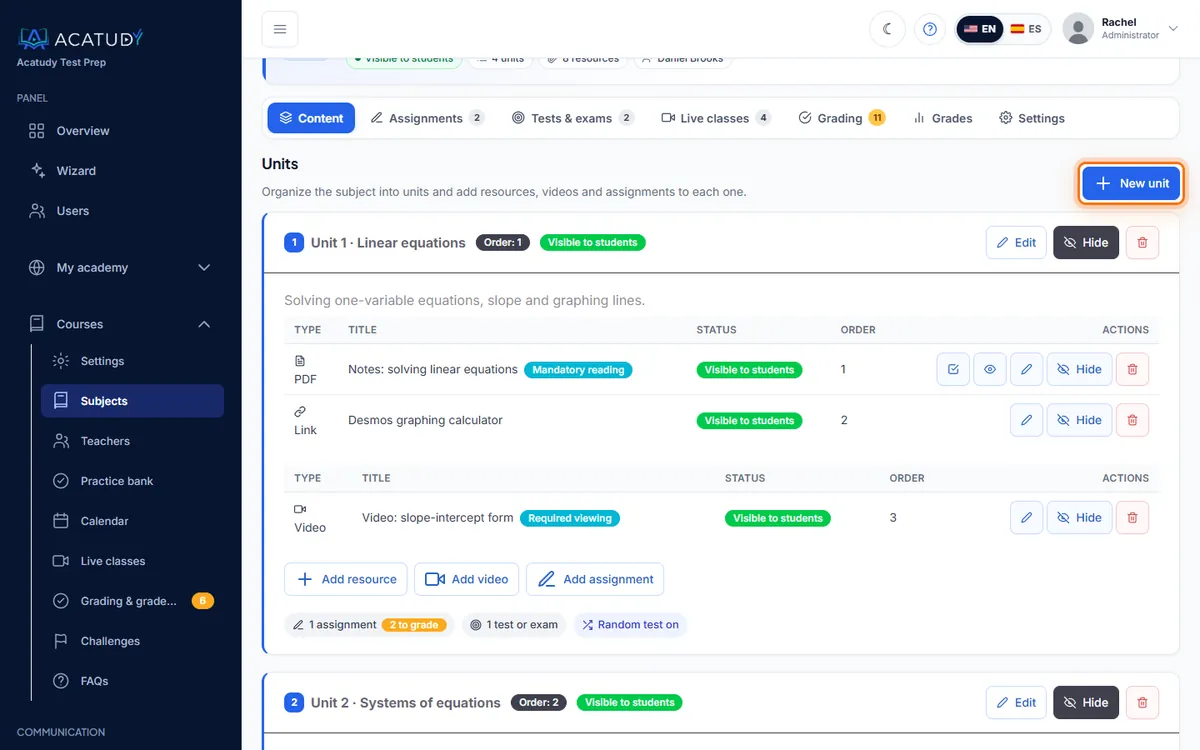
Units section of a subject with the New unit button. -
Fill it with content
Add resources (PDF, image, video, document or link), interactive videos and assignments. See Add lessons, videos and required reading.
-
Optional: a random unit test
Each unit can offer a Random unit test: set the number of questions per test (1–200, default 10) and tick which practice-bank units feed it. Every attempt draws a different set of questions.
You can activate, deactivate or delete units at any time. Inactive units are hidden from students and don't count toward progress.
Don't confuse them: question-bank Topics and Units
Under Courses (visual mode) you'll also see Topics and Units. Those organize your question banks, not your subjects:
| Subject units | Question-bank topics and units | |
|---|---|---|
| Where | Inside each subject (Courses → Subjects → (your subject)) | Courses → Topics / Units (visual mode) |
| Holds | Lessons: resources, videos, assignments | Questions for practice tests and exams |
| Example | Algebra II → Unit 2: Quadratics | Topic SAT Math → Unit Linear equations → 120 questions |
They connect in two places: the random unit test (you pick which bank units feed it) and the Target unit of an exam.
Frequently asked questions
What happens if I delete a course?
Its subjects are kept and become “no course”. Nothing is lost.
Can students go through units in order?
Yes. Turn on Sequential progress → Lock content in order in the subject: each item stays locked until the student completes the required ones before it.
Can a teacher manage only one subject?
Yes. Assign the teacher from the subject page. See Invite teachers and assign subjects.
Follow this guide in your own academy
Create it free in a couple of minutes and keep your admin panel open next to this guide.
Open a ticket from Help → Support in your panel: we reply within 24–48 h depending on your plan.