
Connect your own domain (CNAME or A record) with automatic HTTPS
Serve your academy at learn.yourschool.com or yourschool.com: add the domain in My academy → General, create a CNAME (or an A record) at GoDaddy, Namecheap or Cloudflare, and we verify it and enable HTTPS for you.
On this page
In this topic 7
- Design your student area: styles, logo, colors, home and menu
- Build and publish your website with the Website Builder
- Connect your own domain (CNAME or A record) with automatic HTTPS
- SEO and Google Search Console: sitemap, robots.txt and site verification
- Design your sign-in and sign-up pages: 14 layouts with your image and text
- FAQs for your students and visitors: help center, order and FAQ rich results
- WordPress plugin: sell your courses and add single sign-on
In this guide
- Choose between a subdomain (recommended) and a root domain.
- Create the DNS records at your domain provider.
- Verification and HTTPS: what happens automatically.
- Fix the most common problems.
Before you start
- Custom domains are included in the Basic and Professional (1 domain) and Institutional (1 domain per academy: an Institutional account can run up to 3 academies, so up to 3 domains) plans. On Basic, the site shows a small “Powered by Acatudy” footer; on Professional and Institutional your site shows only your brand. Your built-in address, e.g.
brightpath.acatudy.com, doesn't count. - You need access to your domain's DNS settings (GoDaddy, Namecheap, Google Domains/Squarespace, Cloudflare…).
Subdomain or root domain?
| Subdomain (recommended) | Root domain | |
|---|---|---|
| Example | learn.brightpathtutoring.com or www.brightpathtutoring.com | brightpathtutoring.com |
| DNS records | 1 CNAME | 1 A record |
| When to use it | You already have a main website elsewhere, or you want the simplest setup | Your whole brand lives on Acatudy |
1. Add the domain in Acatudy
-
Open the Custom domain card
Go to My academy → General → Academy details and find Your own domain.
-
Type the domain and click Add domain
Enter exactly the address you'll use, e.g.
learn.brightpathtutoring.com. It appears in the list as pending, together with the TXT record (Host and Value) you'll need if you use an A record on the root domain. If a domain isn't verified within 14 days, it's released: it disappears from the list and you have to add it again. -
Open "How do I link my domain?"
The panel shows the exact values for your academy: the CNAME target and, for root domains, the IP address for the A record.
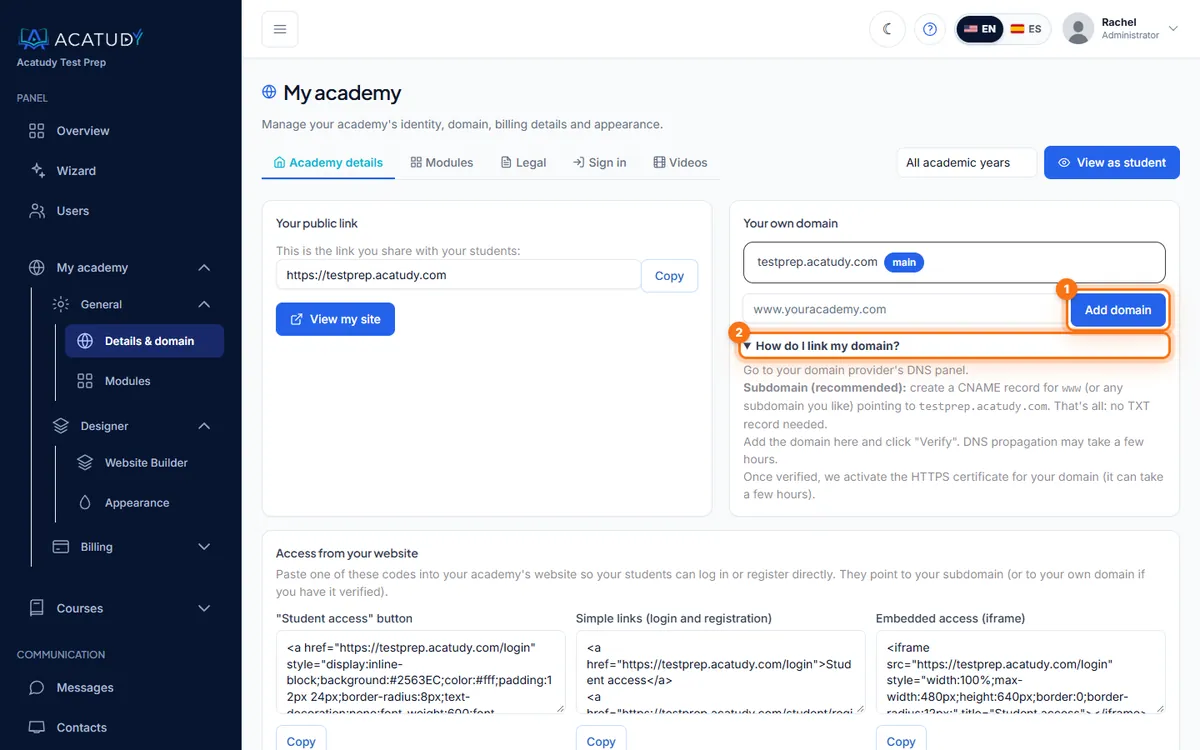
Your own domain card with Add domain and the DNS instructions.
2. Create the DNS records
Step by step for your provider
Screens differ between GoDaddy, Namecheap, Squarespace, Cloudflare, IONOS and others: see Connect your domain: guides by provider.
Option A: subdomain with a CNAME
In your provider's DNS panel, add:
| Type | Name / Host | Value / Points to | TTL |
|---|---|---|---|
| CNAME | learn (or www) | brightpath.acatudy.com (your slug) | Automatic / 1 hour |
That's all: with a CNAME no TXT record is needed.
Option B: root domain with an A record
| Type | Name / Host | Value |
|---|---|---|
| A | @ | The IP address shown in your panel |
| TXT | _acatudy-verify | The value shown next to your domain, e.g. acatudy-verify=3f9c… |
With an A record, the TXT record is required: the IP address is shared by all academies, so the TXT proves the domain is yours. Copy the Host and Value from the panel. The only exception: if www on the same domain already has the CNAME to your academy address, the root doesn't need the TXT. The same applies if your provider offers ALIAS, ANAME or CNAME flattening to the generic acatudy.com address: add the TXT too.
Root and www are one domain
You add one of the two forms, whichever you want as your main address, e.g. www.brightpathtutoring.com. The other one works on its own as long as its DNS also points to Acatudy (a CNAME from www to your academy address, or an A record from the root to the IP). It redirects (301) to the one you added, keeping the path, shares a single HTTPS certificate and counts as 1 domain of your plan. In practice: add www with the CNAME and also create the A record on the root, so anyone who types the root domain reaches your website (and the root then doesn't need the TXT). You no longer need your provider's domain forwarding: if it's active on the root, remove it so you can create the A record.
Cloudflare users
Set the record to DNS only (grey cloud) so we can issue your HTTPS certificate. Also delete any old A, AAAA or CNAME record for the same name (for example, a "parked" page from your registrar).
3. Verification and HTTPS happen automatically
-
Automatic verification
We check pending domains every 10 minutes during the first 14 days. As soon as your DNS points to Acatudy (and the TXT is in place, if you use an A record), the domain switches to verified. You can also click Verify to check right away. If it isn't verified within 14 days, it's released and you have to add it again.
-
Automatic HTTPS
Once verified, we request a free SSL certificate (Let's Encrypt) for your domain and renew it automatically. It's usually active within a few minutes; until then, emails and Google keep using your
brightpath.acatudy.comaddress. There's nothing for you to install. -
Your domain becomes the main address
Your public website, login and student area work on the new domain, and search engines are pointed to it (see SEO and Google Search Console). If the domain later stops pointing to Acatudy, or its certificate fails for several days in a row, Acatudy stops using it as your main address (it goes back to
brightpath.acatudy.com) and emails the academy administrator.
Troubleshooting
| Message | What to do |
|---|---|
| We don't see learn.… pointing to Acatudy yet | DNS hasn't propagated or the record is wrong. Double-check the name and target; wait up to a few hours and click Verify again. |
| …the _acatudy-verify TXT record is missing or its value doesn't match | You use an A record (or a generic CNAME to acatudy.com) and the ownership TXT is missing: create it with the exact Host and Value from the panel (some providers add the domain automatically; then use only _acatudy-verify as the name). It isn't needed with a CNAME to your academy address. |
| Your academy went back to brightpath.acatudy.com and you got an email | The domain stopped pointing to Acatudy, or its HTTPS certificate failed for several days. Fix the DNS (remove any record that gets in the way) and click Verify. |
| Your plan doesn't include a custom domain | Upgrade to Basic or higher in My academy → Billing → My subscription. |
If a domain stays in verification failed, fix the DNS and click Verify. You can remove a domain any time with Delete.
Follow this guide in your own academy
Create it free in a couple of minutes and keep your admin panel open next to this guide.
Open a ticket from Help → Support in your panel: we reply within 24–48 h depending on your plan.