
Privacy, cookies and student data (GDPR): what Acatudy does for you
How the cookie banner works on your website, when Google Analytics loads, how students download or delete their data, what happens when you remove a student, and where to set your academy’s legal texts.
On this page
In this topic 7
- Your Acatudy subscription: plans, prices, invoices and canceling
- Storage and plan limits: what counts, where to see it and how to free up space
- Keep your account secure: passwords, sessions and signing out
- Privacy, cookies and student data (GDPR): what Acatudy does for you
- API tokens: connect your store or website, renew and revoke
- Backups: what your plan includes and how to restore your academy
- Trash: restore deleted questions, topics, units and exams
In this guide
- The cookie banner on your academy website and how visitors change their choice.
- How students download their data or delete their account.
- What happens when you remove a student.
- Your academy's privacy policy, terms and cookie policy.
This guide explains what the platform does. It isn't legal advice: if you work with minors or under specific rules (FERPA, COPPA, GDPR), check your obligations with your advisor.
The cookie banner
Your academy website, sign-in and sign-up pages show a cookie banner the first time someone visits. Visitors choose Accept all, Reject all or Customize, by category:
| Category | What it covers |
|---|---|
| Strictly necessary | Sign-in session and security. Always on. |
| Preferences | Remembering the visitor's language. |
| Analytics | Only appears if you added a Google Analytics ID. |
| Third-party & marketing | Embedded YouTube, Vimeo or Google Maps on your website. |
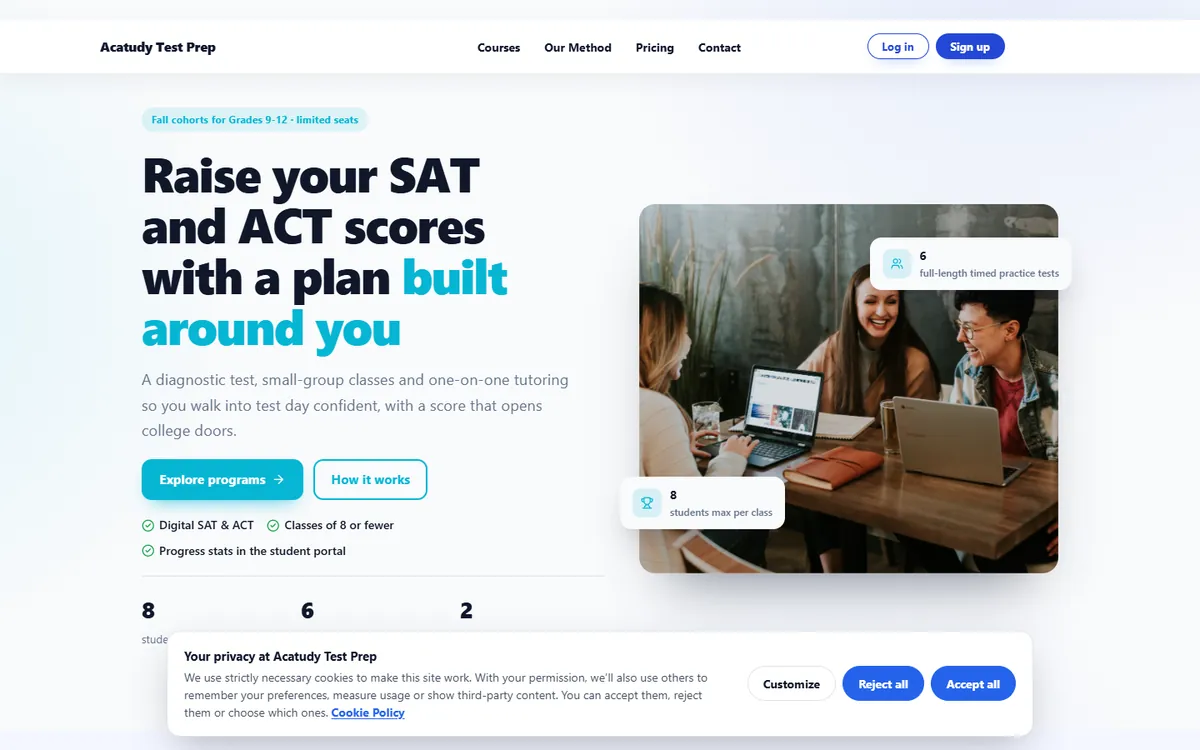
- The choice is saved for 180 days. We keep an anonymous record of each choice (no full IP address) for 24 months as proof of consent.
- If you add a new category later (for example, you connect Google Analytics), visitors are asked again.
- Anyone can change their choice with Cookie preferences in the footer of your website and of the student area. Admins have it in their name menu.
- Inside the student area and the panel the banner doesn't pop up on its own, but the Cookie preferences link is always there.
Google Analytics
If you enter a Google Analytics ID in My academy → General → Details & domain, it's added only to your public website, sign-in and sign-up pages, and it only loads after the visitor accepts Analytics. It never runs in the student area or the panel, and IP addresses are anonymized.
Students: download their data
-
Open My profile
The student opens My profile and scrolls to Privacy and data.
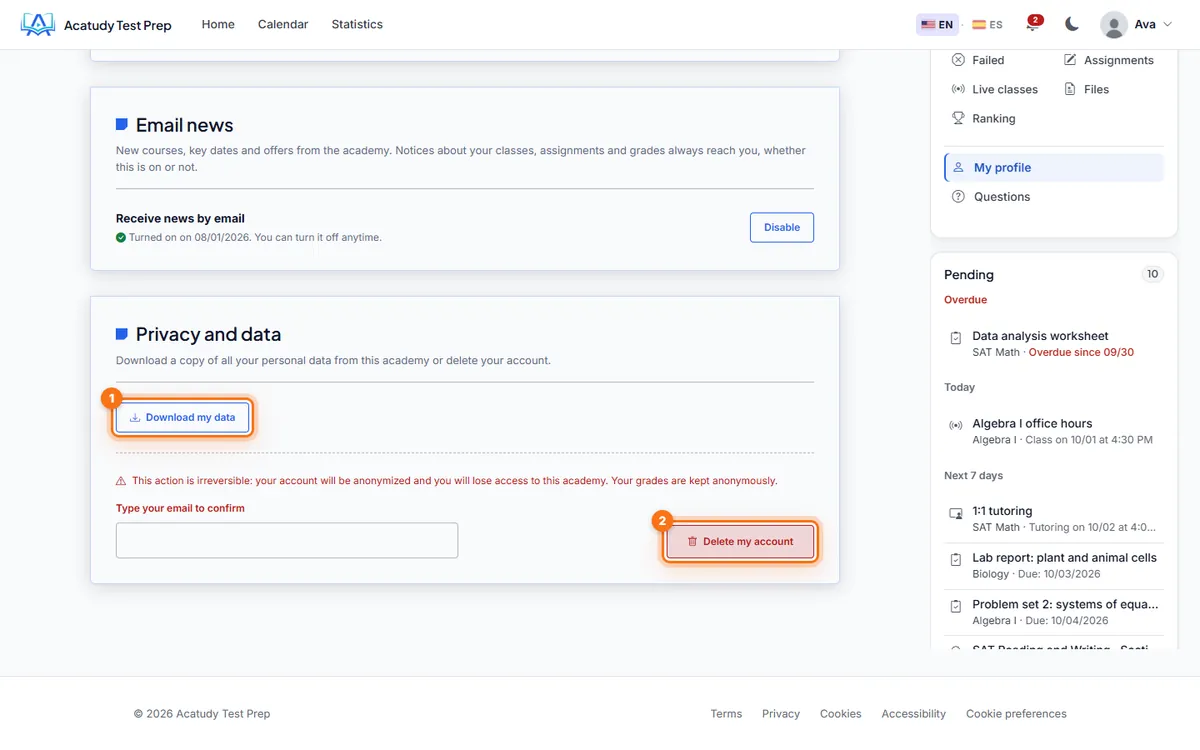
Student profile: Email news and Privacy and data. -
Click Download my data
A JSON file downloads with their profile, academy memberships, exams and tests with their answers, assignment submissions with grades and feedback, messages they sent, certificates, reading confirmations and marketing consents.
If a family asks you for a copy, ask the student to download it from their profile: there's no export of a single student from the panel.
Students: delete their account
In the same Privacy and data section, the student types their email and clicks Delete my account. This can't be undone.
- They lose access to your academy. Their messages with you are kept for 3 years as evidence in case of a claim, with the email and IP address they were sent from, and then deleted.
- Their grades and attempts are kept anonymously, so your class averages don't change.
- If your academy was their only one, the whole account is anonymized: name, email, photo and Google link are removed.
- If they also study at another academy on Acatudy, they only leave yours.
When you remove a student
In Users, the trash icon (Delete → "Delete student?" → Yes, delete and anonymize) applies exactly the same anonymization as Delete my account. The confirmation says so before you accept: "This anonymizes the student…". It can't be undone.
- The student loses access to your academy, their courses and subjects.
- Their messages aren't erased: they're kept for 3 years as evidence in case of a claim, together with the email and IP address each one was sent from. In Messages the conversation stays read-only and the author shows as Deleted student; you don't see their email or IP. Only the Acatudy team can look them up, for a legal request or a claim. After 3 years the conversation is deleted automatically.
- Grades, attempts, submissions, certificates and payments are kept anonymously: your averages and accounting don't change.
- If your academy was their only one, the whole account is anonymized (name, email, photo, Google link) and their sessions are closed. If they also study at another academy on Acatudy, their account stays active there.
- The activity log records who deleted the student, without keeping their email.
So you can honor a request to be forgotten yourself, without a support ticket.
Marketing emails and consent
- On sign-up, the box to receive your news by email is unticked by default. Students who sign up with Google are asked once.
- Students turn it on or off in My profile → Email news, and every marketing email has an unsubscribe link.
- Notices about classes, assignments and grades always reach students, whether or not they accepted marketing.
More in Email marketing and automations.
Your academy's legal texts
-
Open Legal
Go to My academy → General → Details & domain and open the Legal tab. Texts are generated for your country from your tax details (in the US: terms, privacy, cookies and accessibility).
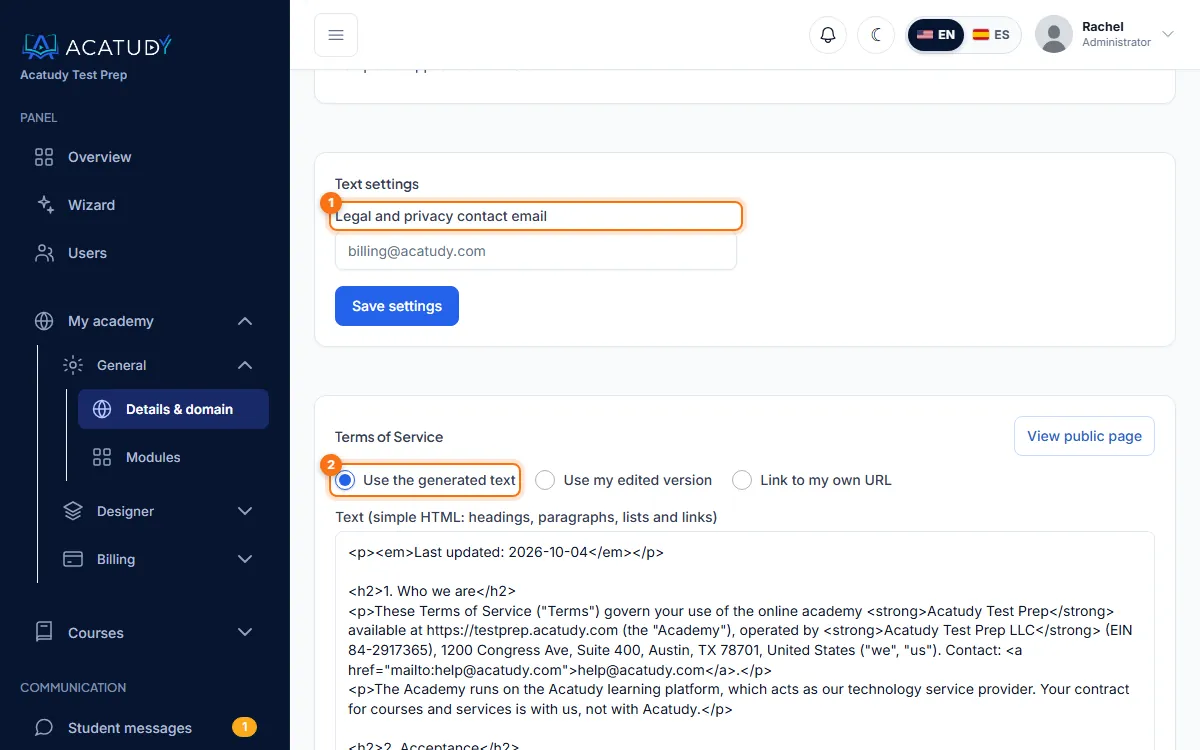
Legal: settings and one card per document. -
Set the contact email
Enter your Legal and privacy contact email. In the US, your texts state that the academy is not directed to children under 13. Click Save settings.
-
Choose a version for each document
Use the generated text, Use my edited version (simple HTML) or Link to my own URL if your lawyer already wrote it. Your footer and sign-up form link to these pages.
Guidance templates
The generated texts are templates, not legal advice. Review them before you publish.
Frequently asked questions
Can I export or delete my whole academy?
Not from the panel. Deleting an academy is permanent and is done by our team after checking ownership: request it with a ticket in Help → Support.
Can I see each visitor's cookie choice?
No. The records are kept as anonymous proof of consent and aren't shown in the panel.
Do you add advertising pixels to my website?
No. The only analytics that can run is your own Google Analytics, and only with the visitor's consent.
Follow this guide in your own academy
Create it free in a couple of minutes and keep your admin panel open next to this guide.
Open a ticket from Help → Support in your panel: we reply within 24–48 h depending on your plan.