
Keep your account secure: passwords, sessions and signing out
Change your password or email, reset a forgotten password, understand how long sessions last and how to sign out everywhere, and follow a few habits that keep your academy safe.
On this page
In this topic 7
- Your Acatudy subscription: plans, prices, invoices and canceling
- Storage and plan limits: what counts, where to see it and how to free up space
- Keep your account secure: passwords, sessions and signing out
- Privacy, cookies and student data (GDPR): what Acatudy does for you
- API tokens: connect your store or website, renew and revoke
- Backups: what your plan includes and how to restore your academy
- Trash: restore deleted questions, topics, units and exams
In this guide
- Change your password and your email (admins, teachers and students).
- Reset a forgotten password.
- How sessions work and how to sign out of every device.
- Good habits for your team, and what we do on our side.
Change your password
-
Open your profile
Click your name in the top-right corner and choose Change password. Teachers also have My profile in their menu.
-
Fill in the Change password card
Enter your Current password, then the New password twice. It must be at least 8 characters; a longer passphrase is safer.
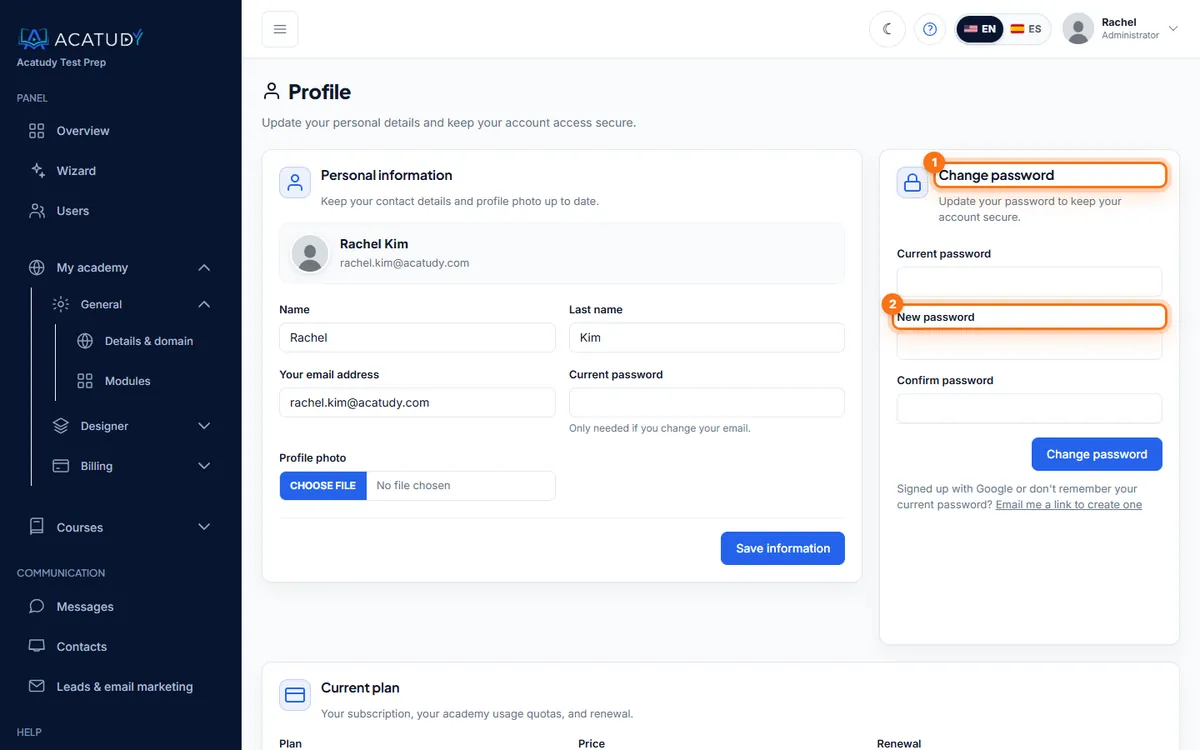
Profile: the Change password card is on the right. -
Click Change password
You'll see "Password changed. We've signed you out on your other devices and sent you an email about it." Every other browser or phone where you were signed in has to sign in again.
Signed up with Google? If you don't have a password yet, or don't remember it, use Email me a link to create one under the card. You'll get a link at your current email.
Students
Students change their email and password in My profile → Sign-in and security: they enter their current password and click Save sign-in details.
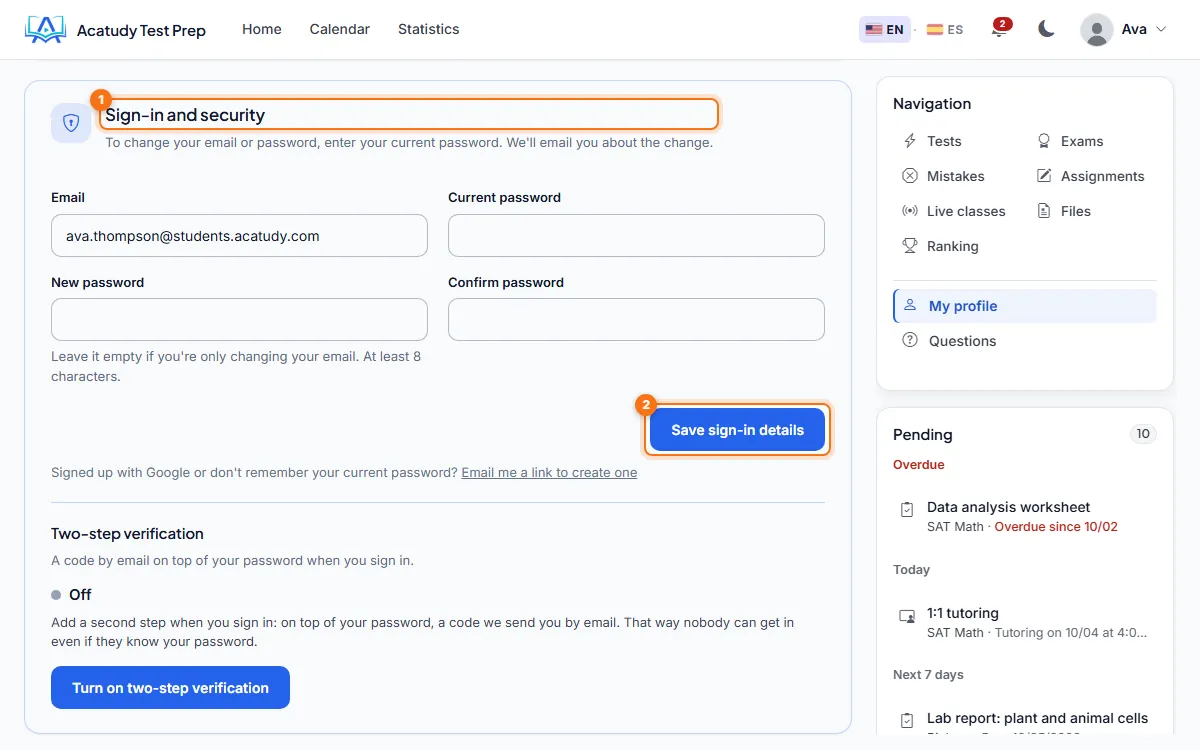
Change your sign-in email
In Personal information (or Sign-in and security for students), type the new email and your Current password, then save. We send a notice to your previous email address, so you'll know if someone else changed it. Use an address only you can open: it's also where password reset links arrive.
Forgot your password
-
Click Forgot your password?
Students see Forgot your login?. It's on the sign-in page:
acatudy.com/academia/loginfor admins and teachers, and your academy's/loginpage for students. -
Enter your email
You'll always see "If that email has an account, we've sent you a link…": we never reveal whether an email is registered. Check your spam folder too.
-
Open the link within 60 minutes
The link works once and expires after 60 minutes. You can request a new one after a minute.
Sessions and signing out
- Inactivity: a session ends after 120 minutes without activity.
- Stay logged in: the admin sign-in page has this box ticked by default. On a shared or public computer, untick it.
- One session per sign-in: each time you sign in, your other open sessions are closed. A device where you ticked Stay logged in can sign you back in automatically, so change your password if you've lost a device.
- Sign out: Log out in your name menu (students: Log out in their menu).
- Sign out everywhere: change your password. It's the way to close every other session at once.
- Too many attempts: after 5 wrong passwords in a row the sign-in is paused for about a minute: "Too many login attempts. Please try again in … seconds."
Teachers' first sign-in
When you invite a teacher, Acatudy creates a random initial password that you see once and that is also emailed. It expires after 7 days. On their first sign-in the teacher must choose a new password of at least 12 characters with uppercase and lowercase letters and numbers. If it expired, use Resend access. More in Invite teachers and assign them subjects.
Good habits
- Use a unique password for Acatudy, ideally from a password manager. Never reuse your email password.
- Give each person their own account: invite teachers as teachers instead of sharing the admin login.
- When someone leaves, revoke their subjects (teachers) or remove them from Users (students), and change any password they knew.
- Check the Recent activity card on your Overview: it lists the latest sensitive actions in your academy, such as teacher assignments or API token changes.
- If you think someone got into your account, change your password at once (that signs out every other device) and open a ticket in Help → Support.
What we do on our side
- HTTPS everywhere, with HSTS, and security headers that block the panel from being embedded in other sites.
- Passwords are stored hashed: nobody, including our team, can read them.
- We email you whenever your password or sign-in email changes.
- Every upload is checked by its real content; programs and documents with macros are rejected.
- If our support team needs to look at your academy, access is limited to 30 minutes, recorded in the audit log, and can't delete anything or touch billing, payments, domains or Google credentials.
Two-step verification
In your profile, under Two-step verification by email, click Enable: we send you a test code and, once you enter it, every sign-in (also with Google) asks for a 6-digit code we email you. It expires in 10 minutes. You can check Remember this device for 30 days and, from the same card, Sign out of all trusted devices. A remembered device only counts from the same connection (same IP): from another network we ask for the code again, and we email you when someone enters it from a browser or connection we didn't know. Changing or resetting your password forgets every trusted device. We recommend it above all to academy owners and admins; the owner can require it for all admins and teachers in My academy › Sign-in.
Follow this guide in your own academy
Create it free in a couple of minutes and keep your admin panel open next to this guide.
Open a ticket from Help → Support in your panel: we reply within 24–48 h depending on your plan.