
Get help: support tickets and response times (SLA) by plan
Open a ticket from your panel, get a guaranteed first-response deadline based on your plan (24 or 48 hours) and follow the whole conversation in one thread.
In this guide
- Open a support ticket and write it so we can solve it fast.
- Response times (SLA) for each plan.
- Follow the conversation and get notified by email.
Open a ticket
-
Go to Support
In your admin panel, open Help → Support and click New ticket.
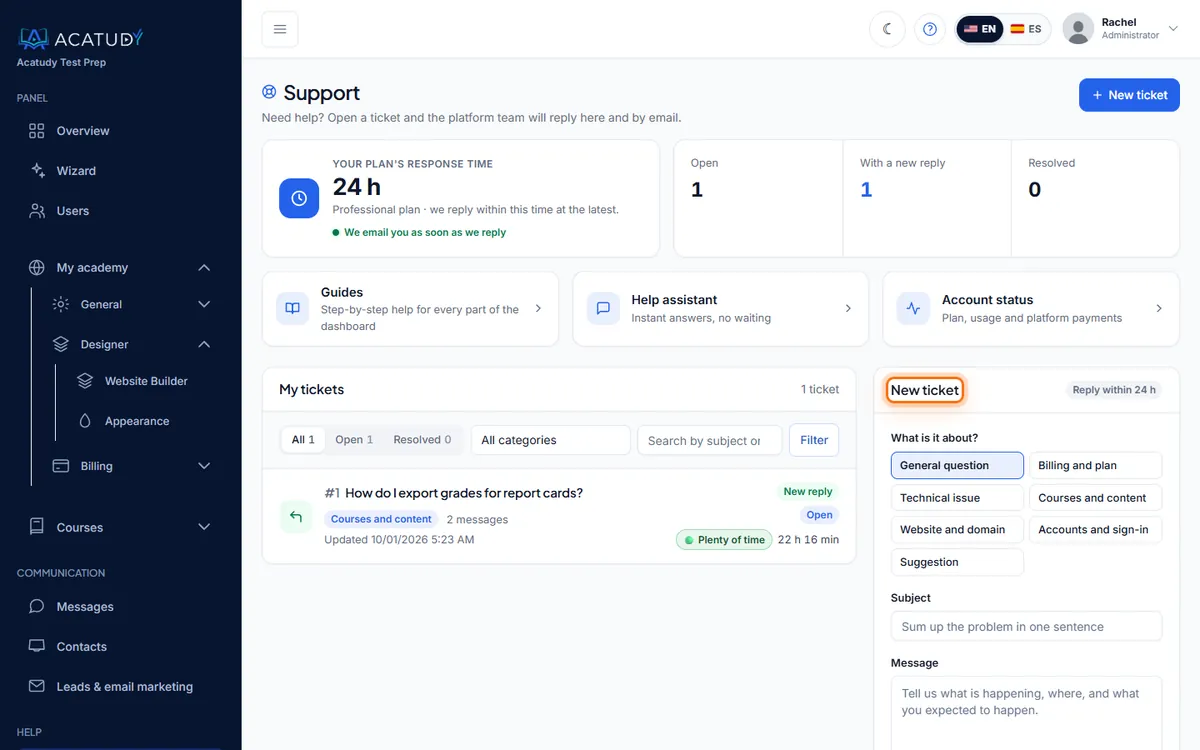
Support page with the New ticket form. -
Write a clear subject
Up to 150 characters, specific enough to triage at a glance: "Custom domain learn.brightpathtutoring.com stuck in pending" beats "Help!".
-
Describe the problem
Up to 5,000 characters. Include:
- What you were trying to do and what happened instead.
- Where: the menu path or the page URL.
- Who is affected: e.g. "all students in Grade 10" or "only emma@…".
- Any error message, copied word for word.
-
Click Create ticket
The ticket opens as a conversation. You'll see the promised response time right away.
Response times by plan
| Plan | First-response commitment |
|---|---|
| Free | 48 hours |
| Basic | 48 hours |
| Professional | 24 hours |
| Institutional | 24 hours |
The deadline is fixed when you create the ticket and shown on it: "We'll get back to you before Tue, Oct 6, 3:40 PM." Hours are calendar hours (weekends included). Changing plan later doesn't alter tickets already opened.
Tip: check the guides first
Most questions about domains, imports, exams or payments are answered step by step in this Help Center. Search from the top of the guides page.
Follow the conversation
- Reply in the same ticket with Send; the whole history stays in one thread.
- When our team answers, you get an email (to your academy's email, or to whoever opened the ticket).
- Tickets are Open or Closed. Our team closes them once solved; if the problem comes back, open a new ticket and mention the previous one.
Frequently asked questions
Can I attach screenshots?
Not yet. Describe the steps and paste any error text; if we need a screenshot we'll tell you how to send it.
Is there phone or live chat support?
Support is by ticket, with the response times above.
Can my teachers open tickets?
Support is part of the admin panel, so tickets are opened by the academy's admins.
Follow this guide in your own academy
Create it free in a couple of minutes and keep your admin panel open next to this guide.
Open a ticket from Help → Support in your panel: we reply within 24–48 h depending on your plan.