
Invite teachers, set what they can do and let them enroll students
Give each tutor access to just the subjects they teach: they manage units and exams, grade submissions, follow their students and can enroll new ones, without touching billing, settings or your website.
On this page
In this guide
- The roles in your academy and exactly what a teacher can do.
- Invite a teacher from a subject.
- Resend the access or revoke it.
- Let teachers enroll students in their subjects.
Roles in your academy
| Role | Can do |
|---|---|
| Owner / Admin | Everything: students, all subjects, website, payments, plan and settings. |
| Teacher | Only the subjects assigned to them (see the table below). |
| Student | Their own learning area. |
What a teacher can and can't do
| In their subjects, a teacher can | A teacher can't |
|---|---|
|
|
If a teacher opens a page outside their permissions, they see "As a teacher you can only access your assigned subjects." Changes to their subjects apply at once.
Invite a teacher
Teachers are added from the subject they'll teach. Example: Ms. Rivera will teach Grade 10 → Algebra I.
-
Open the subject's Settings
Go to Courses → Subjects, open Algebra I and click the Settings tab.
-
Assign the teacher
In the Subject teacher block click Assign teacher and enter the Teacher email and, optionally, first and last name.
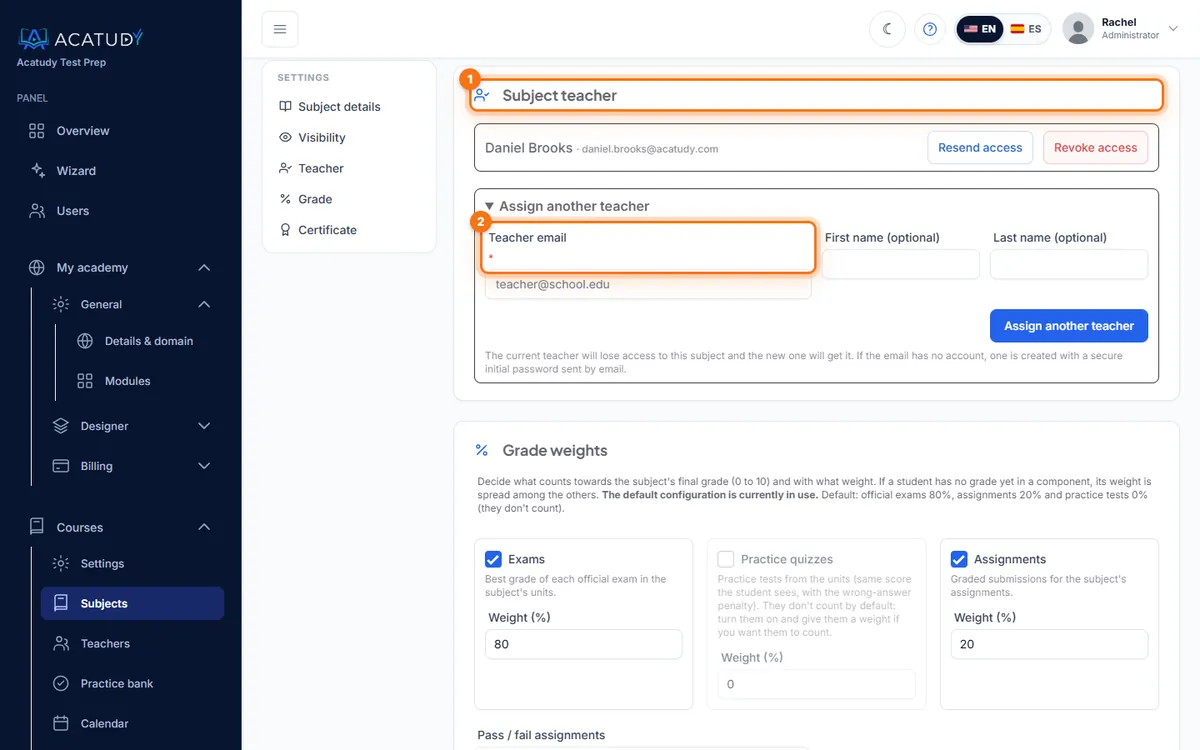
Subject teacher block with the Assign teacher form. -
Copy the initial password
If the email has no Acatudy account yet, one is created with a secure initial password. It's shown to you once ("Copy it now: it won't be shown again") and also sent by email. It expires in 7 days and must be changed on first sign-in, to a password of at least 12 characters with uppercase and lowercase letters and numbers.
-
The teacher signs in
The email "Your teacher access at Acatudy Test Prep" has a Sign in as a teacher button that opens
acatudy.com/academia/login. If the teacher already had an account, they get "You've been assigned a subject" and keep their current password.
One teacher per subject
Each subject has one teacher. Assign another teacher replaces the current one: the previous teacher loses access to that subject and the new one gets it. A teacher can teach as many subjects as you like: just assign them in each one. The email of a student or an admin of your academy can't be made a teacher.
Manage your teachers
Courses → Teachers lists every teacher with their email, subjects and status: Awaiting first sign-in or Active. This menu item appears in vertical (LMS) mode.
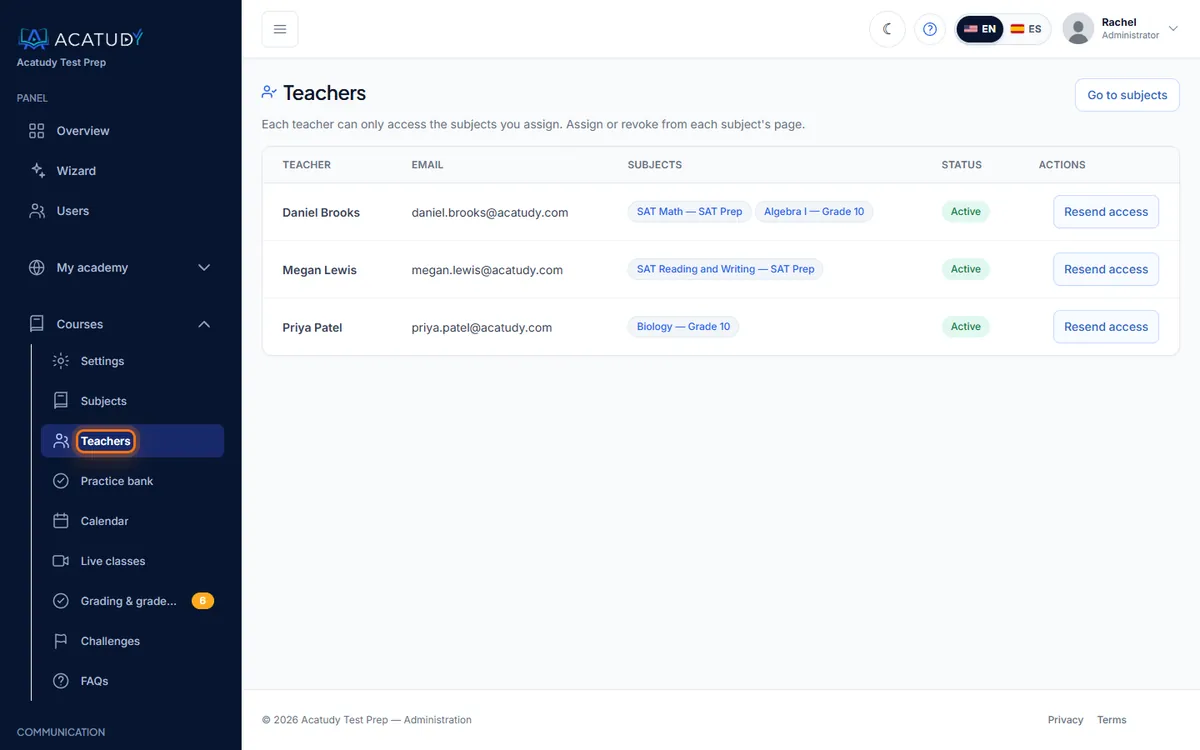
- Resend access (on the Teachers page or in the subject): generates a new 7-day password and emails it; the previous one stops working. If the teacher's account is also used at another academy, they get a password reset link instead.
- Revoke access (in the subject's Subject teacher block): removes the teacher from that subject immediately. Their content and the students' submissions are kept. A teacher without subjects stays in the list as No subjects.
What a teacher sees
Teachers sign in at acatudy.com/academia/login (or with Google from your website). Their menu has My subjects, Grading & gradebook, Calendar, Live classes (Professional and Institutional plans), My profile and, in visual mode, Assignments. Each subject card shows the number of students and submissions to grade, with shortcuts to units, resources, assignments, exams, submissions, students and statistics.
Let teachers enroll students
A teacher can add students to the subjects they teach without asking you, and only to those: never to other teachers' subjects or to a whole course.
-
Open the subject's students
In My subjects, the teacher clicks Students on the subject card.
-
Paste the emails and click Enroll
In Enroll students, they paste one or several emails (one per line or separated by commas). Students who already belong to the academy are added; new emails get an account and an email "Your access to Acatudy Test Prep" with a Create my password link valid for 7 days. The teacher never sees or sets passwords.
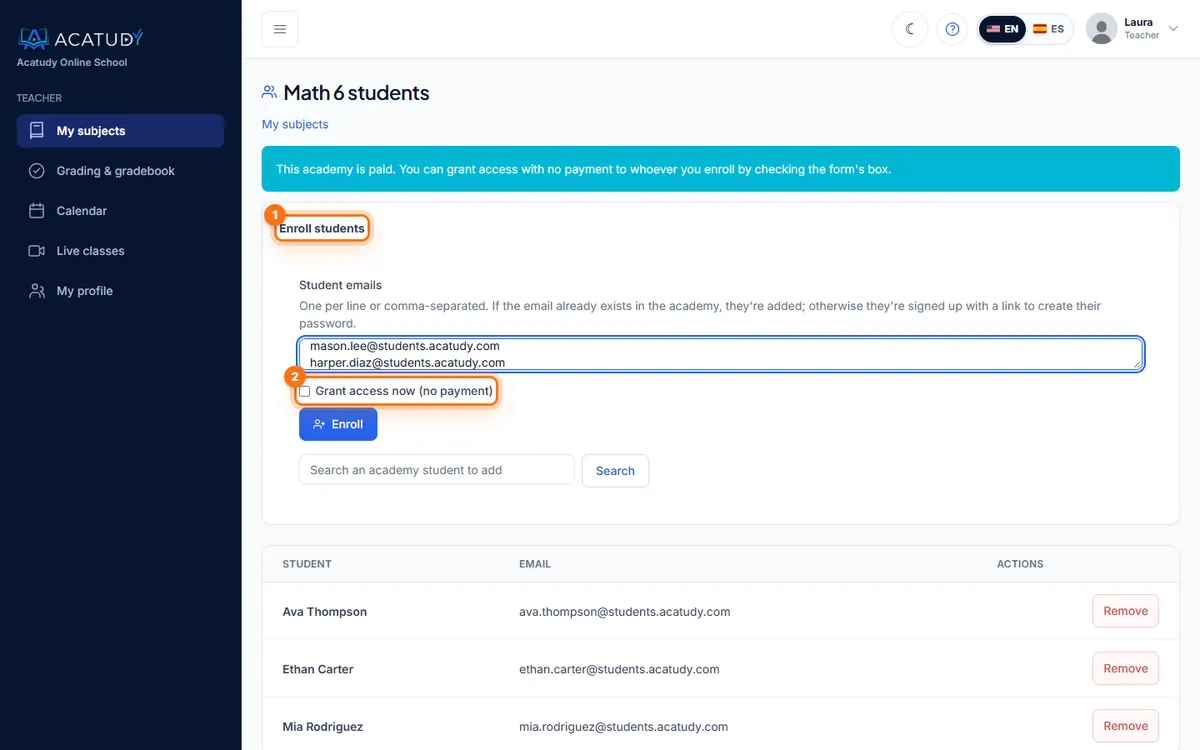
Enroll students, as the teacher sees it. -
Tick the subjects
Under Enroll in your subjects the teacher sees only their own subjects (they can have several, even in different courses). The subject whose page they're on comes ticked; they tick any others the student should join. Example: Ms. Rivera teaches Algebra I and Geometry in Grade 9 and Physics in Grade 10, so she can enroll a student in any of those three, and nothing else.
-
Check the result
The Enrollment result table shows each email and what happened. If your plan has a student limit, the notice at the top also says "You have … seats left on your plan"; when it's full, the remaining emails aren't enrolled.
- Free academy: everyone the teacher enrolls has access right away.
- Paid academy: enrolled students have no access until they pay or you give it to them, unless you tick Teachers can grant access (no payment) in Users. Then the teacher sees a Grant access now (no payment) box. See Add and manage students.
- The student sees only the ticked subjects (plus any subjects shared by the whole academy), not the rest of the course. This holds even if your academy has a single course.
- If the student was already in the academy and saw everything (an academy with a single course where you never assigned courses), nothing changes: the result says they already see those subjects.
- The Enrollment column of the list shows This subject or Whole course. Remove takes the student out of that subject only. Students you enrolled in the whole course show Managed by the administration: only you can remove them.
- You (the admin) can use the same page to enroll in individual subjects or tick The whole … course, and in Users → Edit you'll find Individual subjects next to the courses.
Frequently asked questions
Is there a limit on teachers?
No. No plan limits the number of teachers, and teachers don't count as students.
Can an admin also be a teacher?
Admins already have full access to every subject, so they don't need to be assigned.
Can I create custom roles or permissions?
Not at the moment: the roles are admin (full access) and teacher (their subjects only). The only extra option is letting teachers grant access without payment.
Follow this guide in your own academy
Create it free in a couple of minutes and keep your admin panel open next to this guide.
Open a ticket from Help → Support in your panel: we reply within 24–48 h depending on your plan.