
Ranking and statistics: track progress and motivate students
Choose which statistics students see, set how the final grade is weighted, use the leaderboard to add friendly competition and spot who needs help with per-subject reports.
On this page
In this guide
- Configure the student statistics page block by block.
- Set how each subject's final grade is calculated.
- How the ranking and the points leaderboard work.
- Per-subject statistics for admins and teachers.
Student statistics
Every student has a statistics page. You decide what's on it in My academy → Designer → Appearance → Student statistics: turn blocks on or off and reorder them with the arrows, with a live preview.
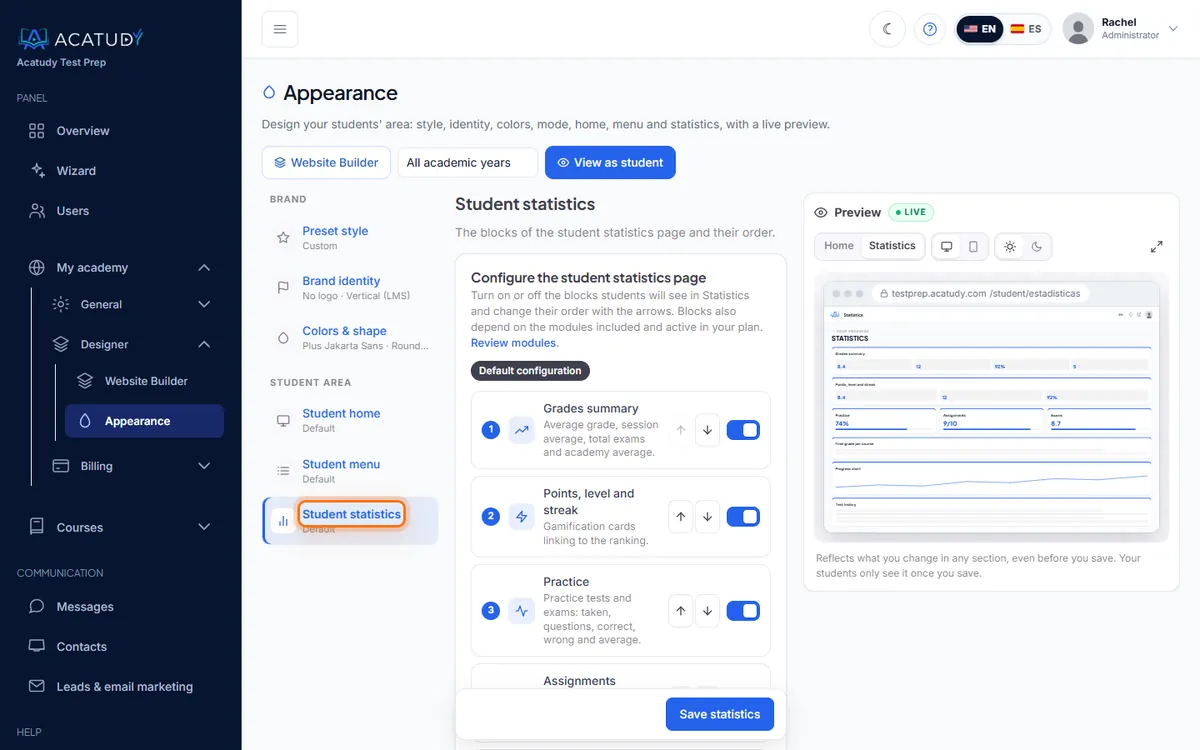
| Block | What the student sees |
|---|---|
| Grades summary | Their overall average and results at a glance |
| Points, level and streak | Gamification: points earned, current level and days in a row |
| Practice | Practice tests taken and accuracy |
| Assignments | Submitted, pending and graded work |
| Exams | Official exam results |
| Final grade per course | Weighted grade for each subject |
| Progress chart | Evolution over the last 7 days |
| Test history | Every test with its date and score |
Blocks that depend on a module your plan doesn't include are hidden automatically. Restore default brings back the original layout.
Set how the final grade is calculated
Each subject's final grade (out of 10) weighs official exams 80% and assignments 20% by default; practice tests don't count unless you give them a weight. Change it in the subject's Settings → Grade weights. The full explanation, with the gradebook and its export to Excel, is in Gradebook and grade weights.
The ranking
The Ranking page shows students ordered by performance with the columns Taken, Correct, Failed, Blank and Average score. Exam attempts weigh more than practice. It also includes a Points leaderboard with points, level, streak and achievements.
- It's recalculated automatically every hour.
- Only students with access (Paid) appear.
- It's part of the Ranking module, included in the Professional and Institutional plans.
Tip: healthy competition
Announce a monthly "Top 3" in class or in your newsletter. Students who see their name climb practice more, and practice is what raises SAT scores.
Per-subject statistics
Each subject has a statistics view with the number of students, units, resources, assignments and exams, the submissions waiting to be graded and average scores. Teachers reach it from My subjects → Statistics on each subject card.
Frequently asked questions
Can a student hide from the ranking?
Students without access (Unpaid) are never shown. There's no per-student opt-out setting.
Why don't I see the Ranking in my menu?
Check that your plan includes it (Professional or higher) and that the module is on in My academy → General → Modules.
Follow this guide in your own academy
Create it free in a couple of minutes and keep your admin panel open next to this guide.
Open a ticket from Help → Support in your panel: we reply within 24–48 h depending on your plan.