
Create timed exams: practice tests, trial exams and official exams
Set up a full-length timed exam like a Saturday SAT practice test: choose the exam type, duration, attempts and wrong-answer penalty, schedule it, and let students review every answer.
On this page
In this topic 8
- Practice bank vs. exam bank: question types, including SAT-style grid-ins
- Import questions from CSV or Excel (with grid-in answers)
- Create timed exams: practice tests, trial exams and official exams
- Written-answer questions (short and essay) and manual grading
- Gradebook and grade weights: how the final grade is calculated
- Generate questions with Quiddy (syllabi, laws and math)
- Question challenges: when a student reports a wrong question
- Practice tests vs. official exams: how tests work and their settings
In this guide
- The three exam types and which one counts toward the grade.
- Create an exam, add questions and publish it.
- Schedule it for a date and lock it until then.
- What students see: START, and PRACTICE only on practice tests.
Pick the right exam type
| Type | How it works | Counts toward the grade? | Use it for |
|---|---|---|---|
| Practice test | Immediate feedback on each question, untimed, unlimited | No | Homework drills |
| Trial exam | Timed and marked at the end, like the real thing | No | A full-length practice exam on a Saturday morning |
| Official exam | Timed, marked at the end | Yes, the only one | Midterms, finals, unit exams |
Scoring rule
Only the official exam counts toward a student's grade, and the official score is the best attempt in real mode. Everything else is practice.
Create the exam
-
Open Exams
Go to Courses → Exams (visual mode) or the subject's Tests & exams tab (vertical mode) and click New exam.
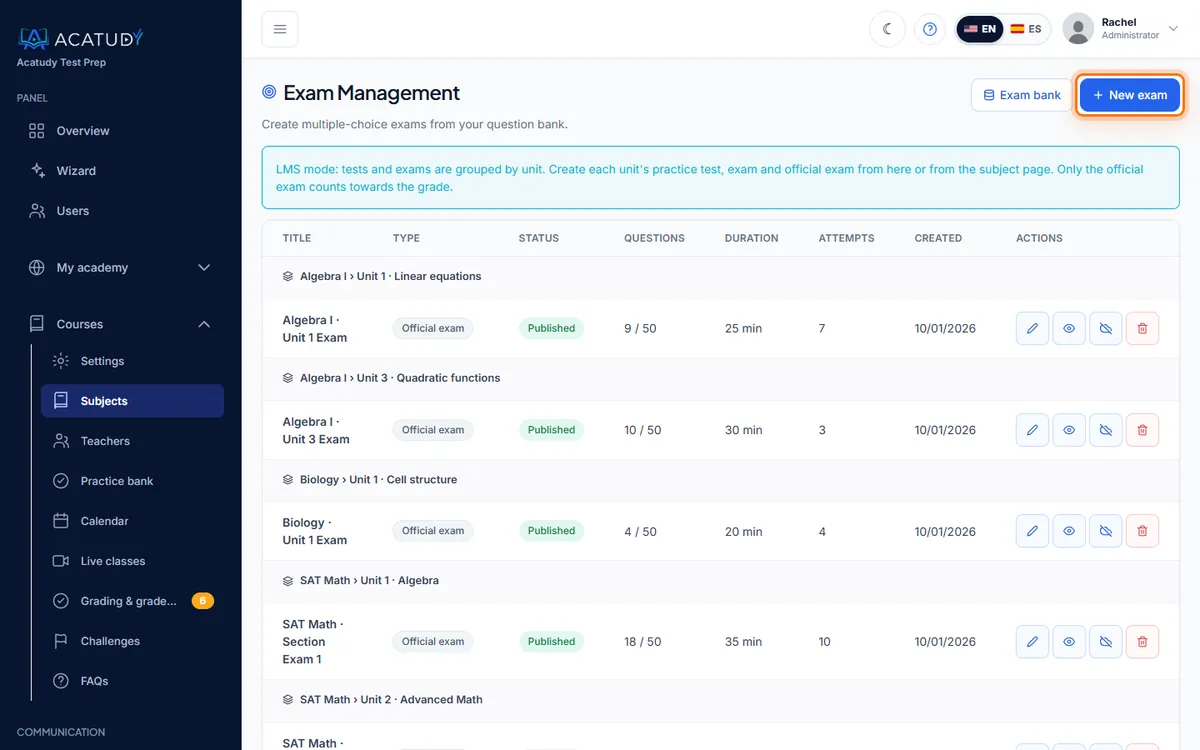
Exams list grouped by subject with the New exam button. -
Fill in the basics
- Title and description, e.g. SAT Math — Full Practice Test #3.
- Duration (minutes): between 5 and 300. The digital SAT Math section is 70 minutes; an ACT Math section, 50.
- Allowed attempts: 1 to 10, or unlimited. The best score is kept.
- Penalty per wrong answer: automatic, or choose how many wrong answers cancel one correct answer (0 = no penalty, like the SAT and ACT). Numeric questions are never penalized.
- Exam type: practice test, trial exam or official exam.
- Target unit (optional): attach the exam to a subject unit so it appears there.
-
Optional: schedule it
Set Exam date and time (optional) and tick Lock until the scheduled date so nobody can start early. Official exams with a date appear automatically in the calendar.
-
Add questions (up to 50)
New exams start as drafts. Add questions from the Exam bank, write new ones, import a CSV/XLSX or use Add questions from the practice bank. An exam holds up to 50 questions and can't be published empty.
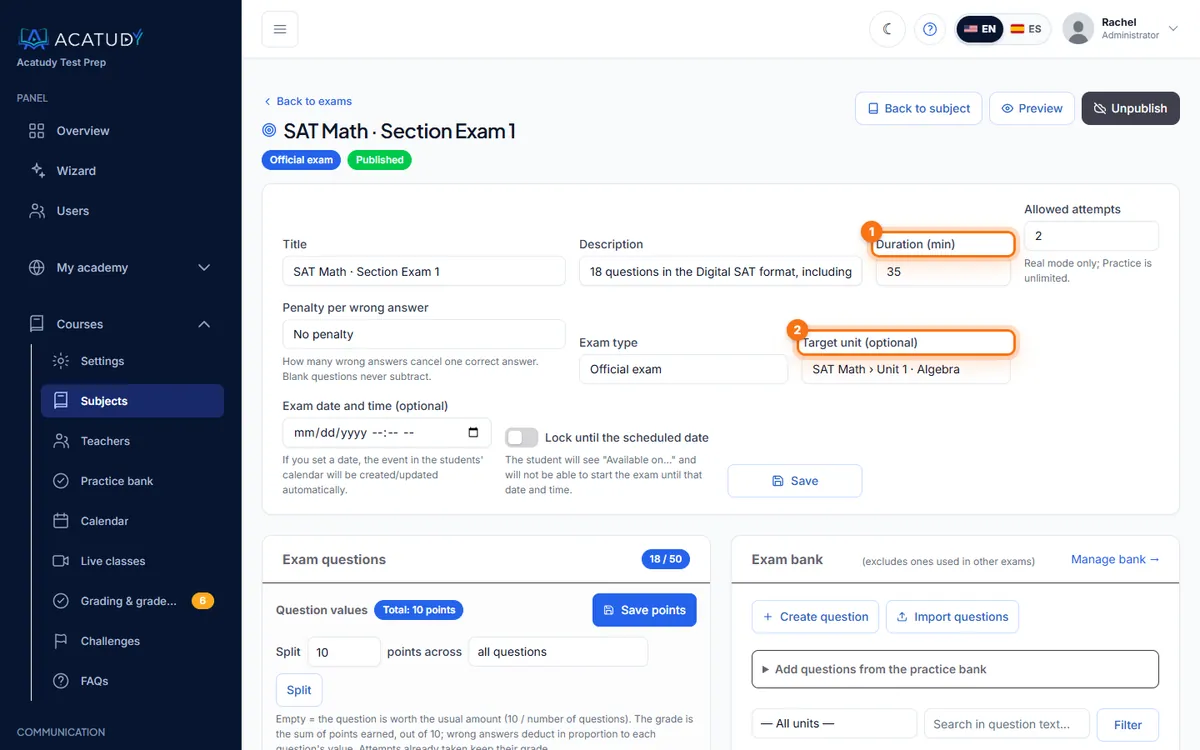
Exam editor: duration, penalty, exam type, target unit and questions. -
Set the order and publish
Drag questions or use the arrows, or click Sort by syllabus to follow your topics. Then publish.
Tip: long exams
A real SAT Math section has 44 questions, so it fits in one exam. For longer papers, split them by section (Reading & Writing — Module 1, Module 2) exactly like the digital SAT does.
Question values (points per question)
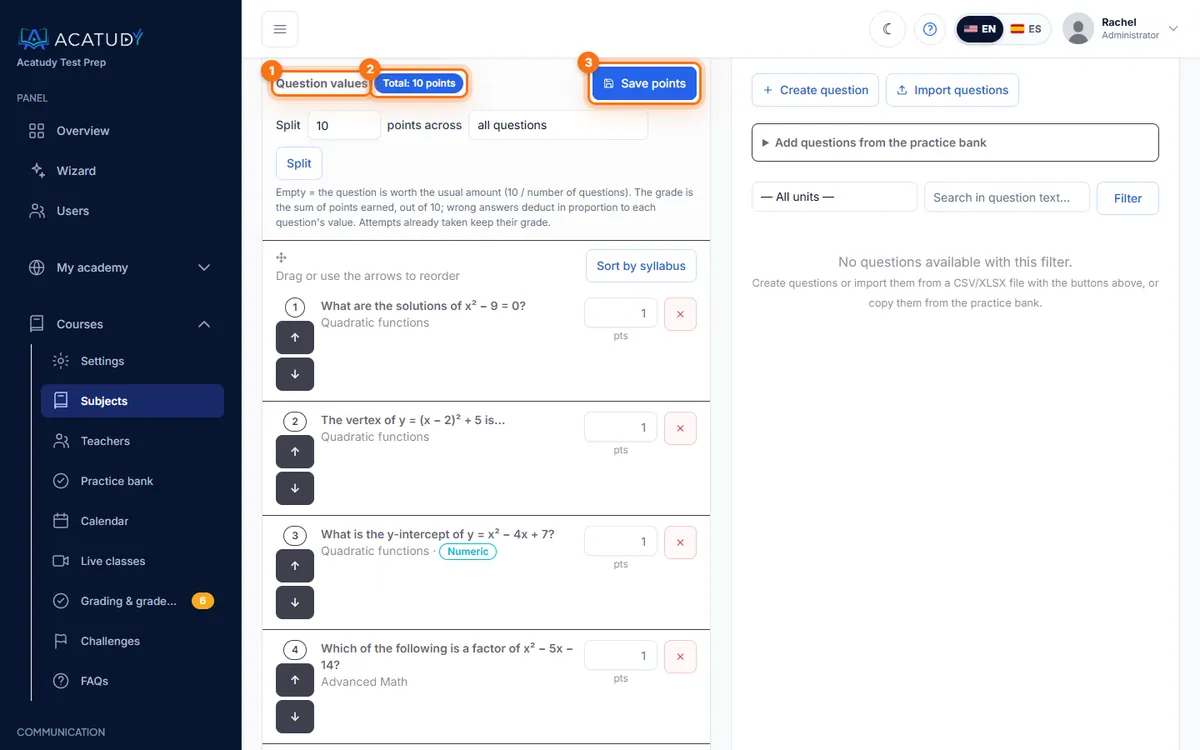
By default every question is worth the same (10 ÷ number of questions). In the exam editor, Question values lets you give each question its own points, for example 1.5 for quick multiple-choice items and 4 for an essay.
- Type the points next to each question, or use Split 10 points across all questions, multiple-choice questions, numeric questions or written-answer questions to fill them at once. Click Save points.
- The header shows Total: N points. If it doesn't add up to 10, you'll see a warning: the grade is calculated out of the total and scaled to 10.
- The grade is the points earned, out of 10. Wrong answers deduct in proportion to each question's value; written answers never deduct.
- Remove values makes every question worth the same again. Attempts already taken keep their grade.
What students see
In their exams list, students see:
- START on official and trial exams: your fixed questions in your order, with the timer running. It uses one attempt, and only the official exam produces the official score.
- PRACTICE only on practice tests: your questions with immediate feedback. Unlimited and doesn't use attempts. Official exams have no practice mode: they're exams. To practice, students use practice tests and the question bank.
After finishing, Answer review shows every question as correct, blank or incorrect with its Explanation, and a Challenge question button if the student disagrees. Results are labelled Fail (below 5/10), Partial (5 to 7) or Pass (7 and above).
Plan limits
The Free plan lets you create 1 new exam per month; Basic and higher plans have no monthly limit. The exam bank doesn't count toward your question quota.
Frequently asked questions
Can I shuffle question order for each student?
In real mode, everyone gets your fixed order, which keeps results comparable. If you want variety, create a practice test or point students to the question bank, which draws random questions every time.
Can I set a custom pass mark?
Result labels use the fixed 5 and 7 out of 10 thresholds. For a certificate you can set your own minimum score: see Certificates.
How is the final subject grade calculated?
In each subject's Settings → Grade weights you set the weight of official exams, practice tests and assignments (they must add up to 100%; by default official exams 80%, assignments 20% and practice tests 0%). See Gradebook and grade weights.
Follow this guide in your own academy
Create it free in a couple of minutes and keep your admin panel open next to this guide.
Open a ticket from Help → Support in your panel: we reply within 24–48 h depending on your plan.