
A student can't see a subject or its content: checklist
Go through these checks in order when a student says a subject, unit, assignment or exam is missing: access, publication, course, purchases, hidden units, dates, modules and plan.
On this page
In this guide
- A checklist, in order, for the most common causes.
- How to check each one in the panel.
- How to use View as student, and its limits.
Example: Ava says she can't see SAT Math. Ask for the exact name of what's missing and whether she sees an error message, then go through these checks in order. Most cases are solved in the first four.
1. Can the student get into your academy?
- Is the student in your list? Look them up in Users. If they signed up at another academy, they see "You do not have access to this academy." Add them with Add student.
- Is their email verified? Students who sign up on their own must click the link we email them; until then they can't enter the student area. Each sign-in attempt resends the link. Students you add yourself are already verified.
- Did your academy move to the Free plan? If your subscription ended or a payment couldn't be collected, the academy keeps working on the Free plan, but modules from higher plans are turned off. See Your Acatudy subscription.
2. Do they have access to content?
In Users, the Students' access mode card says whether your academy is Paid or Free / direct enrollment.
- Paid: the student's Payment column must say Paid. With Unpaid, they can sign in and see their Home, but opening content sends them to your plans page ("Activate your access"). Click Give access ($) on their row, or Give access to all in the warning above the list.
- Free: every active student has access. Skip to the next check.
More in Paid or free access mode.
3. Is the subject published?
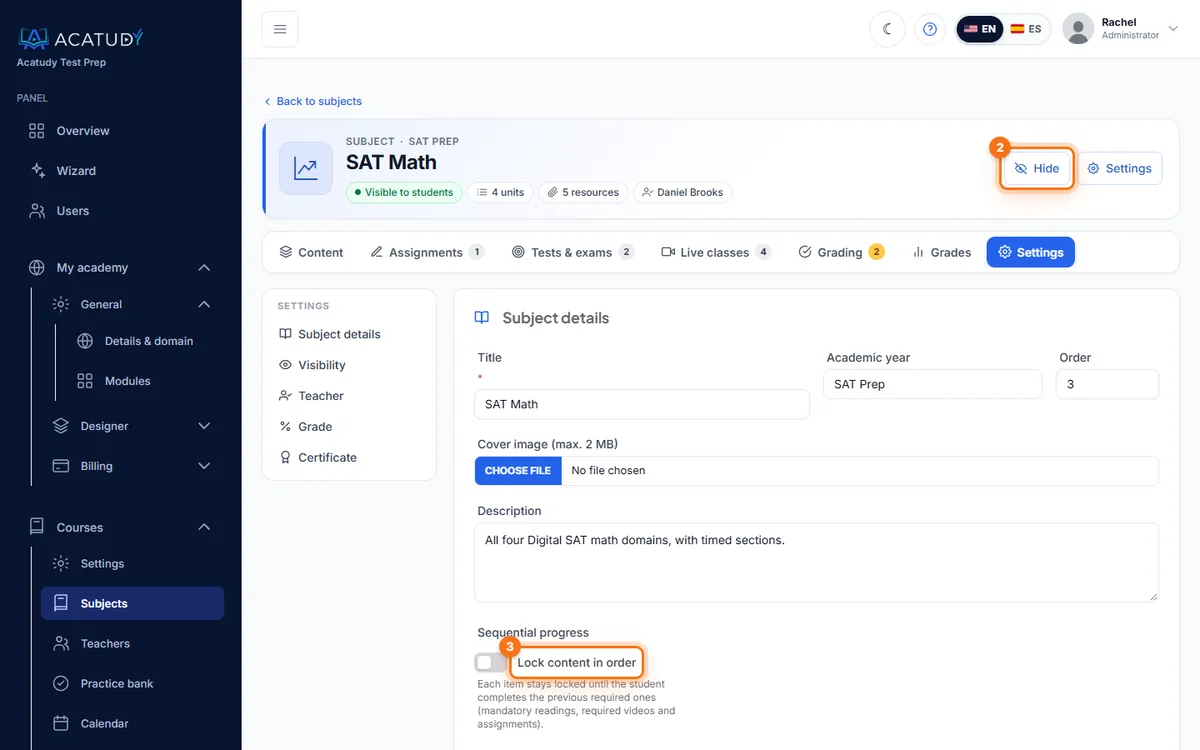
Open the subject. Under its name you'll see Visible to students or Hidden from students. A hidden subject isn't shown to any student: click Publish at the top right (the same button says Hide when the subject is published).
4. Can they see its course?
This is the most common cause in academies with several grades or programs.
| Active courses in your academy | Who sees a subject of Grade 10 |
|---|---|
| 0 or 1 | Every student, without enrolling them |
| 2 or more | Only students enrolled in Grade 10 |
- Enroll the student in Courses → Settings → Courses → Students in this course, or tick the course in their profile (Edit in Users).
- An inactive course hides all its subjects from everyone.
- Subjects without a course are visible to every student of the academy.
5. Did they buy specific subjects?
If the student paid with an access plan for specific subjects, in an academy with 2 or more active courses they only see the subjects of that plan. To give them more, enroll them in the course or give them another plan. See Sell access with Stripe.
6. The subject is there but something inside isn't
- Hidden unit or resource: hidden items aren't shown even if the subject is published. Check the eye icon in the Content tab.
- Lock content in order: if it's on in the subject's Settings, each item unlocks when the previous one is completed. The student sees it with a lock.
- Assignments appear only when active and from their Visible from date.
- Tests and exams appear only when published. An official exam with Lock until the scheduled date is shown but can't be started until that date.
7. A whole section is missing
- Module turned off: in My academy → General → Modules. Students get "The … module is turned off. Turn it on in My academy › Modules."
- Not in your plan: for example, Assignments isn't included in Free, and Files, Ranking and Certificates need Professional. Students see "This feature is not available on your plan."
- Vertical mode: there's no separate subjects page; subjects are on the student's Home. See Visual or vertical mode.
- Published student home: a home published with the Website Builder replaces the default Home, so check that it links to everything.
Use View as student
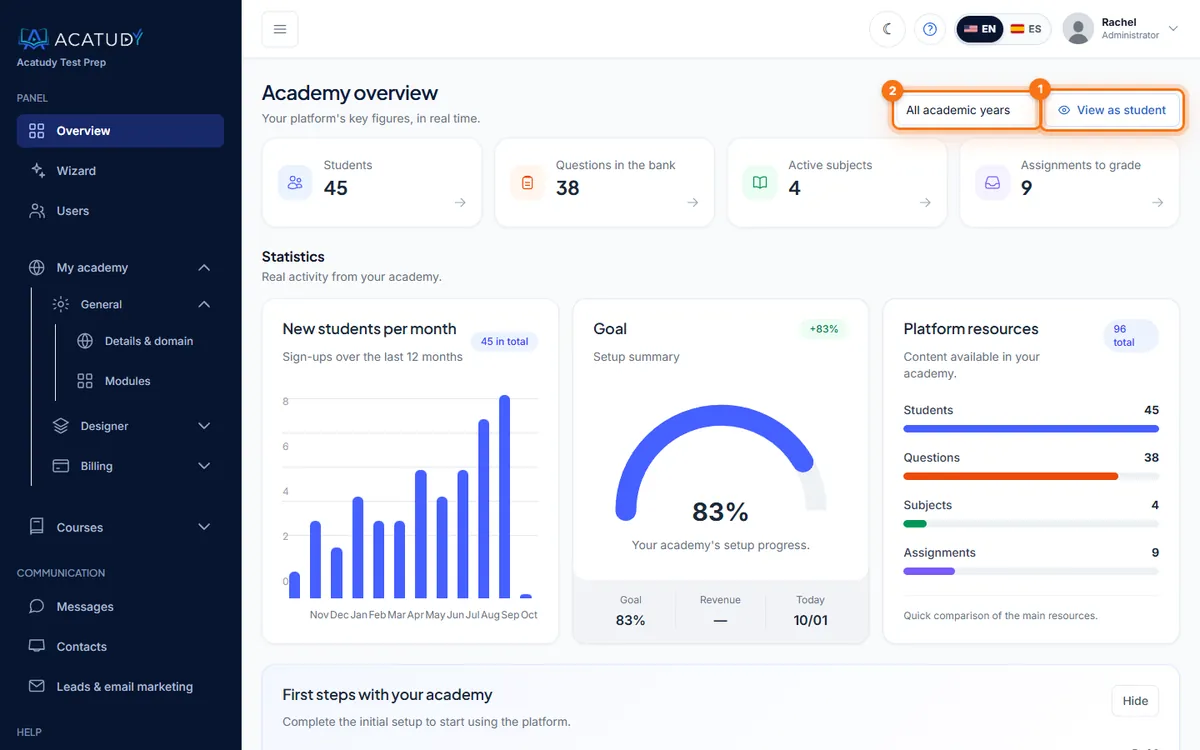
Click View as student (on your Overview and in My academy) to open the student area with a demo account for 30 minutes. Choose a course in the selector next to it to see exactly what that class sees. A notice tells you how many hidden items won't appear.
What View as student doesn't show
The demo account has paid access and is enrolled in every active course (or the one you pick). It doesn't reproduce a specific student's access, enrollments or purchases: for those, use checks 2, 4 and 5.
Still stuck?
Open a ticket in Help → Support with the student's email, the exact name of the subject or item, and a screenshot of what they see.
Follow this guide in your own academy
Create it free in a couple of minutes and keep your admin panel open next to this guide.
Open a ticket from Help → Support in your panel: we reply within 24–48 h depending on your plan.