
Upload and compress videos: up to 20 GB, automatic compression and fast playback
Upload lesson videos of up to 20 GB that resume if the connection drops. Acatudy compresses them in the background to save storage and optimizes them so they start instantly, while students keep watching.
On this page
In this guide
- Formats and maximum size.
- Upload a video to a unit.
- Automatic compression: quality levels, timing and statuses.
- Playback optimization and what students see.
Formats and size
| Value | |
|---|---|
| Formats | MP4, WebM, MOV, M4V and MKV |
| Maximum per video | 20 GB |
| How it uploads | In 64 MB parts sent in parallel; if the connection drops, it resumes where it left off |
| Uploads at once | Up to 5 per academy |
| Storage | Each video counts toward your plan's storage, at its size after compression |
Every file is checked before it's accepted: renaming a file to .mp4 doesn't work. Videos are stored in the cloud and played through temporary signed links, so a student can't share a permanent link to your lessons.
Upload a video to a unit
-
Open the unit
Open the subject, stay on the Content tab and, in the unit, click Add video.
-
Choose the file
Give the video a title and choose the Video file. The hint below shows the formats and the 20 GB limit. Progress shows what's been uploaded, the speed and the time left.
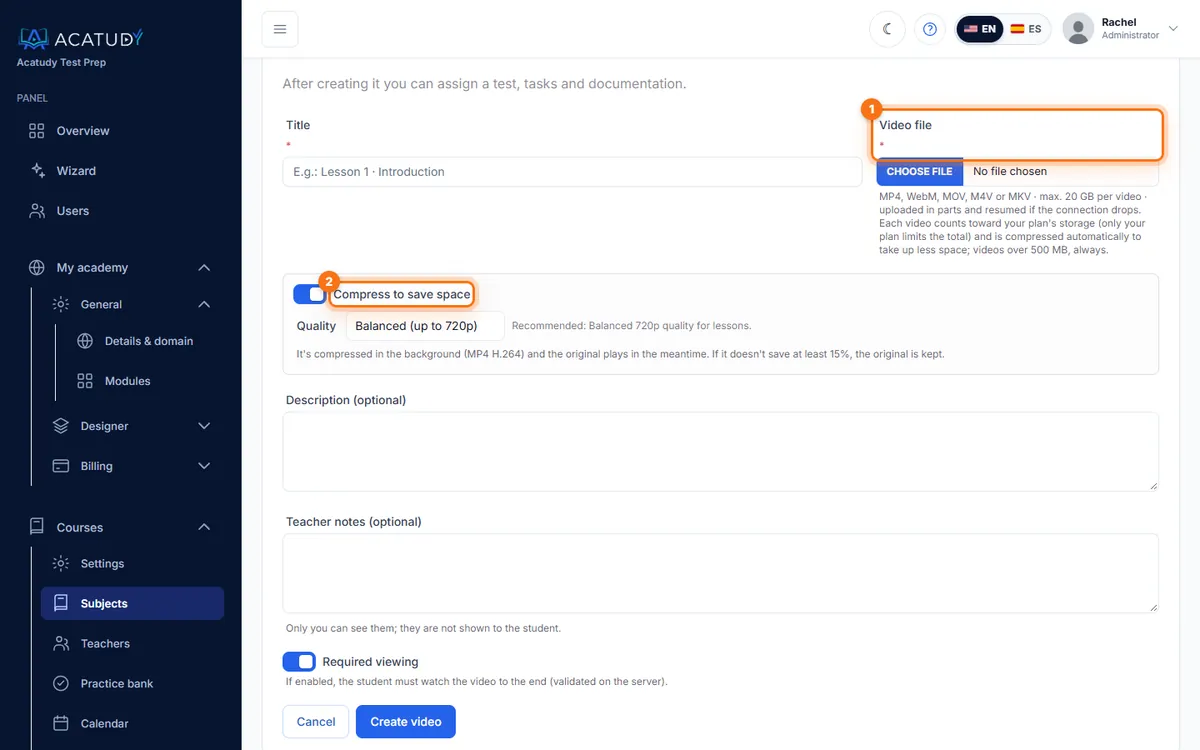
New video: file, compression and required viewing. -
Keep the tab open until it finishes
The tab can be in the background, but don't close it. When you see "Video uploaded. Save the form to finish.", click Create video.
-
Optional: required viewing and interactions
Tick Required viewing so students must watch to the end without skipping ahead (checked on the server). Then add questions, notes or links at specific moments: see Add lessons, videos and required reading.
You can also add a video as a resource (Add resource → Video, file or YouTube/Vimeo link) or attach videos to an assignment. They follow the same limits.
Automatic compression
After the upload, Acatudy recompresses the video in the background (H.264 and AAC in MP4) so it uses less storage and loads faster, with barely noticeable quality loss. Students can already watch the original meanwhile.
-
Set your academy's default
Go to My academy → General → Details & domain and open the Videos tab. Keep Compress new videos by default on and pick the Default quality, then click Save.
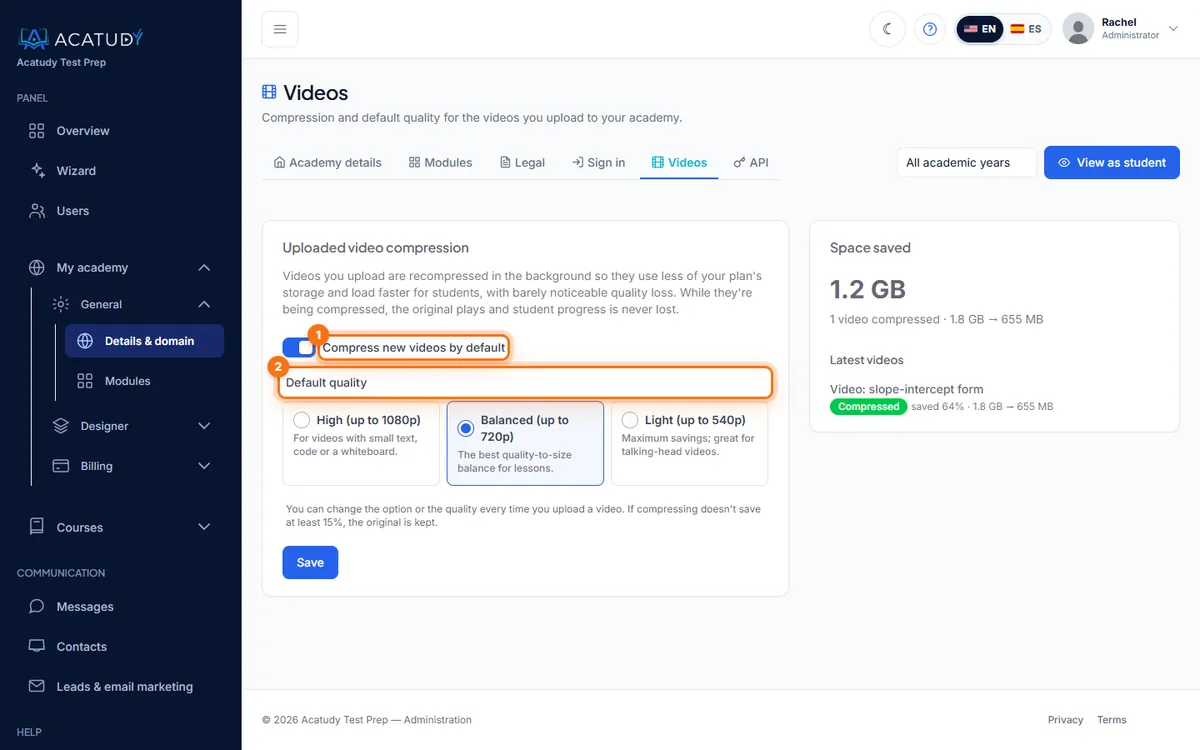
Videos: compression on by default and the quality you prefer. -
Adjust it per video if you need to
When uploading, Compress to save space and the quality can be changed for that video only.
| Quality | Best for | Typical saving |
|---|---|---|
| High (up to 1080p) | Small text, code or a whiteboard | About a third |
| Balanced (up to 720p) · default | Most lessons | About half |
| Light (up to 540p) | Talking-head videos | Up to 70% |
- Resolution is never increased: a 720p video stays at 720p on High.
- Videos over 500 MB are always compressed, even if the option is off.
- If compressing doesn't save at least 15%, the original is kept (No changes).
- It takes roughly 15 minutes per GB, and videos are processed one after another. A 20 GB recording can take several hours; students keep watching the original.
Compression statuses
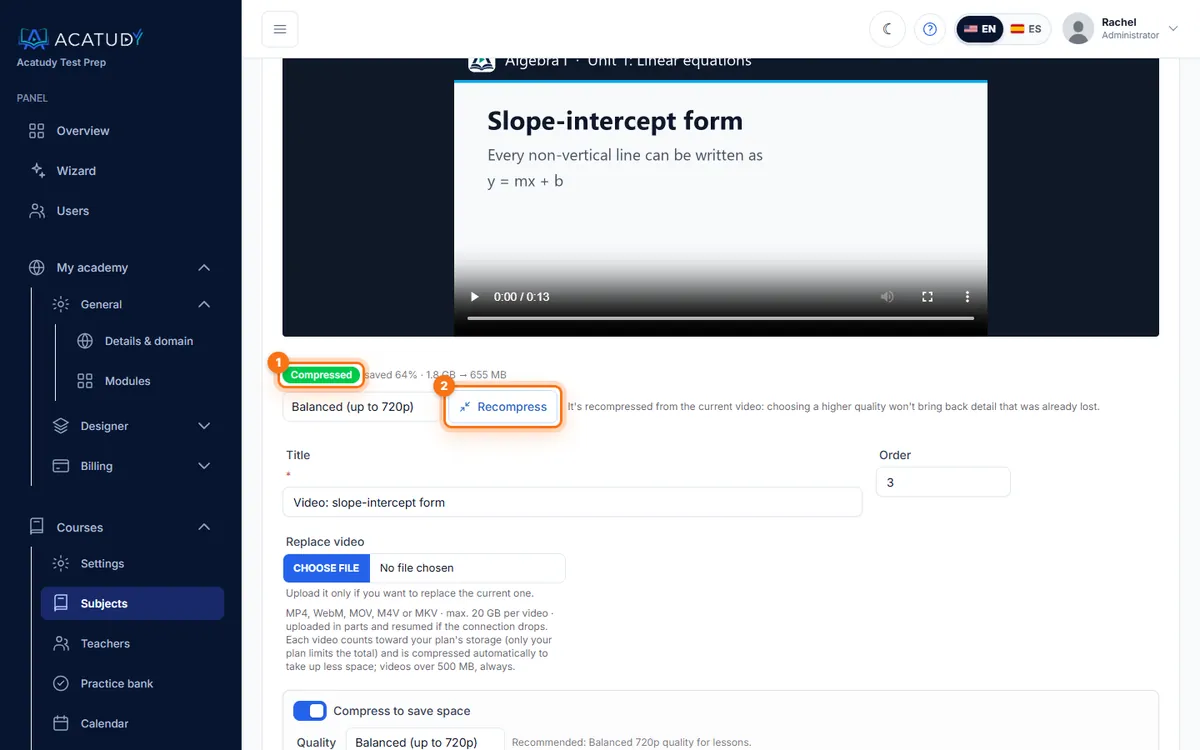
Each video shows its status in the subject's content list. Open the video (Edit) to see the details and the buttons.
| Status | Meaning |
|---|---|
| Queued | Other videos are ahead; it starts on its own. |
| Compressing… | In progress. The page refreshes the status every few seconds. |
| Compressed | Done, with the space saved (for example 1.8 GB → 640 MB). |
| No changes | It was already efficient: the original is kept. |
| Optimizing for playback… / Optimized for playback | The file is reorganized so it starts instantly (see below). |
| Error | The original keeps working. Click Retry. |
Use Compress now on a video uploaded without compression, or Recompress to try a different quality.
Playback optimization
Some recordings (screen recorders, some phones and cameras) store the video index at the end of the file. Browsers then can't show the duration or start playing until a large part has downloaded. Acatudy fixes this automatically, without re-encoding and without losing quality: when the video is compressed, or the first time someone plays it. After that it starts instantly and the progress bar shows the full duration.
What students see
- The video plays in the subject with the player of your academy, also on phones.
- While it's being compressed they watch the original; their progress is never lost when the compressed version replaces it.
- With Required viewing, they can't skip ahead and the video is marked complete when they reach the end.
Frequently asked questions
The upload stopped. Do I start over?
No. Choose the same file again in the same form and the upload resumes where it stopped. An unfinished upload is deleted after 24 hours.
I see "There are already 5 video uploads in progress in your academy"
Your academy has reached the limit of uploads at the same time. Wait for one to finish and try again.
Can I add subtitles or trim a video?
Not in course videos. Edit the video before uploading it.
Follow this guide in your own academy
Create it free in a couple of minutes and keep your admin panel open next to this guide.
Open a ticket from Help → Support in your panel: we reply within 24–48 h depending on your plan.