
Visual or vertical mode: choose how students see your academy
Visual mode shows a home page of cards, one per module. Vertical mode is a campus-style LMS: subjects with their units, activities and progress. How to switch, what changes for students and for your menu.
On this page
In this topic 5
In this guide
- The two modes and which one suits your academy.
- What students see in each mode.
- Switch modes, safely.
- What changes in your admin menu.
Two ways to present your academy
| Visual (Cards) | Vertical (LMS, campus style) | |
|---|---|---|
| Student home | A card per module: tests, exams, files, live classes, ranking… | Subjects grouped by course, each with its units, activities and progress |
| How content is organized | Topics and units, plus a shared library of files | Courses → subjects → units → activities |
| Best for | Test prep and question practice, language schools, driving schools, short courses | Schools and tutoring with several subjects, teachers per subject and a gradebook |
The mode applies to the whole academy. Both share the practice bank, calendar, live classes, grading, gradebook, challenges and FAQs. If you're not sure, the setup wizard suggests one from the kind of training you deliver.
What students see
Visual mode
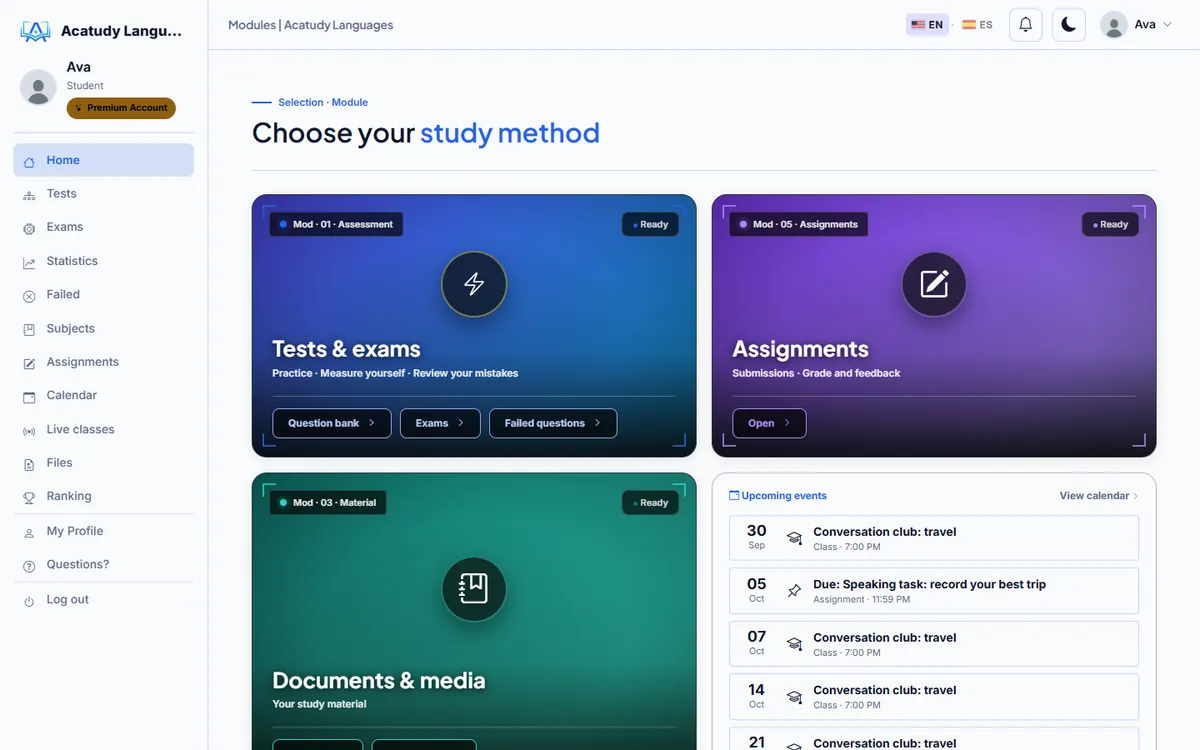
The home page shows large cards for each module, so students jump straight to practice, exams or their files.
Vertical mode
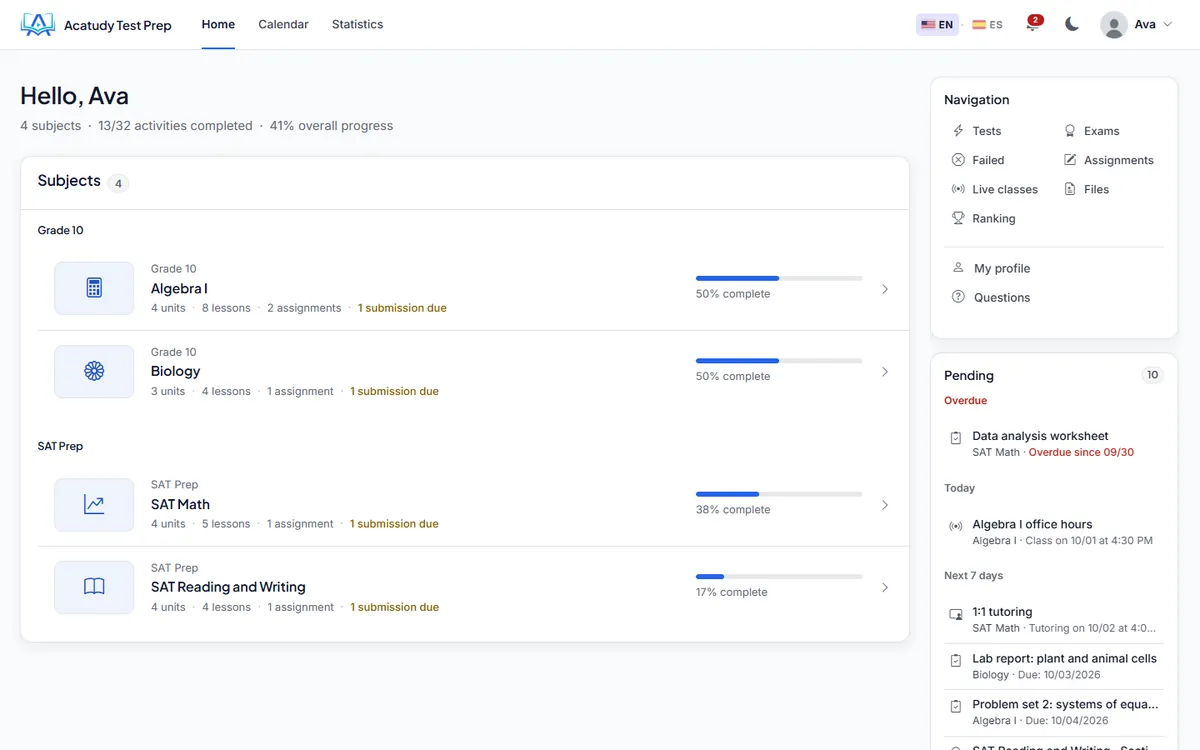
The home page lists the student's subjects with a progress bar. Each subject opens like a campus course: units in order, with videos, readings, assignments, tests and exams, and a Pending panel on the right with what's due.
The right panel shows the subject outline: overall progress, the next pending activity, expandable units with completed/total counts, and each activity's status, type, duration or question count—locked activities show "Not available." On mobile, the outline collapses into a dropdown below the lesson. The system also prefetches the next lesson in the background so it loads instantly when you click it.
Switch modes
-
Open Appearance
Go to My academy → Designer → Appearance and open Brand identity.
-
Choose the mode
In Student area mode (the Your academy's mode card) pick Visual (Cards) or Vertical (LMS, campus style). The badge shows the Current mode.
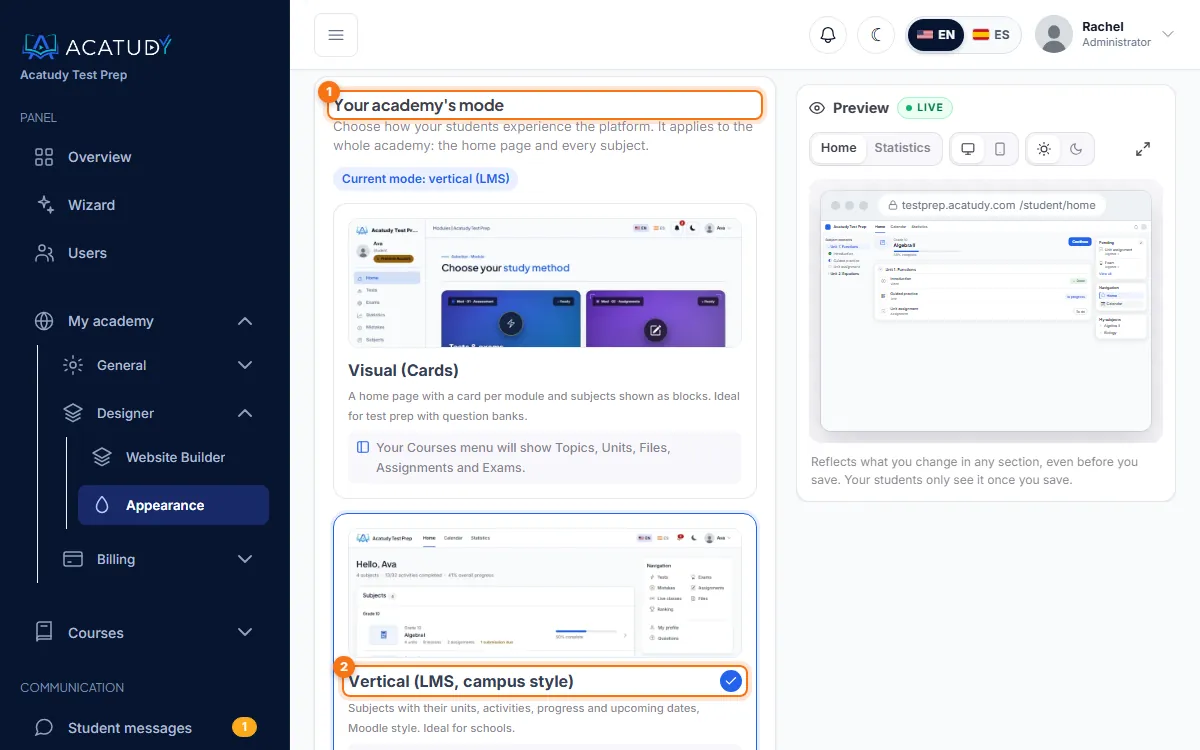
Brand identity → Student area mode. -
Click Save mode
Students see the new home the next time they load a page. Use View as student to check it.
Switching never deletes content
Only what students see and what your Courses menu shows change. Links to the other mode's pages take you to the equivalent page of the current mode, and you can switch back at any time.
What changes in your admin menu
| Mode | The Courses menu shows |
|---|---|
| Visual | Settings, Topics, Units, Practice bank, Files, Assignments, Exams, Exam bank, Calendar, Live classes, Grading & gradebook, Challenges, FAQs |
| Vertical | Settings, Subjects, Teachers, Practice bank, Calendar, Live classes, Grading & gradebook, Challenges, FAQs. Assignments, exams and their bank live inside each subject. |
Teachers per subject and the subject workspace are designed for vertical mode: see How courses, subjects and units fit together and Invite teachers.
Customize each mode
- Vertical mode only (LMS): top bar color, tinted side index, progress colors, compact rows, corners, heading font, the Pending panel and subject thumbnails. Click Save customization.
- Visual mode only (Cards): the home cards and the side menu students see.
Logo, colors and fonts apply to both modes: see Design your student area.
Frequently asked questions
I published a home page in the Website Builder. Which one do students see?
A student home published with the Website Builder takes priority over the mode's home. Unpublish it if you want students to see the mode's home again.
Can some students use one mode and others the other?
No. The mode is the same for the whole academy.
In vertical mode, where is the list of subjects for students?
On their Home. Opening a subject takes them to its section on the Home page.
Follow this guide in your own academy
Create it free in a couple of minutes and keep your admin panel open next to this guide.
Open a ticket from Help → Support in your panel: we reply within 24–48 h depending on your plan.