
Practice bank vs. exam bank: question types, including SAT-style grid-ins
Build a practice bank for unlimited self-study and a separate exam bank for graded exams. Write multiple-choice and numeric “grid-in” questions that accept 3/4, 0.75 and .75 alike.
On this page
In this topic 8
- Practice bank vs. exam bank: question types, including SAT-style grid-ins
- Import questions from CSV or Excel (with grid-in answers)
- Create timed exams: practice tests, trial exams and official exams
- Written-answer questions (short and essay) and manual grading
- Gradebook and grade weights: how the final grade is calculated
- Generate questions with Quiddy (syllabi, laws and math)
- Question challenges: when a student reports a wrong question
- Practice tests vs. official exams: how tests work and their settings
In this guide
- When to use the Practice bank and when the Exam bank.
- Organize questions with Topics and Units.
- Write multiple-choice questions and SAT/ACT-style numeric answers (grid-ins).
- Handle student challenges on questions.
Two banks, two jobs
| Practice bank | Exam bank | |
|---|---|---|
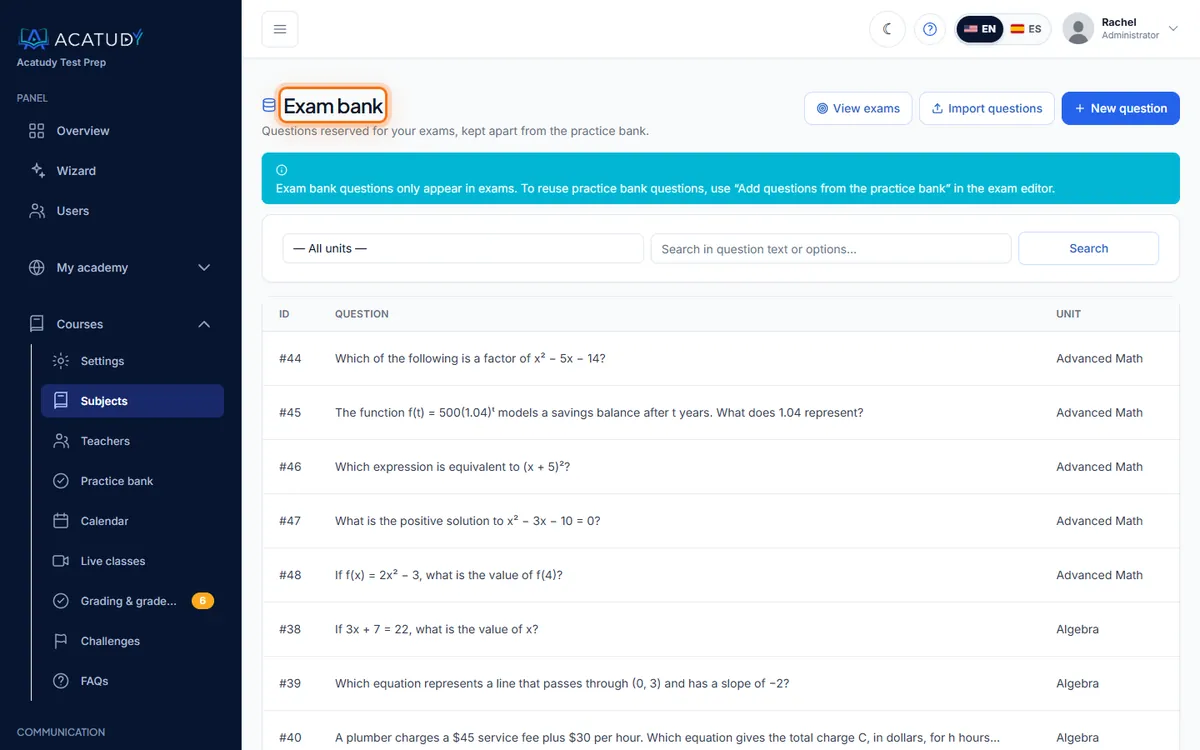
| Menu | Courses → Practice bank | Courses → Exam bank (visual mode; in vertical mode, from each exam of the subject) |
| Purpose | Self-study: topic tests from the student's Tests menu and random unit tests | Questions that only appear in your exams |
| Organized by | Topic → Unit | Unit |
| Counts toward plan quota | Yes (Free 100, Basic 1,000, Professional 10,000, Institutional unlimited) | No |
| Supporting image | Yes (JPG/PNG/WebP, max 5 MB) | No |
Keeping your official exam questions out of the practice bank means students can't memorize them while practicing. When you do want to reuse a practice question in an exam, use Add questions from the practice bank: it makes an independent copy.
What counts toward the grade
Practice tests are just that: practice. Only official exams count toward a student's grade. See Create timed exams.
Organize with Topics and Units
-
Create topics
In Courses → Topics, click New topic for each big area, e.g. SAT Math, SAT Reading & Writing, ACT Science. Title and description are required.
-
Create units inside each topic
In Courses → Units, click New unit, pick its topic and name it by skill: Linear equations, Systems of equations, Ratios & percentages.
Students practice by topic and unit, and their statistics break down the same way, so a clear taxonomy pays off.
Write a multiple-choice question
-
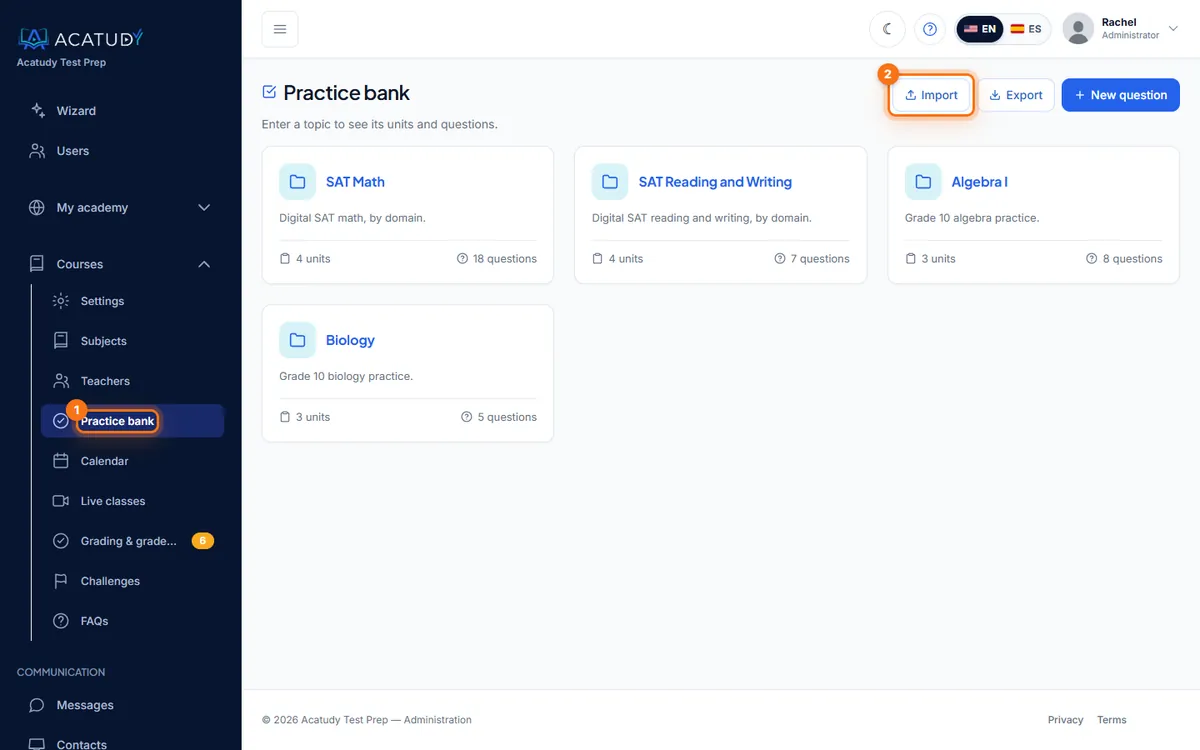
Open the practice bank and add a question
Choose the topic and unit, and keep Question type on Multiple choice.
-
Enter 2 to 4 options and mark the correct one
Options 3 and 4 are optional, so a True/False question is just a two-option question (True, False). The correct answer must be one of the filled options.
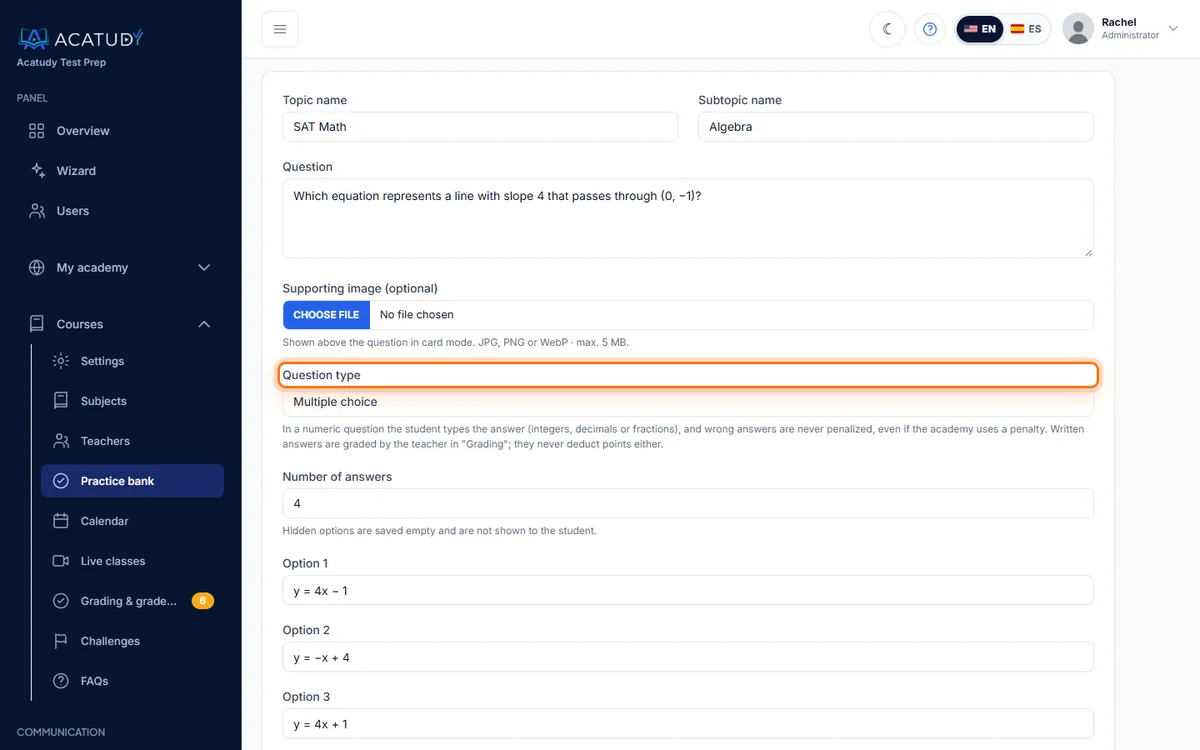
New question form with the Question type selector. -
Add an explanation and, optionally, an image
The explanation (Justification) is shown when the student reviews the answer. Write it like a tutor: "Subtract 3 from both sides, then divide by 2: x = 4." Add a Supporting image for graphs or diagrams.
Write a numeric “grid-in” question (SAT/ACT style)
On the SAT, some math questions are student-produced responses: there are no options, the student types the number. Acatudy supports them with Numeric answer (SAT style).
-
Set Question type to Numeric answer (SAT style)
The options disappear and an Accepted answers field appears.
-
Add every equivalent form you accept
Example: "If 4x = 3, what is the value of x?" Add
3/4,0.75and.75, pressing Enter after each one. You can add up to 10 accepted answers. -
Optional: set a tolerance
Tolerance (optional) is the maximum difference allowed from an accepted answer. Leave it empty for an exact match; use e.g.
0.01when rounding is expected ("Round to the nearest hundredth").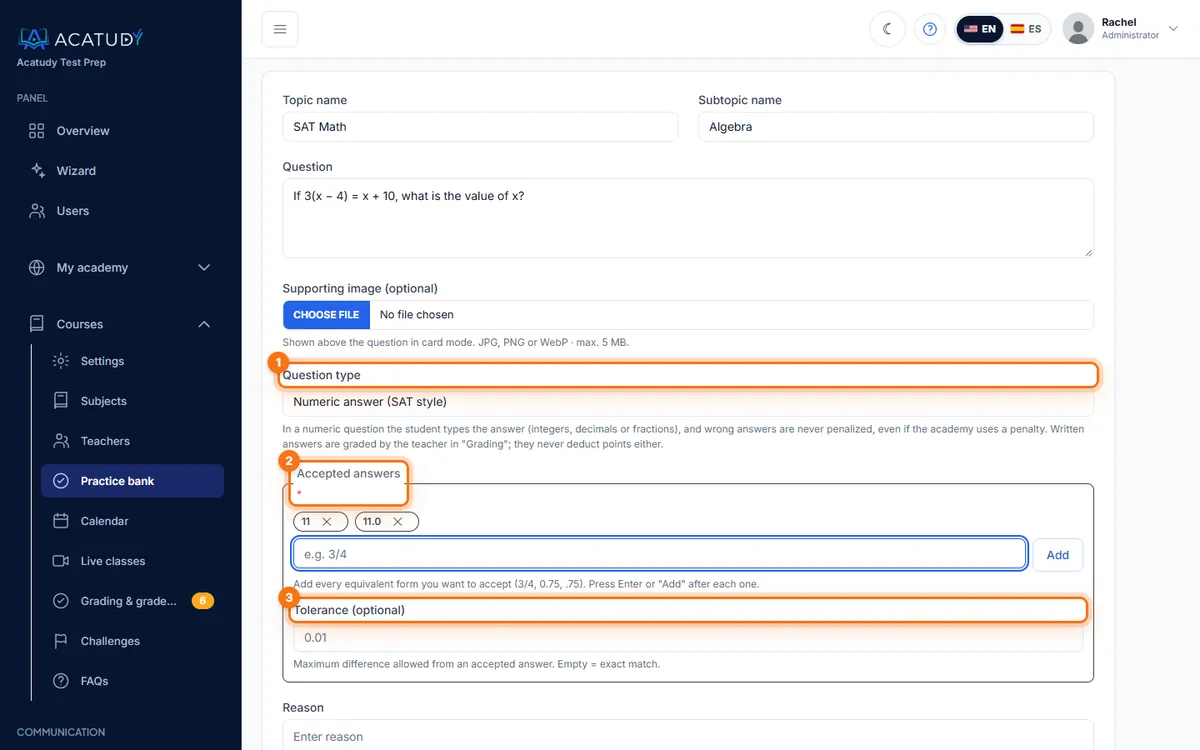
Numeric (SAT-style) question with accepted answers and tolerance.
| Accepted | Not accepted |
|---|---|
Integers: 12, -4 | Mixed numbers: 1 1/2 (use 3/2 or 1.5) |
Decimals: 0.75, .75, 0,75 | Thousands separators: 1,000 |
Fractions: 3/4, -7/2 | Percent signs, scientific notation or expressions (75%, 1e3, 2+3) |
Tip
Numeric questions are never penalized, even if your exam subtracts points for wrong answers, just like the real SAT, where there's no penalty for guessing.
Written-answer questions
Besides multiple choice and numeric, both banks support Short answer (up to 500 characters) and Long answer / essay (up to 5,000) questions, graded by a teacher. See Written-answer questions and manual grading.
Handle challenges
When reviewing an exam, a student can click Challenge question if they think a question is wrong. You'll find them under Courses → Challenges (see Question challenges). Fix the question, reply, and your bank gets better every week.
Frequently asked questions
How do I add hundreds of questions at once?
Import them from a CSV or Excel file: see Import questions from CSV or Excel.
How big should my bank be?
Aim for at least twice as many questions as a full test uses, so retakes don't repeat the same items.
Where do deleted questions go?
To the Trash (the Trash button at the top of the Practice bank), where you can restore them or delete them permanently. Deleted topics, units and exams go there too. See Trash and restore.
Follow this guide in your own academy
Create it free in a couple of minutes and keep your admin panel open next to this guide.
Open a ticket from Help → Support in your panel: we reply within 24–48 h depending on your plan.