
Document viewers: PDF, Word, PowerPoint, Excel and code inside your academy
Students read PDFs, Office documents, code and notebooks right in the browser, with search, zoom and full screen. Which formats open in a viewer, which download, and how required reading works.
On this page
In this guide
- Which formats open inside Acatudy and which are downloaded.
- The PDF viewer and the Office preview.
- The code viewer, notebooks and cloud documents.
- Required reading: how a student confirms they read a document.
What opens in a viewer
When a student clicks a resource in a unit, it opens on its own page with the right viewer. Nothing is sent to outside services: documents are converted and shown from your academy.
| Format | How students see it |
|---|---|
| PDF viewer | |
| Word, Excel, PowerPoint, OpenDocument, RTF | PDF preview of the document, plus a download of the original |
| Code and text (Python, JavaScript, SQL, TXT…), up to 1 MB | Code viewer with syntax highlighting |
| Markdown | Preview and Code tabs |
| Jupyter notebooks (.ipynb), up to 5 MB | Notebook and Code tabs |
| Images (JPG, PNG, WebP, GIF) | Shown on the page |
| Audio | Audio player |
| Google Docs, Sheets, Slides, Forms, Drive, OneDrive, SharePoint links | Embedded, with an Open in… button |
| ePub, ZIP, Pages, Numbers, Keynote, SVG, HEIC | Download only |
Resources and files can be up to 50 MB each (videos have their own limit: see Upload and compress videos). Executable files and documents with macros (.docm, .xlsm, .pptm…) are rejected for security.
The PDF viewer
PDFs open in a full viewer that works the same on every browser and on phones.
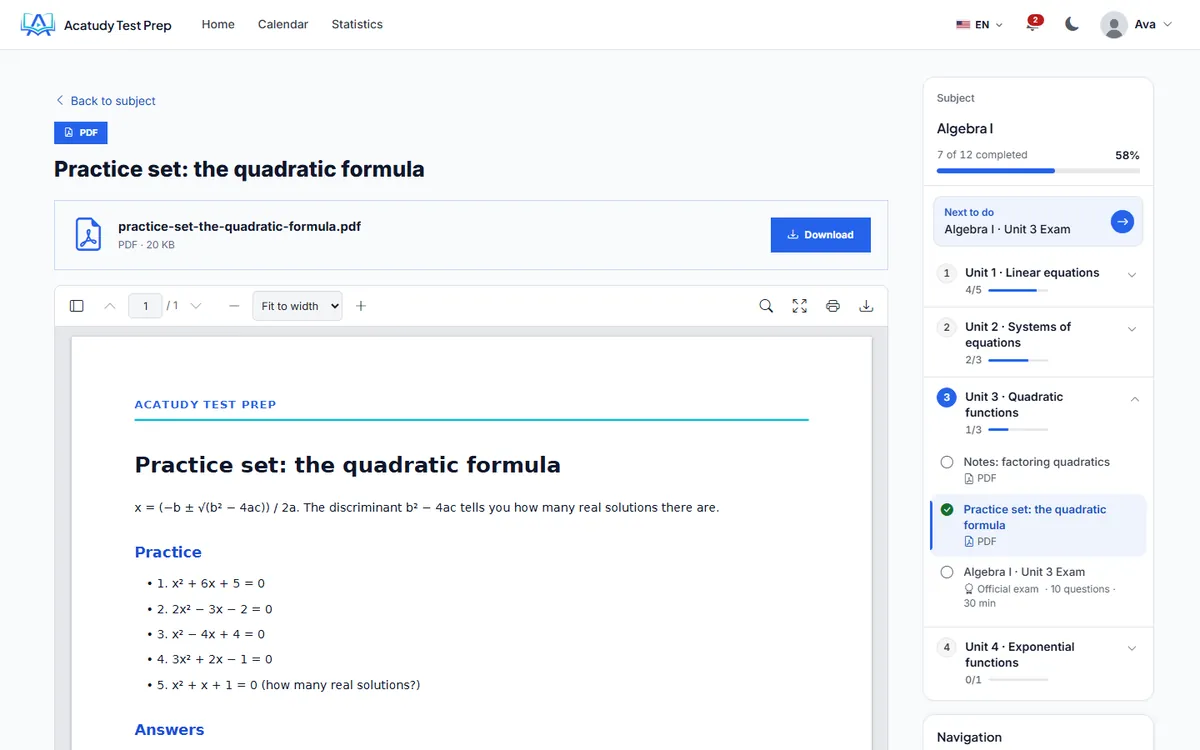
- Thumbnails to jump to a page, Previous page / Next page and the page number.
- Zoom: Automatic, Fit to width, Whole page or 50% to 400%.
- Search inside the document (Ctrl/Cmd + F), Full screen, Print and Download.
- Keyboard: arrows to change page, + and − to zoom.
Password-protected PDFs can't be shown in the viewer: the student is asked to download them.
Word, Excel and PowerPoint
When you upload an Office document, Acatudy creates a PDF copy on the server so students can read it without having Office installed. They see the preview with the note "PDF preview. Download the original to edit it or see its exact formatting." and can download the original file.
- The preview is made in the background, usually within minutes. Until it's ready, students see "The preview of this document is being prepared. In the meantime, you can download it."
- The PDF copy counts toward your storage.
- For slides with animations or very exact formatting, upload a PDF export as well.
Code, notebooks and cloud documents
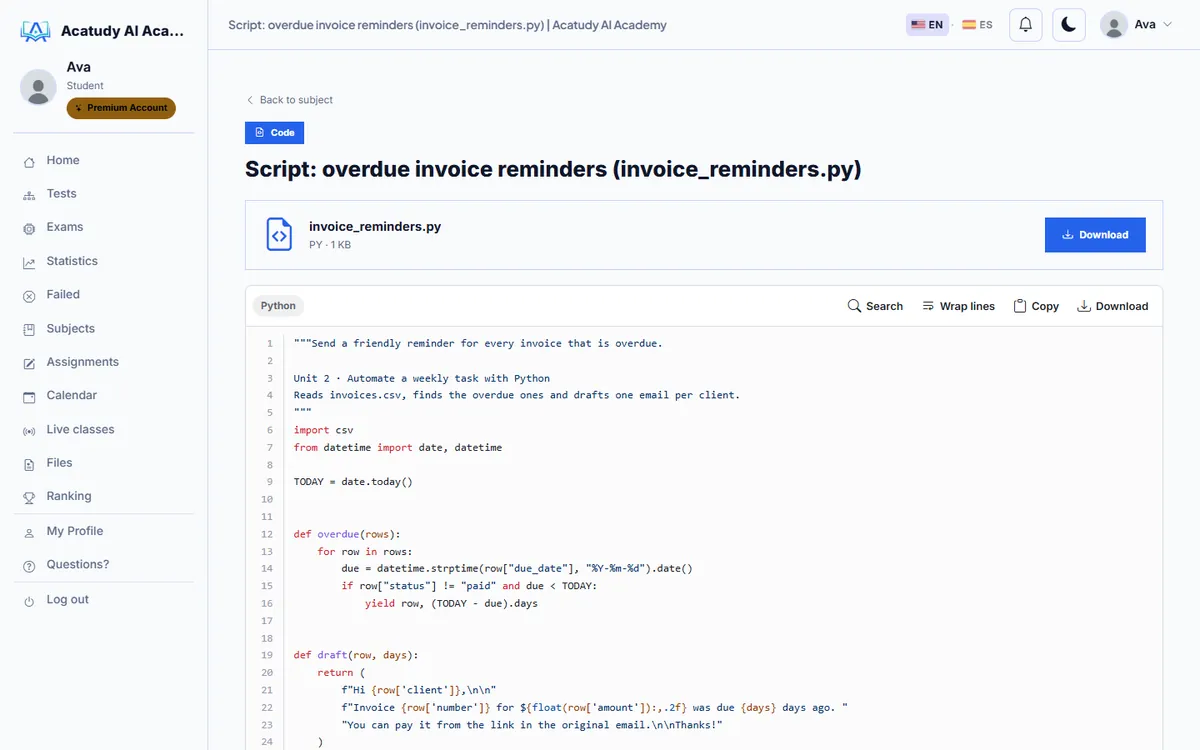
Code files open in a viewer with line numbers and syntax highlighting, with Search, Wrap lines, Copy and Download. Code is always shown as text and never runs.
For a Google Doc or a OneDrive file, add a resource of type link and paste its URL. The form tells you "Detected: Google Docs. It will be shown embedded." Share the document as Anyone with the link can view, or students will see a sign-in screen.
Required reading
Turn a PDF or document into required reading so students must read it to the end and confirm.
-
Turn on Mandatory reading
When you add or edit the resource in the unit, turn on Mandatory reading ("PDF and documents only: the student must read to the end and confirm.").
-
The student reads and confirms
The document opens with a Mandatory reading label. The I have completed the reading button activates when they reach the last page, and they need about 5 seconds per page before confirming.
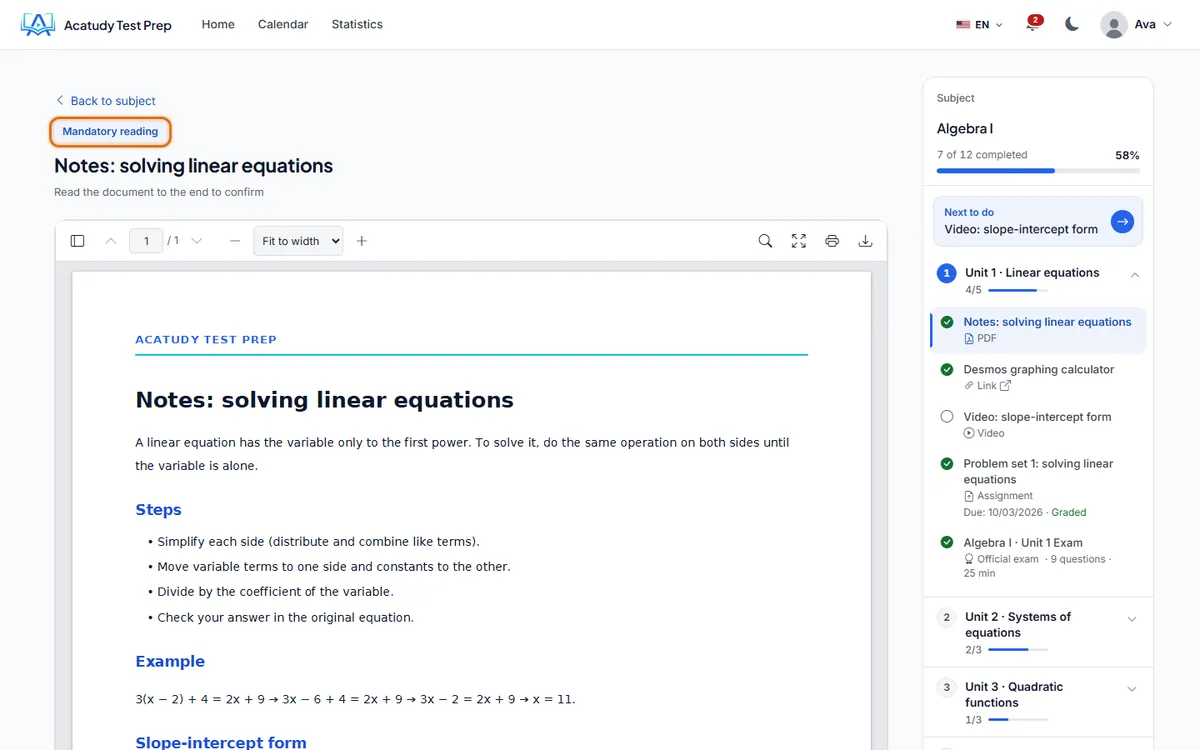
Required reading: the student reads to the end, then confirms. -
Check who has read it
In the unit, the resource's Reading confirmations button lists who confirmed and when. Confirmed reading also counts toward the student's progress in the subject.
Frequently asked questions
Can I stop students from downloading or printing?
No. Anything a student can read on screen can also be downloaded. Don't upload documents you can't share with your students.
Can a student open a ZIP or an ePub inside Acatudy?
No, those formats are download only. Upload a PDF if you want it read on screen.
Do teachers and admins see the same viewers?
Yes. In the panel, the eye icon (View) on a resource or a submission opens the same viewer.
Follow this guide in your own academy
Create it free in a couple of minutes and keep your admin panel open next to this guide.
Open a ticket from Help → Support in your panel: we reply within 24–48 h depending on your plan.