
Live classes and 1:1 tutoring with Zoom, Google Meet or Teams
Schedule live classes per subject with your own meeting link, repeat them every week, take attendance automatically, share the recording and let students book 1:1 tutoring slots.
On this page
In this guide
- Schedule a live class (or a weekly series) for a subject.
- How students join, and how attendance is recorded automatically.
- Share the recording or publish it as a video in a unit.
- Open 1:1 tutoring slots that students book themselves.
Before you start
- Live classes are included in the Professional and Institutional plans. On lower plans the page is visible with a lock.
- You use your own Zoom, Google Meet or Microsoft Teams account: Acatudy schedules the class, controls who can enter and records attendance.
- Admins manage every subject; teachers only the subjects assigned to them.
Open Courses → Live classes. The page has four tabs: Upcoming classes, Past classes, 1:1 tutoring and Attendance.
Schedule a class
-
Fill in Schedule a class
Choose the Subject (e.g. Algebra II), a Title (Quadratic equations — live review), Starts and Ends. Times use your academy's time zone, shown under the fields.
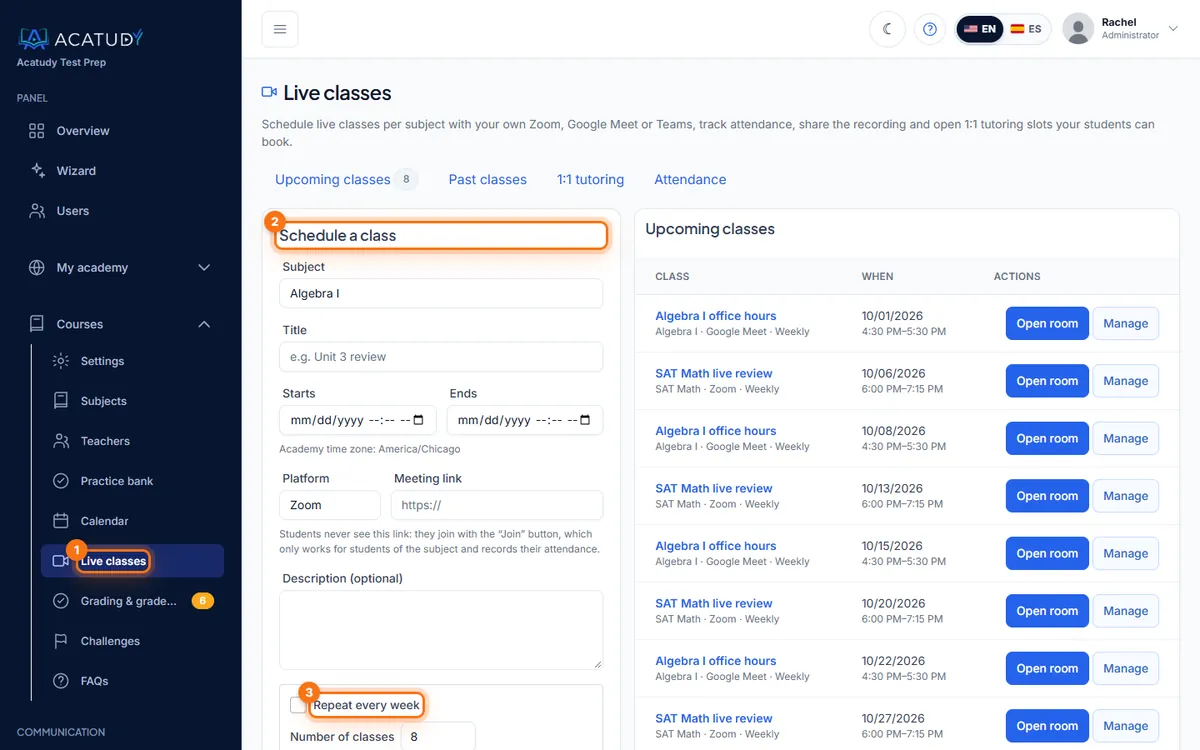
Live classes page: Schedule a class form and upcoming classes. -
Paste your meeting link
Pick the Platform (Zoom, Google Meet, Teams or other) and paste the Meeting link. Students never see this link: they join with the Join button, which only works for students of that subject.
-
Repeat it every week (optional)
Tick Repeat every week and set the Number of classes: one class is created per week, same day and time, with the same link. Perfect for "Cell structure lab — every Tuesday at 4 PM".
-
Click Schedule class
The class appears in Upcoming classes and automatically in the calendar of the subject's students.
How students join
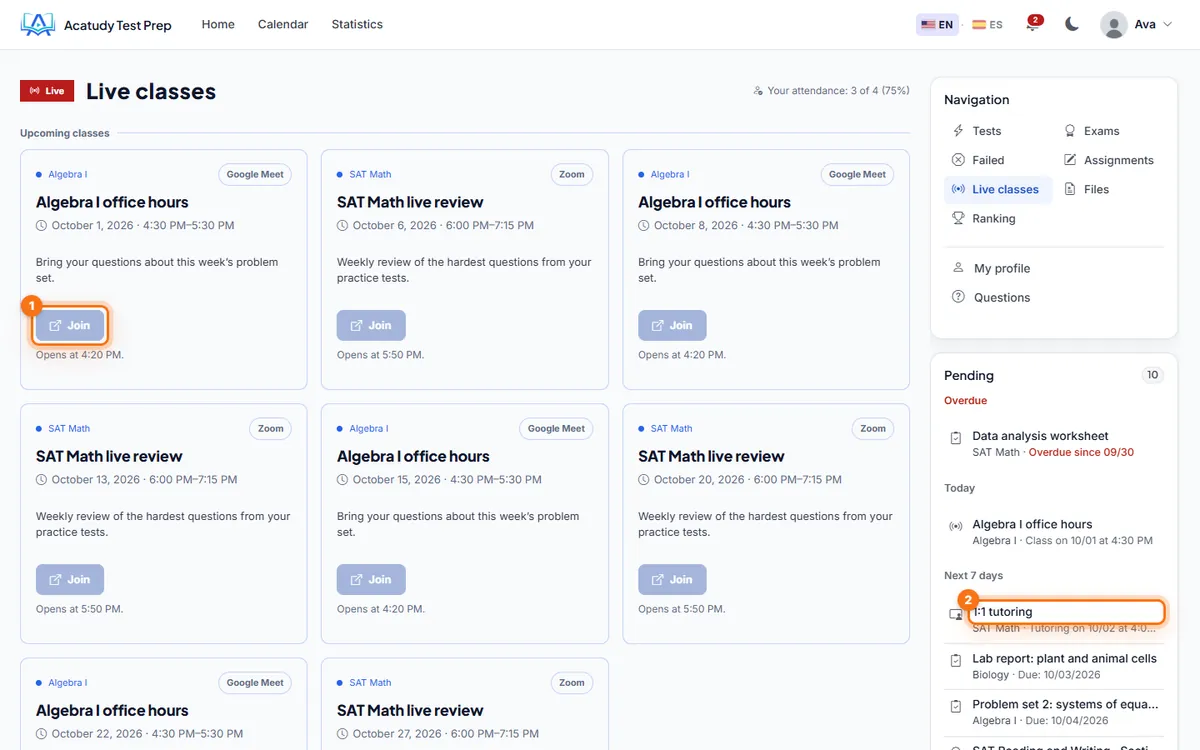
- Students see their classes on the Live classes page of their area, inside the subject and in their pending items.
- They get a reminder email 1 hour before the class.
- The Join button becomes active 10 minutes before the start. When they click it, Acatudy records their attendance and redirects them to your meeting.
- As a host, use Open room in the list to start the meeting.
Tip: keep the link private
Because students always enter through Acatudy, a shared link doesn't let outsiders in, and you know exactly who attended. Use a fixed meeting room per subject and paste the same link for the whole series.
After the class: attendance and recording
-
Open the class
In Past classes, click Attendance & recording (or Manage on any class).
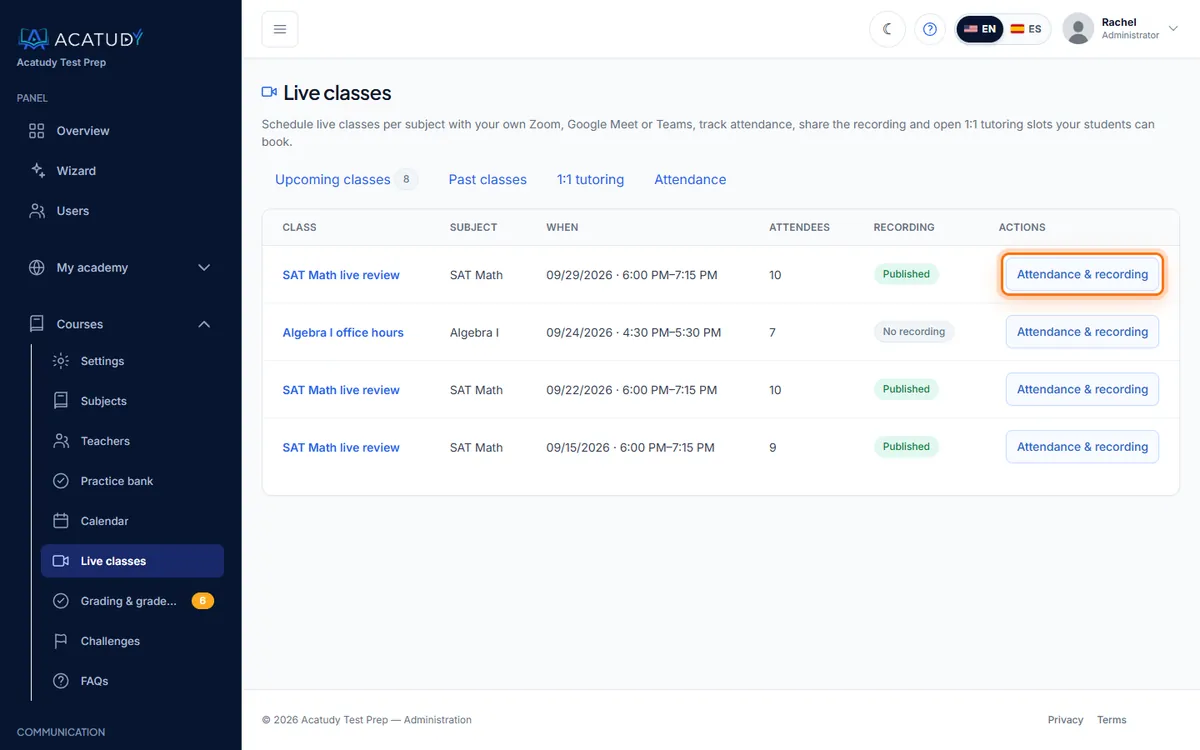
Past classes with attendees and recording status. -
Check the attendance
You'll see "5 of 6 students attended", with each student's first join time. Attendance is recorded automatically when a student clicks Join; you can correct it (Attended / Absent) and click Save attendance.
-
Share the recording
Paste the Recording link (Zoom cloud, Google Drive, YouTube…) and click Save recording: students see it under Live classes. You can also Add as a video in a unit so it becomes part of the subject's content.
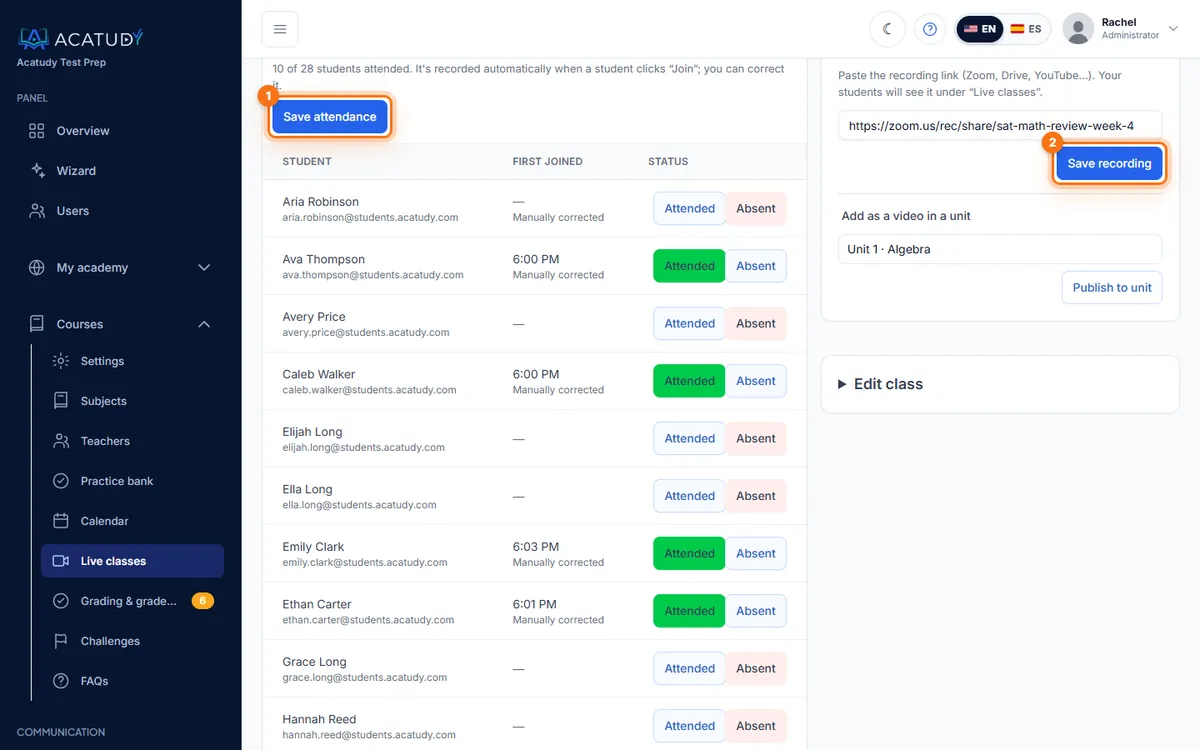
Class page with attendance list and recording link.
The Attendance tab summarizes attendance by student across all finished classes of their subjects: useful for parent conferences.
1:1 tutoring
-
Open tutoring slots
In 1:1 tutoring, choose the subject, the First slot, how many Back-to-back slots to create (e.g. four 30-minute slots from 5 PM), the Meeting link and optional Notes for the student. Click Create slots.
-
Set the cancellation window
In Cancellations, set how many hours before students can cancel (24 hours by default).
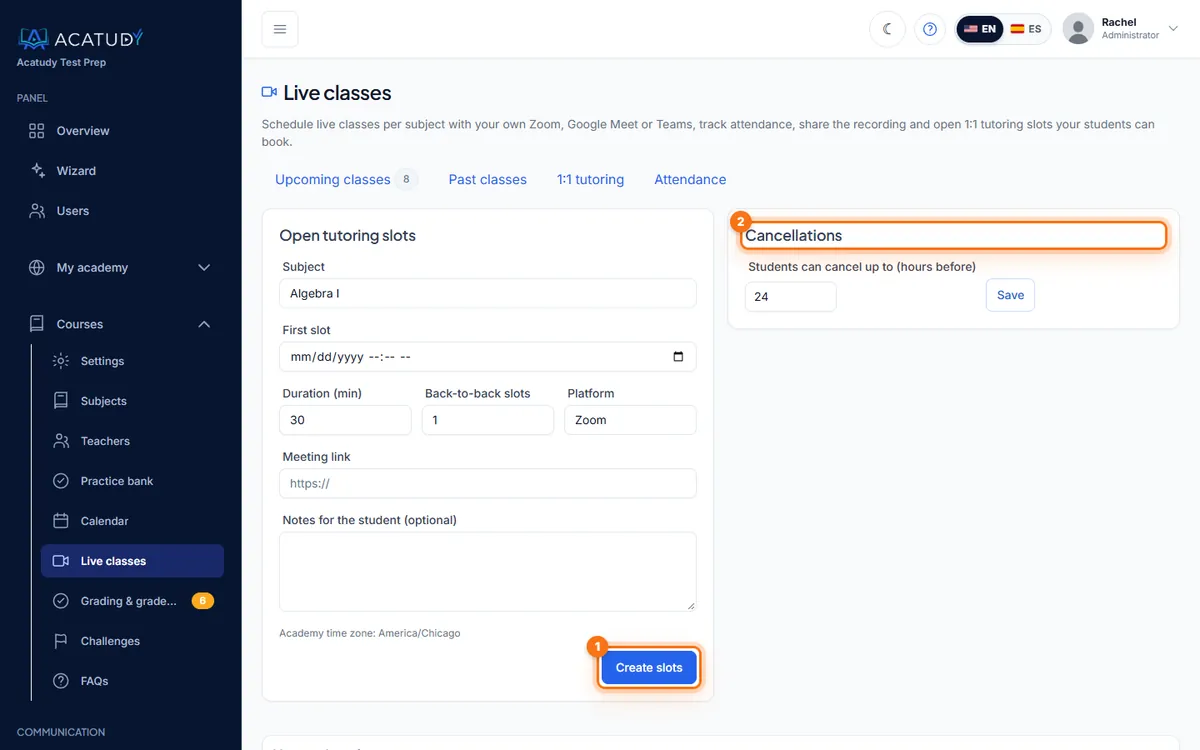
1:1 tutoring tab: open slots and cancellation window. -
Students book
Students of the subject see the free slots and book one; both of you receive a confirmation email, and the session appears in the calendar. You can cancel a booking (the slot becomes available again) or delete a slot.
Frequently asked questions
Do I need a paid Zoom account?
No specific plan is required: any meeting link works. Keep in mind your provider's own limits (for example, meeting length on free Zoom accounts).
Can a student join from the recording link before the class?
The meeting link is never shown to students, and Join opens only 10 minutes before the start.
Can teachers schedule their own classes?
Yes, for the subjects assigned to them. See Invite teachers.
Follow this guide in your own academy
Create it free in a couple of minutes and keep your admin panel open next to this guide.
Open a ticket from Help → Support in your panel: we reply within 24–48 h depending on your plan.