
Storage and plan limits: what counts, where to see it and how to free up space
See how many questions, courses, exams and gigabytes your academy uses (students are unlimited), what counts toward each limit, what happens when you reach one and how to free up storage.
On this page
In this topic 7
- Your Acatudy subscription: plans, prices, invoices and canceling
- Storage and plan limits: what counts, where to see it and how to free up space
- Keep your account secure: passwords, sessions and signing out
- Privacy, cookies and student data (GDPR): what Acatudy does for you
- API tokens: connect your store or website, renew and revoke
- Backups: what your plan includes and how to restore your academy
- Trash: restore deleted questions, topics, units and exams
In this guide
- Where to see your usage and what the colors mean.
- What counts toward each limit, and what doesn't.
- What happens when you reach a limit.
- How to free up storage.
See your usage
The Your plan card shows every limit with a bar. You'll find it in three places: the Overview of your panel, My academy → Billing → My subscription and your Profile (section Current plan).
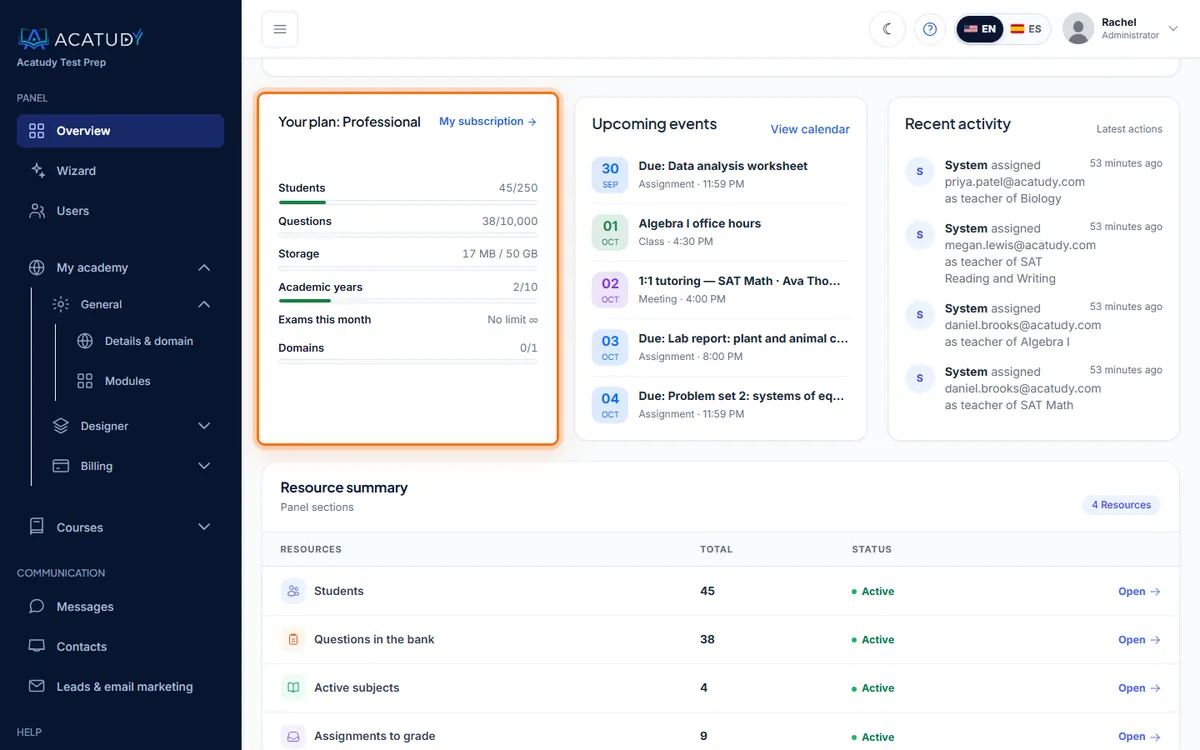
- Green: under 70% of the limit.
- Amber from 70% and red from 90%: a notice "You are approaching your plan limit" appears with a View plans link.
- Full at 100%: "You have reached the … limit of your … plan" with a View plans / Upgrade plan link.
- Rows without a cap show No limit ∞. The Domains row only appears if your plan includes custom domains.
Numbers are always up to date: they're recalculated every time the page loads.
What counts toward each limit
| Limit | Counts | Doesn't count |
|---|---|---|
| Students | No limit on any plan: the card shows how many you have, for reference | Teachers, admins and the View as student demo account |
| Questions | Questions in the practice bank | The exam bank, and questions in the Trash |
| Storage | Files, subject resources, course and assignment videos, website library videos, video documentation, student submissions and corrections, and the PDF previews made from Office documents | Question images, your logo and branding, website library images, live-class recordings (they're links) and unfinished uploads |
| Courses | Each course you create (Grade 10, SAT Prep…) | Subjects: you can have as many as you want inside each course |
| Exams this month | New exams created since the 1st of the current month | Exams created in earlier months; it resets on the 1st |
| Domains | Custom domains connected to your academy | Your free yourslug.acatudy.com address |
Storage is measured in decimal units: 1 GB = 1,000 MB. When a video is compressed, only its final size counts.
When you reach a limit
Nothing is deleted or locked: students keep studying and everything you've created keeps working. You just can't add more of that item. The panel shows a Upgrade your plan to continue window with your current usage, the plan that gives you more room and the buttons Not now and Upgrade plan.
| Limit | Message |
|---|---|
| Students | "You've reached your plan's student limit. Upgrade your plan to add more." Self-registration and imports also stop. |
| Questions | "You've reached your plan's question limit. Upgrade your plan to create more." |
| Storage | "You've reached your plan's storage limit. Upgrade your plan to upload more files." If a student submits an assignment, they see "The academy has no storage space left for your submission. Please tell your teacher." |
| Courses | "You have reached your plan's course limit. Upgrade your plan to create more." |
| Exams this month | "Your plan allows 1 new exam(s) per month. Upgrade your plan to create more." |
Uploads are checked before they start: a file that doesn't fit in your remaining space is rejected straight away.
Free up storage
-
Turn on video compression
Videos are usually what fills your space. In My academy → General → Details & domain → Videos, keep Compress new videos by default on. Compression usually cuts a video's size by half or more. See Upload and compress videos.
-
Delete what you no longer use
Deleting a file, a video, a unit or a subject frees its space immediately: files don't go to the Trash.
-
Review old assignments
Deleting an assignment keeps the students' submissions (and their grades), so they still count. Remove old submissions only once you no longer need them.
-
Upgrade if you still need room
In My subscription, choose a bigger plan: the new limits apply as soon as the payment is confirmed. See Your Acatudy subscription.
The Trash
Deleted questions, topics, units and exams go to the Trash, where they no longer count toward your limits. If you restore them, they count again.
Frequently asked questions
Is there a student limit?
No. No plan limits the number of students, not even Free, and it doesn't matter whether they have paid access.
Do you email me when I'm close to a limit?
No. The warning appears in the panel, on the Your plan card, from 70% of each limit.
What if my academy moves to the Free plan and is over its limits?
Nothing is deleted. Everything stays visible and working, the panel shows which limits you're over (for example "Your academy is on the Free plan and over its limit for questions (150 / 100)") and you can't add more of that item until you're under the limit or back on a paid plan. See Your Acatudy subscription.
The storage number doesn't go down after deleting. What do I do?
Reload the page. If it still doesn't add up, open a ticket in Help → Support with the category Technical issue and we'll check it.
Follow this guide in your own academy
Create it free in a couple of minutes and keep your admin panel open next to this guide.
Open a ticket from Help → Support in your panel: we reply within 24–48 h depending on your plan.