
Import questions from CSV or Excel (with grid-in answers)
Move a whole question bank in minutes: download the template, fill one row per question (multiple choice or numeric), upload the CSV or XLSX and read the import report.
On this page
In this topic 8
- Practice bank vs. exam bank: question types, including SAT-style grid-ins
- Import questions from CSV or Excel (with grid-in answers)
- Create timed exams: practice tests, trial exams and official exams
- Written-answer questions (short and essay) and manual grading
- Gradebook and grade weights: how the final grade is calculated
- Generate questions with Quiddy (syllabi, laws and math)
- Question challenges: when a student reports a wrong question
- Practice tests vs. official exams: how tests work and their settings
In this guide
- Download the official template and understand each column.
- Write multiple-choice, True/False and numeric (grid-in) rows.
- Upload the file and read the import report.
- Fix the most common errors.
Before you start
- You need a CSV or XLSX file of up to 10 MB.
- Questions imported into the practice bank count toward your plan's question quota (Free 100, Basic 1,000, Professional 10,000, Institutional unlimited). Rows over the quota are rejected and reported.
- Topics and units that don't exist yet are created automatically from the file.
1. Download the template
Go to Courses → Practice bank, click Import and then Download CSV template. You get plantilla-preguntas.csv with three example rows: a 4-option question, a 2-option question and a numeric one.
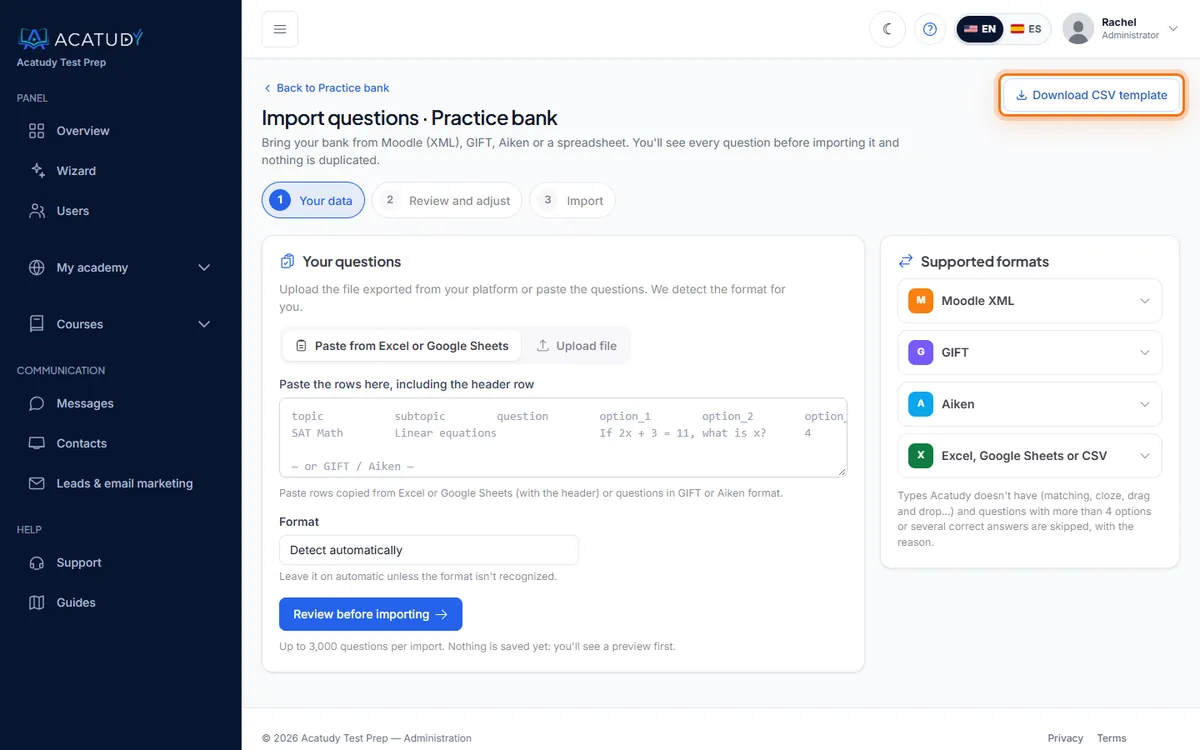
The same import is available as Import CSV/XLSX in the Exam bank and inside the exam editor.
2. Fill in one row per question
| Column | Required | What to put |
|---|---|---|
topic | Yes | Topic name, e.g. SAT Math |
subtopic | Yes | Unit name, e.g. Linear equations |
question | Yes | The question text |
option_1 … option_5 | 1–2 yes, 3–5 optional | Answer options, 2 to 5 with no gaps (leave empty for numeric). option_5 can go right after option_4 or at the end; old files without it still work |
correct_answer | Multiple choice | 1 to 5 (or A to E): the correct option |
reason | No | Explanation shown when reviewing |
type | No | Empty or multiple_choice, numeric (also grid-in, spr), short_text or long_text |
answers | Numeric | Accepted answers separated by |, e.g. 3/4|0.75|.75 |
tolerance | No | Maximum difference allowed, e.g. 0.01 |
model_answer | No | Written answers: grading criteria / model answer |
max_points | No | Written answers: maximum points, e.g. 2.5 |
Here's what a finished file looks like (semicolon-separated, as in the template):
topic;subtopic;question;option_1;option_2;option_3;option_4;correct_answer;reason;type;answers;tolerance
SAT Math;Linear equations;If 2x + 3 = 11, what is x?;4;7;8;5.5;1;Subtract 3, then divide by 2.;;;
SAT Math;Linear equations;The graph of y = 3x - 2 crosses the y-axis at -2.;True;False;;;1;;;;
SAT Math;Ratios;If 4x = 3, what is the value of x?;;;;;;Divide both sides by 4.;numeric;3/4|0.75|.75;
SAT Math;Geometry;A circle has radius 3. Round its area to the nearest tenth.;;;;;;A = πr² ≈ 28.27;numeric;28.3;0.05
Tip: commas or semicolons
The importer detects whether your file uses ; or , as separator from the header row. If a question contains commas, keep the semicolon template or save as XLSX to avoid surprises.
3. Upload and review the report
-
Choose the file and click Import
Select your CSV or XLSX in File (CSV or XLSX, max 10 MB) and confirm.
-
Read the report
You'll see how many rows were Inserted, Duplicates (skipped) (the same question text already exists in your academy), Rejected by quota, and a list of Errors with the row number and reason.
-
Fix and re-upload only the failed rows
Because duplicates are skipped, you can safely re-upload the corrected file: rows already imported won't be doubled.
Common errors and how to fix them
| Message | Fix |
|---|---|
| Numeric question without answers | Fill the answers column, e.g. 3/4|0.75. |
| "1 1/2" is not a valid number | Use integers, decimals (0.75) or fractions (3/4): write 3/2 or 1.5. |
| type must be empty, "multiple_choice" or "numeric" | Check spelling in the type column. |
| At most 10 accepted answers | Keep the most common equivalent forms only. |
| The tolerance cannot be negative | Use a positive number or leave it empty. |
Images
The import doesn't include images. Import the text first, then add a Supporting image to the questions that need one from the practice bank.
Export your bank
Use Export on the practice bank to download all questions in the same format. It's a handy backup and the easiest way to bulk-edit: export, edit in Excel or Google Sheets, re-import into a new topic.
Follow this guide in your own academy
Create it free in a couple of minutes and keep your admin panel open next to this guide.
Open a ticket from Help → Support in your panel: we reply within 24–48 h depending on your plan.