
Written-answer questions (short and essay) and manual grading
Ask students to explain their reasoning or write a short essay: add short-answer or essay questions to your exams, then score them from the Grading inbox with points, quick scores and feedback.
On this page
In this topic 8
- Practice bank vs. exam bank: question types, including SAT-style grid-ins
- Import questions from CSV or Excel (with grid-in answers)
- Create timed exams: practice tests, trial exams and official exams
- Written-answer questions (short and essay) and manual grading
- Gradebook and grade weights: how the final grade is calculated
- Generate questions with Quiddy (syllabi, laws and math)
- Question challenges: when a student reports a wrong question
- Practice tests vs. official exams: how tests work and their settings
In this guide
- The two written-answer types and their limits.
- Create a written-answer question with grading criteria and maximum points.
- What the student sees before and after grading.
- Grade answers from the Grading inbox.
Two written-answer types
| Type | Limit | Example |
|---|---|---|
| Short answer | Up to 500 characters | "Explain in your own words what it means to factor a polynomial. Give one example." |
| Long answer / essay | Up to 5,000 characters | "A classmate says (x + 3)² = x² + 9. Explain the mistake and show the correct expansion step by step." |
Both are available in the Practice bank and the Exam bank. They're graded by a teacher; every other question in the exam (multiple choice and numeric) is still graded instantly.
Create a written-answer question
-
Add a question and choose the type
In the practice bank or the exam bank, add a question and set Question type to Short answer (up to 500 characters) or Long answer / essay (up to 5000 characters). A Manual grading box appears.
-
Write the grading criteria
In Grading criteria / model answer (optional), write what a full-credit answer includes, like a rubric: "2 pts: identifies the missing middle term 6x. 2 pts: correct expansion x² + 6x + 9. 1 pt: clear explanation." Graders see it next to each answer; the student sees it once the answer is graded.
-
Set the maximum points
Maximum points for this question is the scale you'll grade on (empty = 10). If the exam gives the question its own value, it's graded out of that value instead (see Question values).
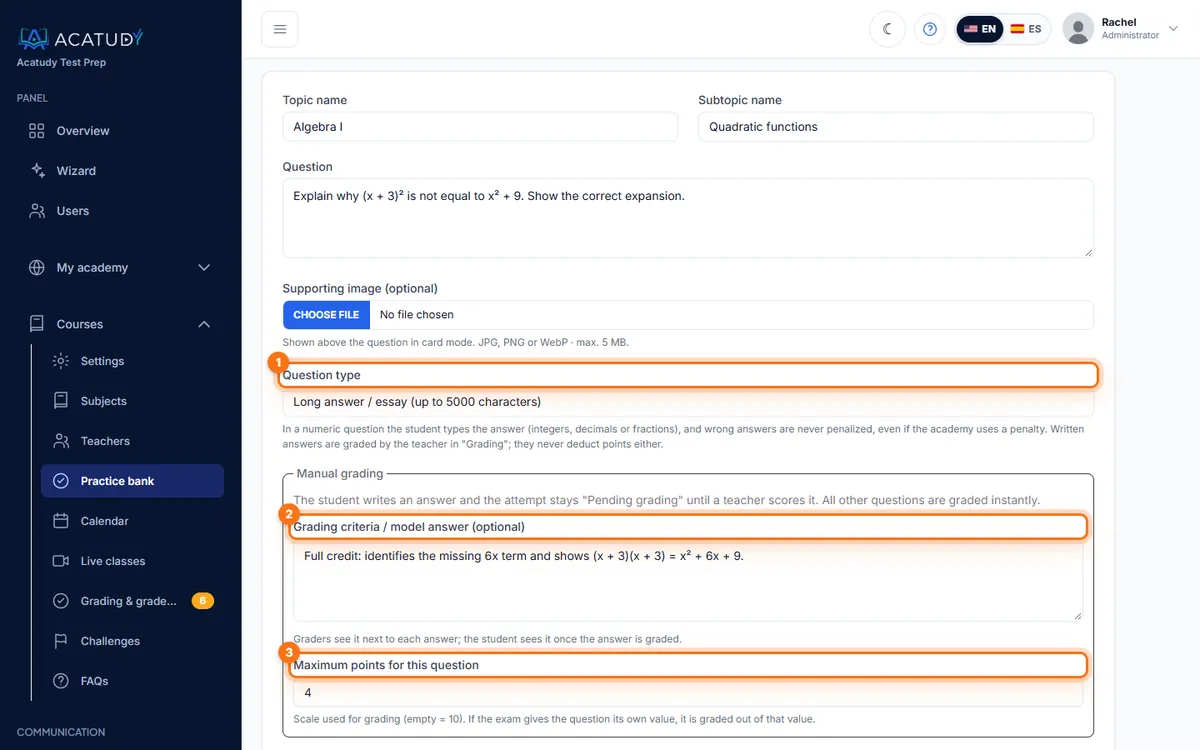
Question editor with Question type, grading criteria and maximum points.
Importing from CSV
Put short_text or long_text in the type column and, optionally, the grading criteria in model_answer and the maximum points in max_points (e.g. 2.5). See Import questions.
What the student sees
-
They write the answer
A text box with a character counter ("268 / 5000 characters") and the note "Written answer: your teacher grades it (it never deducts points)". The limit can't be exceeded.
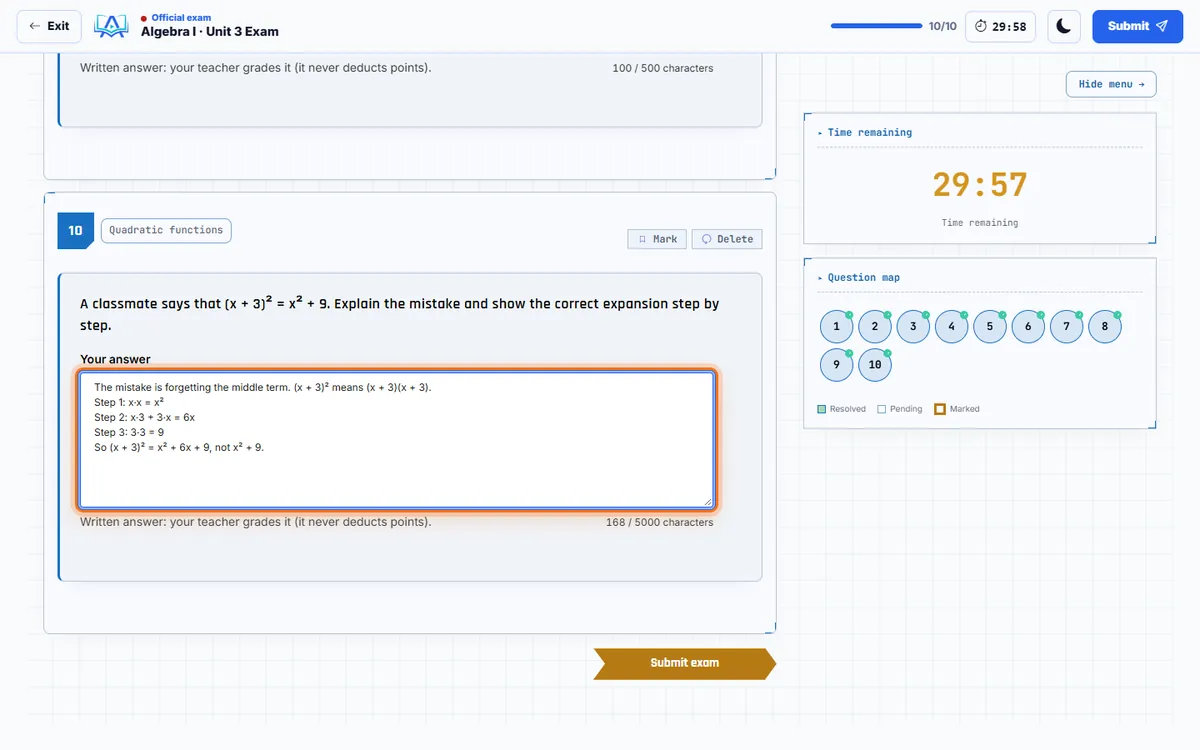
A student writing an essay answer during an exam. -
Pending grading
When they submit, the rest of the exam is scored right away, but the result shows Pending grading and no provisional final grade: "Your teacher hasn't graded this answer yet. We'll let you know when your grade is ready."
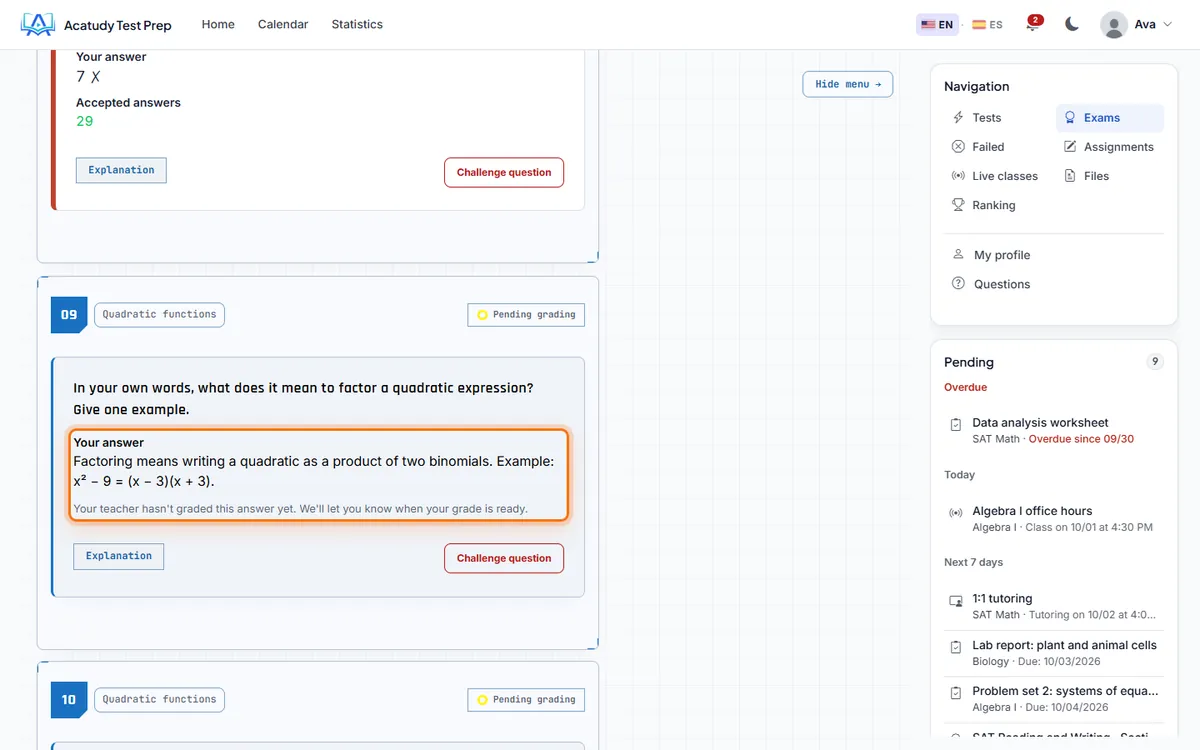
Exam result with a written answer pending grading. -
Graded
When the last written answer of the attempt is graded, the attempt closes: the student gets a notification and an email ("Your exam … has been graded") and sees their score, your feedback and the grading criteria for each answer.
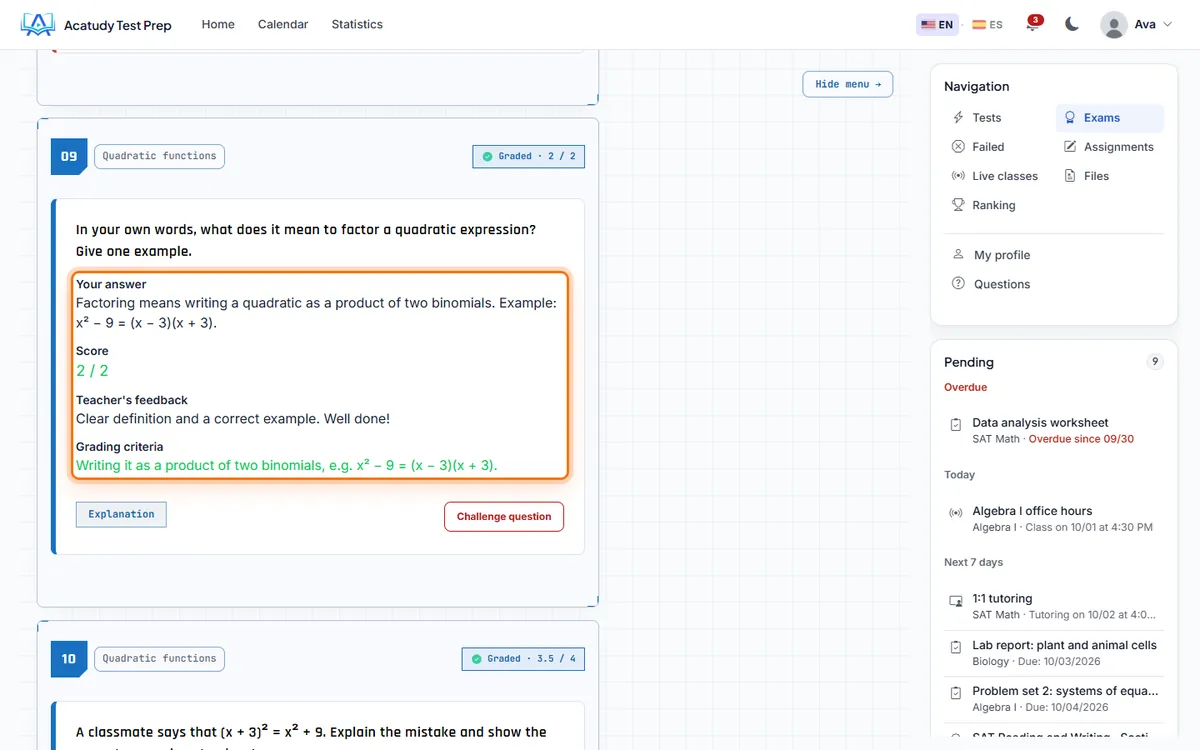
Graded written answer with score, teacher feedback and grading criteria.
Until an attempt is closed it doesn't count toward best score, certificates, the subject grade, statistics or the ranking.
Written answers never deduct points
Even if your exam uses a penalty for wrong answers, written-answer questions never take points away.
Grade from the Grading inbox
-
Open Grading
Go to Courses → Grading & gradebook. The badge shows how many answers are pending. Admins see every answer; teachers see the ones from their subjects (it's in their own menu too). Filter by status, subject, exam and student.
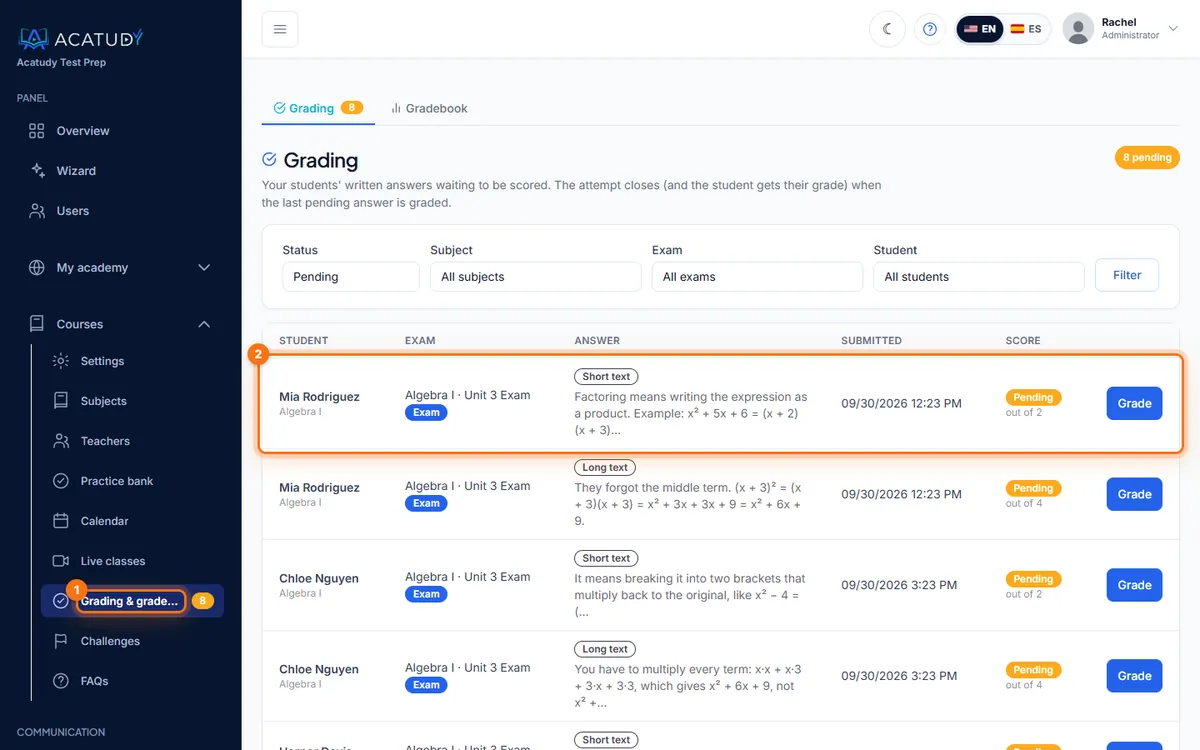
Grading inbox with pending written answers and filters. -
Click Grade
The answer opens next to the question and its grading criteria. Written answers in this attempt lets you jump between the attempt's answers.
-
Score, comment and move on
Enter the Score (decimals allowed, e.g.
2.5) or click one of the quick scores, add Feedback for the student (optional) and click Save and next to go to the next pending answer.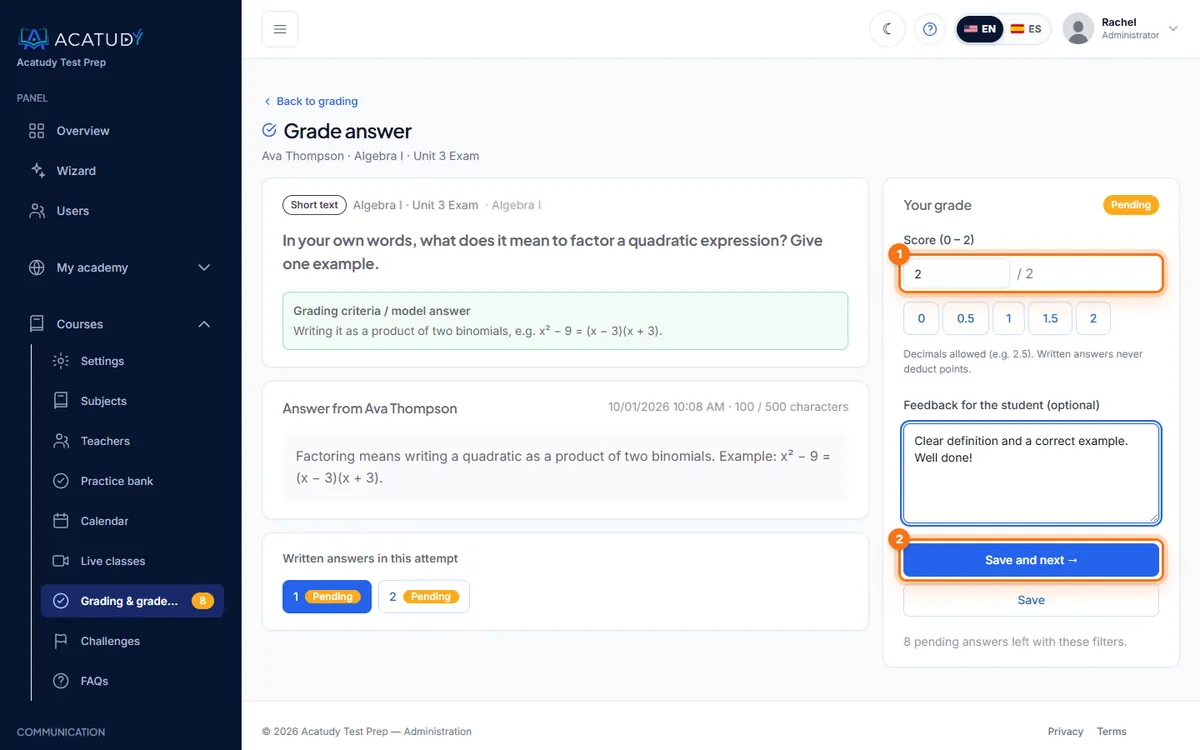
Grading an answer: score, quick scores, feedback and Save and next.
Tip: grade question by question
With a class of 30, filter by exam and grade the same question for every student before moving on: your criteria stay consistent and it's faster than grading exam by exam.
Follow this guide in your own academy
Create it free in a couple of minutes and keep your admin panel open next to this guide.
Open a ticket from Help → Support in your panel: we reply within 24–48 h depending on your plan.