
Import a Moodle course (.mbz): units, files, assignments and quizzes
Upload a Moodle course backup and Acatudy rebuilds it: sections become units, files become resources, assignments and quizzes come over with their questions. Review everything before it’s saved.
On this page
In this topic 5
In this guide
- Download the course backup in Moodle.
- Upload it, review what will be created and adjust it.
- Import, read the report and check the subject.
- What comes over, what's skipped and the limits.
This guide covers whole courses. To bring students and question banks from Moodle, Google Classroom, Canvas or a spreadsheet, see Migrate from other platforms.
1. Download the course backup in Moodle
-
Open the backup page
In Moodle, open the course → More → Course reuse → Backup (in Moodle 3.x: gear icon → Backup).
-
Choose what to include
Keep activities and resources and the question bank ticked. Tick Include enrolled users only if you also want to bring your students. Grades, submissions, forum posts and logs are never imported, so you can leave them out to make the file smaller.
-
Download the .mbz file
Click Jump to final step, wait until it finishes and download the file from Course backup area. Upload it exactly as Moodle gives it to you, without unzipping it.
2. Upload the backup
-
Open the Moodle importer
Go to Import (from the Getting started guide on your Overview) and click Import a Moodle course.
-
Drop the file and click Upload and review
Drag the
.mbzonto the box or click to choose it (Moodle 3.x and 4.x, up to 2 GB). It uploads in parts and resumes if the connection drops. Nothing is saved yet.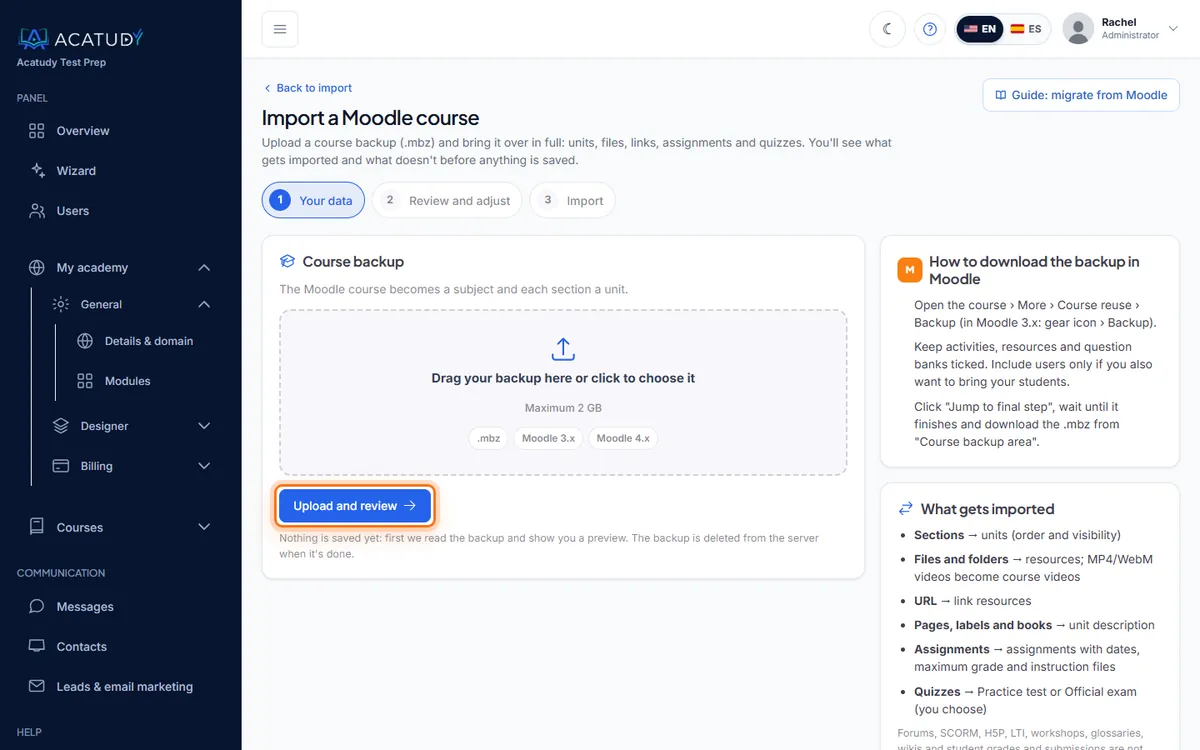
Step 1 of the importer: upload the course backup.
3. Review and adjust
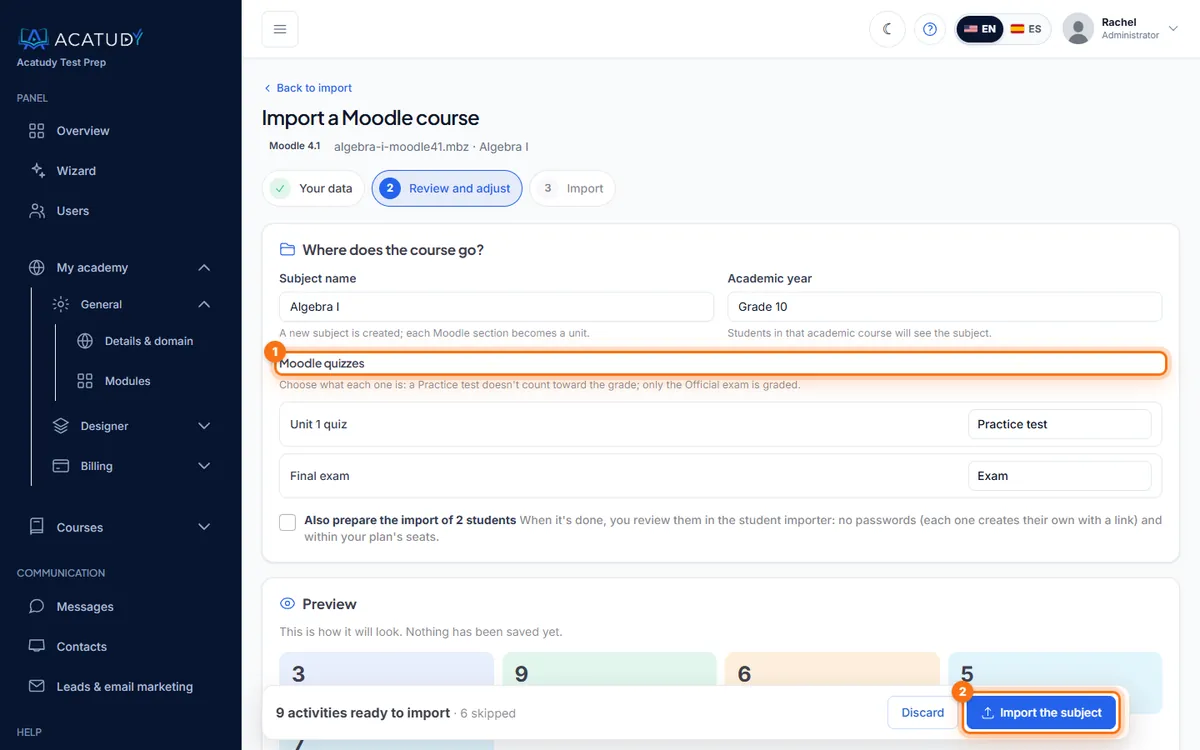
Acatudy reads the backup and lists every Moodle activity with what it becomes (Will be imported) or why it's left out (Skipped, with the reason). Before importing you can change:
- The name of the new subject (or topic in visual mode).
- The course it goes into, for example Grade 10, or None (shared by the whole academy).
- What each quiz is: a Practice test (doesn't count toward the grade) or an Official exam (graded).
- Students: if the backup includes them, tick Also prepare the import of … students.
Click Update preview after changing options.
4. Import and check the result
-
Click Import the subject
Small backups (up to 40 MB) import right away. Bigger ones run in the background with a progress bar: you can leave the page and come back.
-
Read the report
You get the totals, a downloadable Import summary (CSV) with every activity (unit, type, title, result, destination and detail) and buttons to Open the subject or Review students. The backup is deleted from the server.
-
Review the subject before telling your students
The subject is created published: if its course is active, students can see it right away. Imported exams are saved as drafts, and units hidden in Moodle stay hidden. Check the content, then publish the exams.
Importing the same course twice
Acatudy recognizes a backup you've already imported and blocks a duplicate. To create a second copy on purpose, tick Import again as a copy.
What comes over
| In Moodle | In Acatudy (vertical mode) | In Acatudy (visual mode) |
|---|---|---|
| Course | Subject in the course you choose | Topic |
| Section / topic / week | Unit, in the same order and with the same visibility | Unit |
| File | Resource (PDF, image, Word/Excel/PowerPoint, text). MP4 and WebM become course videos | Files |
| Folder | One resource per file | Files |
| URL | Link resource | Unit description |
| Page, label, book | Unit description (as text) | Unit description |
| Assignment | Assignment with dates, maximum grade (scales become pass/fail) and its instruction files as required materials | Assignment |
| Quiz | Practice test or official exam with its questions (up to 50 per exam) | Practice → practice bank; official → official exam |
Students, if you chose to bring them, go to the usual student importer for you to review: no accounts are created until you confirm there, and each student gets an email to create their password.
What's skipped
- Forums, SCORM, H5P, LTI, workshops, glossaries, wikis, databases, lessons, chats, choices, surveys and any activity without an equivalent.
- Random questions and question types Acatudy doesn't have.
- Files of unsupported types (for example
.exeor.zip) and files that don't fit in your plan's storage. - Anything your plan doesn't include or that goes over its limits.
- Student grades, submissions and forum posts.
Each skipped item appears in the preview and in the CSV report with its reason.
Limits
| Limit | |
|---|---|
| Backup size | 2 GB (4 GB uncompressed) |
| Imported right away | Up to 40 MB; larger backups import in the background |
| Imports at the same time | 2 per academy |
| Unfinished drafts | Deleted after 48 hours; you can also click Discard |
| Who can import | The academy owner and admins (not teachers) |
Security
The backup is unpacked in an isolated temporary folder with size and file-count limits; packages with paths outside the backup, links or unsafe XML are rejected, and nothing inside the backup is ever run.
Follow this guide in your own academy
Create it free in a couple of minutes and keep your admin panel open next to this guide.
Open a ticket from Help → Support in your panel: we reply within 24–48 h depending on your plan.