
API tokens: connect your store or website, renew and revoke
Use the Acatudy API to create students and give them access from your online store or external website. How to get a token, what it can do, when it expires and how to renew or revoke it.
On this page
In this topic 7
- Your Acatudy subscription: plans, prices, invoices and canceling
- Storage and plan limits: what counts, where to see it and how to free up space
- Keep your account secure: passwords, sessions and signing out
- Privacy, cookies and student data (GDPR): what Acatudy does for you
- API tokens: connect your store or website, renew and revoke
- Backups: what your plan includes and how to restore your academy
- Trash: restore deleted questions, topics, units and exams
In this guide
- What the API is for and how to get a token.
- Permissions and expiry.
- Renew a token before it expires, or revoke it.
- Endpoints, limits and error codes for your developer.
What the API is for
The API lets an external system act on your academy without anyone typing in the panel. The typical case: you sell a course in your own online store, and when the payment goes through, the store creates the student in Acatudy and gives them access to the right course or subjects. If you only sell with Acatudy's own checkout, you don't need the API: see Sell access to your courses with Stripe.
Get a token
-
Open a support ticket
Tokens are issued by our team so each one has a clear owner and purpose. In Help → Support, tell us which integration it's for and whether it only needs to read data or also create students and enrollments.
-
Copy the token when we give it to you
A token is shown only once. Paste it straight into your store or integration and keep it like a password: never in your website's public code, a shared document or an email thread.
-
Find it in API tokens
Go to My academy → General → Details & domain and open the API tab. You'll see each token's Name, Permissions, Expiry and Last used, with the Renew and Revoke buttons.
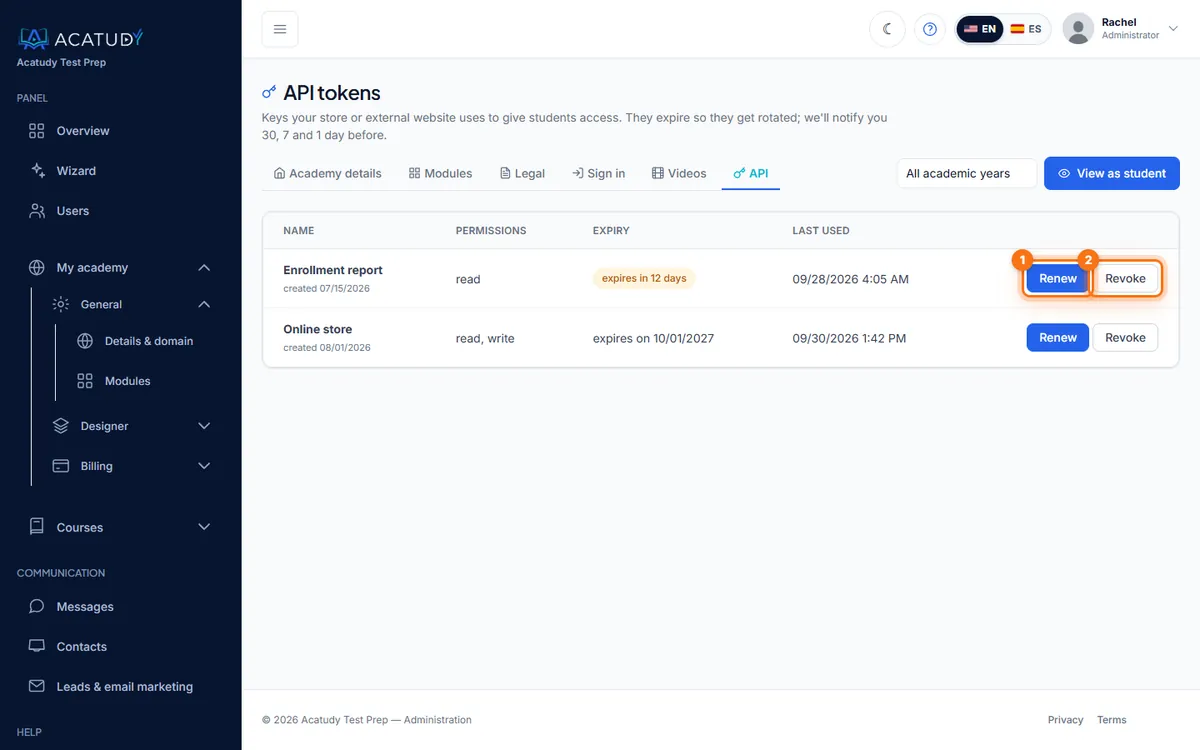
API tokens: expiry and last use at a glance.
Only the academy owner and admins can open this page. Teachers can't see tokens.
Permissions and expiry
| Permission | Allows |
|---|---|
| read | Check the connection and read the academy, its plan and usage, its subjects, and look up a student by email. |
| write | Everything above, plus creating students and creating or canceling enrollments. |
Each token expires after 1 year (recommended), 90 days or, if you ask for it, never. Tokens that expire force a regular rotation: if one leaks, it stops working on its own.
Expiry reminders
- We email the academy's owners and admins 30, 7 and 1 day before a token expires.
- From 30 days before, every page of the panel shows a banner with Renew and View tokens.
- Once it has expired, the integration gets an error (
token_expired) until you renew it.
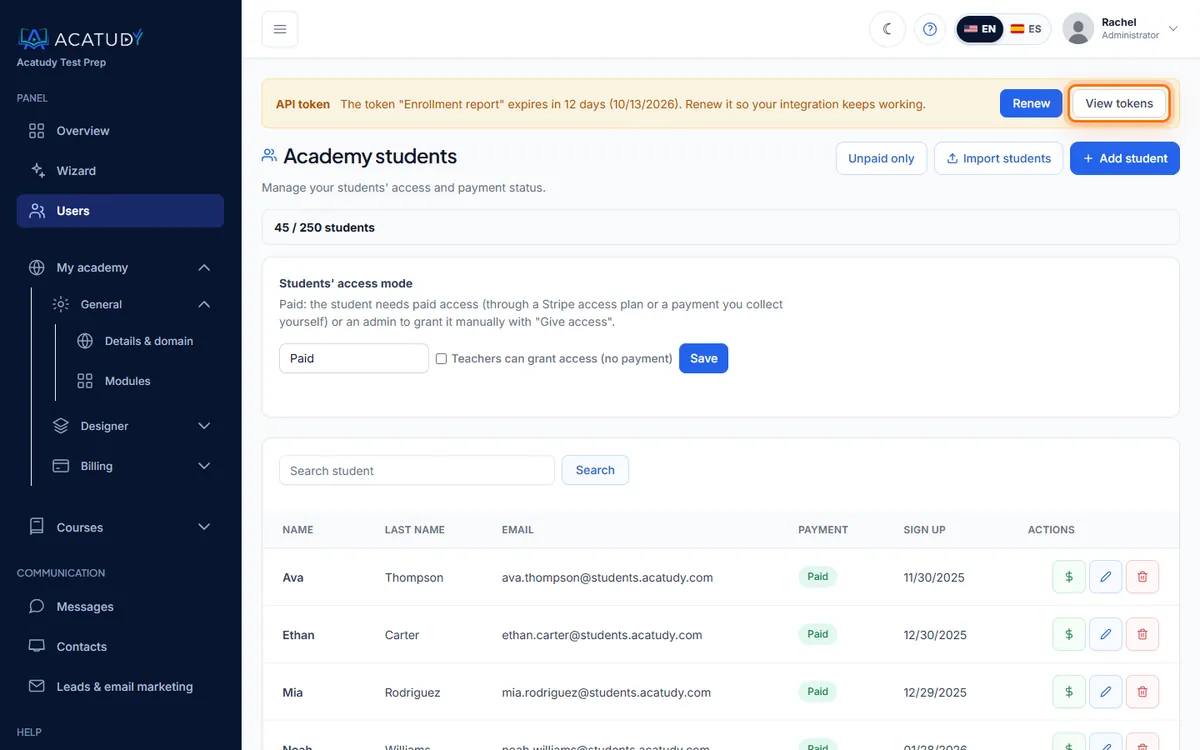
Renew or revoke a token
-
Click Renew
A new token is created with the same name, permissions and duration (1 year if the old one never expired). It's shown once, with a Copy button: "New token created. Copy it now: it won't be shown again."
-
Paste it into your integration
The old token keeps working meanwhile, so nothing breaks while you switch.
-
Revoke the old token
Once you've checked the integration works with the new token, click Revoke the old token (or Revoke on its row). Revoking is immediate: "Revoke this token? Any integrations using it will stop working."
Revoke right away if a token leaks
If a token ended up somewhere public, or a developer who had it leaves, revoke it and ask us for a new one.
For your developer
Base URL: https://acatudy.com/api/v1. Authentication: Authorization: Bearer <token>. The token identifies the academy.
| Request | Permission | What it does |
|---|---|---|
GET /ping | read | Connection check |
GET /tenant | read | Academy details |
GET /plans | read | Plan, limits, usage and storage |
GET /courses | read | Subjects (id, title, status) |
GET /users?email= | read | Look up a student by email |
POST /users | write | Create a student, or link an existing account |
POST /enrollments | write | Enroll after an external purchase and give access; repeated calls with the same external_purchase_id don't duplicate |
POST /enrollments/{external_purchase_id}/cancel | write | Cancel that enrollment |
Limit: 60 requests per minute per token. Errors are JSON with a code:
| HTTP | code | Meaning |
|---|---|---|
| 401 | unauthenticated / token_expired | Missing, wrong, revoked or expired token |
| 403 | forbidden | The token doesn't have the permission (for example, a read token trying to create a student) |
| 403 | quota_exceeded | Your plan's student limit is full |
| 403 | tenant_inactive / tenant_payment_suspended | The academy is expired, suspended or paused for non-payment |
| 404 | not_found, course_not_found, user_not_found | The record doesn't exist |
| 422 | validation_failed | Invalid data; fields lists each problem |
| 429 | rate_limited | Too many requests; wait the seconds in Retry-After |
Frequently asked questions
Which plans include the API?
All of them. The plan only matters through its student limit.
Can I list all my students through the API?
No. The API looks up one student by email, creates students and manages enrollments.
Does Acatudy send webhooks to my system?
No. Your system calls the API when something happens on its side.
Follow this guide in your own academy
Create it free in a couple of minutes and keep your admin panel open next to this guide.
Open a ticket from Help → Support in your panel: we reply within 24–48 h depending on your plan.