
Get paid with Stripe: connect your account and create coupons
Connect your academy’s own Stripe account in a few clicks, create discount codes like BACK2SCHOOL for your students and manage access once a family has paid. Acatudy charges no commission on your sales.
On this page
In this guide
- How payments work in Acatudy (and what the platform never sees).
- Connect your Stripe account and read its status.
- Create coupons and promotions.
- Give access to students once they've paid.
How it works
Your academy uses its own Stripe account (Stripe Connect). Money goes straight to your bank account; the platform never sees or stores your keys, and you handle charges, refunds and invoices from your Stripe dashboard. Acatudy charges no commission per sale; only Stripe's own fees apply, according to your Stripe account.
Everything is in My academy → Payments.
1. Connect your Stripe account
-
Click Connect with Stripe
In the card Charge your students with your own Stripe account, click Connect with Stripe. Create a new Stripe account or sign in to the one you already have.
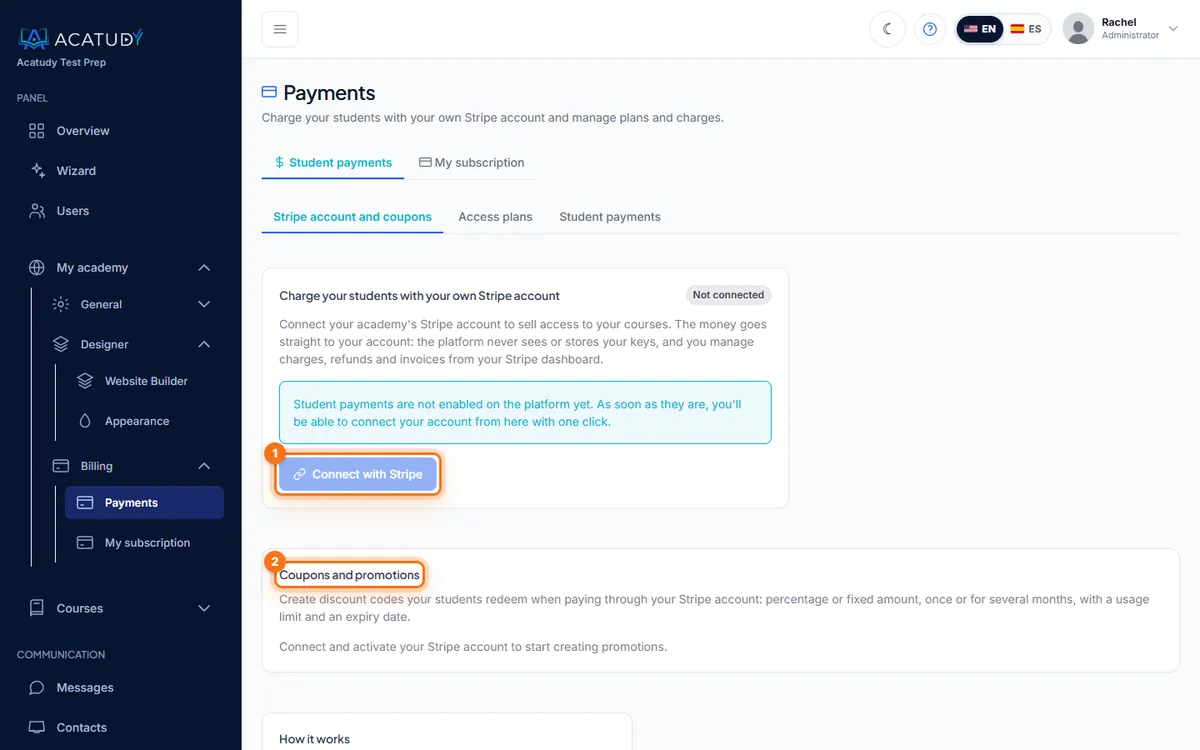
Payments page with Connect with Stripe and Coupons and promotions. -
Complete Stripe's onboarding
Stripe asks for your business details (legal name, EIN or SSN for sole proprietors, address) and the bank account for payouts. This is handled by Stripe, not by Acatudy.
-
Come back and check the status
When you return, the account status syncs. Use Check status any time to refresh it.
| Status | Meaning | What to do |
|---|---|---|
| Not connected | No Stripe account linked | Click Connect with Stripe |
| Onboarding not finished | You left Stripe's form halfway | Click Continue Stripe onboarding |
| Stripe needs more details | Stripe requires extra verification | Continue onboarding and complete what Stripe asks |
| Connected · can charge | Ready: Charges and Payouts to your bank are enabled | Nothing, you're set |
| Disconnected | The account was unlinked | Connect again |
Unlink only detaches the account from your academy; your Stripe account and its history stay yours.
2. Create coupons and promotions
In Coupons and promotions (Professional and Institutional plans, with a connected account that can charge), create discount codes your students redeem when paying through your Stripe account:
| Field | Example |
|---|---|
| Internal name | Back to school 2026 |
| Code | BACK2SCHOOL (letters, numbers, _ and -; stored in capitals) |
| Discount | Percentage (e.g. 15%) or a fixed amount (e.g. $50) |
| Duration | First payment only, Several months (1–36) or Forever |
| Max redemptions | 30, or no limit |
| Expires on | September 30 |
Click Create: the promotion is created directly in your Stripe account, and the list shows its redemptions, expiry and status. Use Deactivate to stop a code; students can no longer redeem it.
Coupon ideas that work
SIBLING10: 10% forever for a second child in the same family.EARLYBIRD: 20% on the first payment, expiring two weeks before the term starts.FRIEND50: $50 off once, max 20 redemptions, for referrals.
3. Give access after payment
When a family has paid, open Students → Users and click Mark as paid on the student: they get full access immediately. If a payment fails or a term ends, Mark as unpaid. See Add and manage students.
Good to know
Charges, refunds, disputes and receipts are managed in your Stripe dashboard. Your Acatudy subscription is separate: it's managed in My academy → Billing → My subscription (see Create your academy).
Frequently asked questions
What does Acatudy charge per sale?
Nothing. There's no platform commission; only Stripe's processing fees apply.
I see "Student payments are not enabled on the platform yet"
It means student payments haven't been enabled on the platform yet. As soon as they are, you'll be able to connect your account from this page with one click. Meanwhile, keep charging as you do today and manage access with Mark as paid.
Can I issue refunds from Acatudy?
Yes: payments made through your access plans can be refunded from Payments → Student payments (see Sell access with Stripe). You can also refund from your Stripe dashboard.
Follow this guide in your own academy
Create it free in a couple of minutes and keep your admin panel open next to this guide.
Open a ticket from Help → Support in your panel: we reply within 24–48 h depending on your plan.