
Getting started
- Create your academy: sign up, setup wizard, tax details and plan
- How courses, subjects and units fit together
- Migrate from other platforms: Moodle, Canvas, Blackboard, Google Classroom, Thinkific or Teachable
- Import a Moodle course (.mbz): units, files, assignments and quizzes
- Import a course from Canvas, Blackboard, Schoology or D2L (Common Cartridge)
- Import a course from Thinkific (API)
- Import a course from Teachable (API)
- Import a course from LearnWorlds (API)
- Migrate from Kajabi
- Migrate from Skool
- Visual or vertical mode: choose how students see your academy
Subjects and content
- Add lessons, videos and required reading to a subject
- Upload and compress videos: up to 20 GB, automatic compression and fast playback
- Live classes and 1:1 tutoring with Zoom, Google Meet or Teams
- Document viewers: PDF, Word, PowerPoint, Excel and code inside your academy
- Interactive activities: match, order, fill in the blanks and word search
Questions and exams
- Practice bank vs. exam bank: question types, including SAT-style grid-ins
- Import questions from CSV or Excel (with grid-in answers)
- Create timed exams: practice tests, practice exams and official exams
- Written-answer questions (short and essay) and manual grading
- Gradebook and grade weights: how the final grade is calculated
- Generate questions with Quiddy (syllabi, laws and math)
- Question challenges: when a student reports a wrong question
- Practice tests vs. official exams: how tests work and their settings
- Sequential practice: a unit's question bank, one by one
- Set a close date for exams and unit tests
Assignments and certificates
Students and teachers
Calendar and statistics
Email marketing
Website, domain and SEO
- Design your student area: styles, logo, colors, home and menu
- Add a banner and choose the student home layout
- Build and publish your website with the Website Builder
- Connect your own domain (CNAME or A record) with automatic HTTPS
- SEO and Google Search Console: sitemap, robots.txt and site verification
- Design your sign-in and sign-up pages: 14 layouts with your image and text
- FAQs for your students and visitors: help center, order and FAQ rich results
- WordPress plugin: sell your courses and add single sign-on
Connect your domain
- Connect your domain: step-by-step guides by provider
- Connect a GoDaddy domain to your academy (DNS records)
- Connect a Namecheap domain to your academy (Advanced DNS)
- Connect a Squarespace domain (formerly Google Domains)
- Connect a Cloudflare domain to your academy (DNS only)
- Connect a Hostinger domain to your academy (hPanel DNS)
- Connect an IONOS domain to your academy (DNS records)
- Connect a Porkbun domain (DNS records, ALIAS and TXT)
- Connect a Network Solutions domain (Advanced DNS)
- Connect a Bluehost domain (DNS tab and Advanced DNS records)
- Connect a domain bought at Wix (DNS records, no nameserver change)
- Connect a DonDominio domain (DNS zone, CNAME and ANAME)
- Connect an Arsys domain (DNS entries in the Control Panel)
Payments and coupons
Account, plan and security
- Your Acatudy subscription: plans, prices, invoices and canceling
- Storage and plan limits: what counts, where to see it and how to free up space
- Keep your account secure: passwords, sessions and signing out
- Privacy, cookies and student data (GDPR): what Acatudy does for you
- API tokens: connect your store or website, renew and revoke
- Backups: what your plan includes and how to restore your academy
- Trash: restore deleted questions, topics, units and exams
- What each AI task costs in AI Tokens
Support
No guide titles match. Press Enter to search inside the guides too.
Set an end date for student access
Give access for a term or a course and let it end on its own. Set the last day for one student, for a whole import or for everyone at once, and see what students see before and after.
On this page
In this guide
- How the access end date works.
- Set it for one student, an import or everyone.
- What students see.
- Renew access that has expired.
How it works
Access you give by hand (with Give access, when you add a student or when you import them) has no end date unless you set one. The date you set is the last day of access: the next day the student loses it automatically and sees the access screen. Nothing is deleted: their progress, grades and submissions stay.
The date only applies to access you grant. Access bought online (Stripe) follows its own payment and isn't affected.
Set the end date
For everyone at once
-
Open Users
Go to Users and open Access end date for everyone, above the list.
-
Pick the date and apply
Choose the day in Access until and click Apply to all. After you confirm, every student whose access you granted gets that end date. Leave the date empty and apply to remove the end date from everyone.
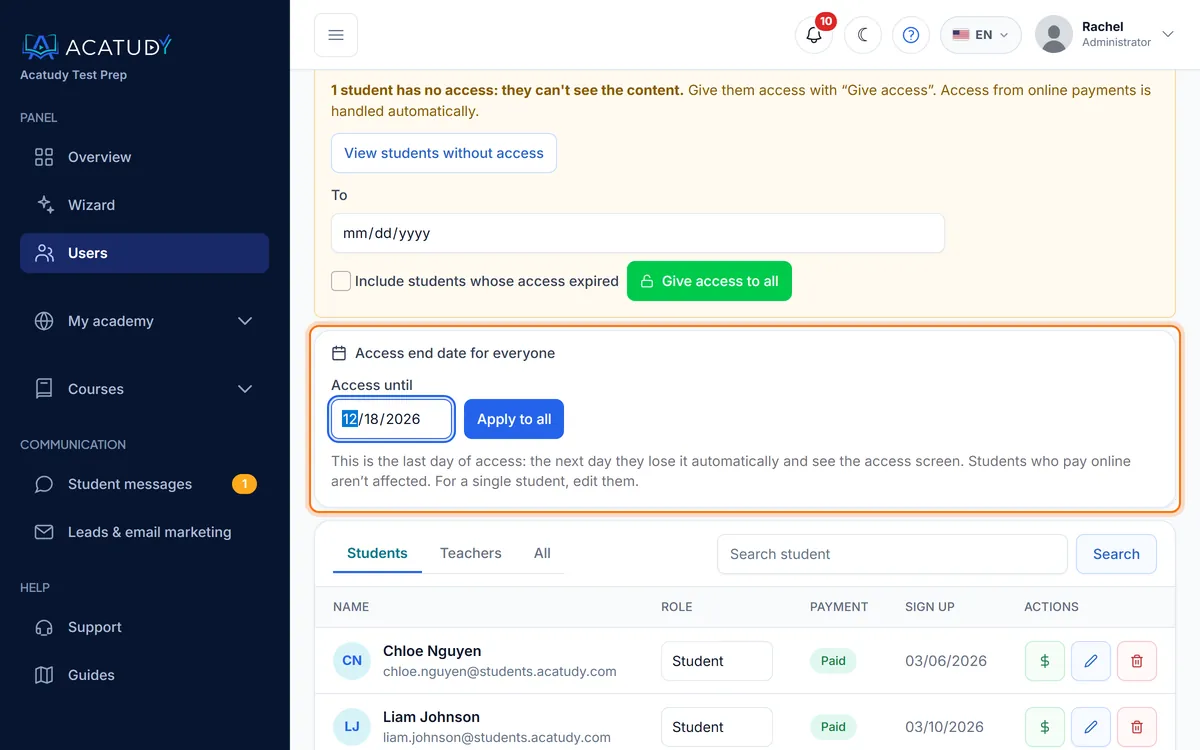
Access end date for everyone, above the student list.
The yellow notice that lists students without access has the same option: Give access to all accepts a To date, and Include students whose access expired renews them too.
For a new student
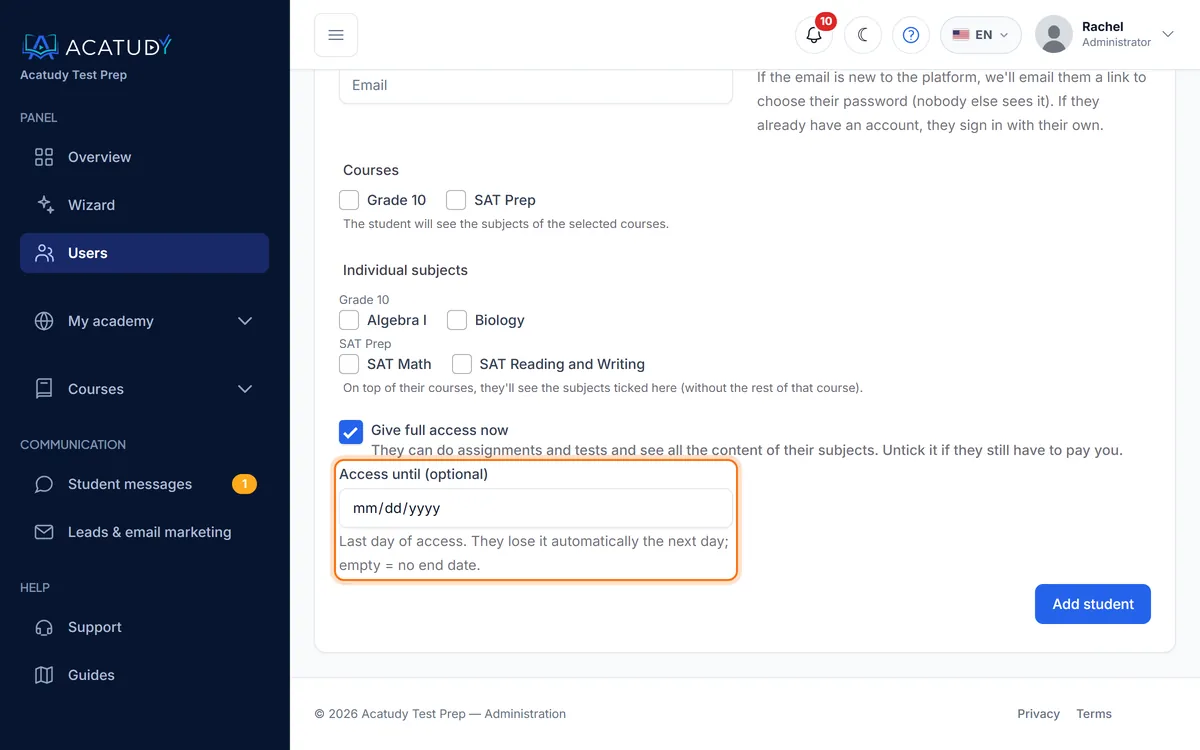
In Add student, fill in Access until (optional). Empty means no end date.
For an existing student
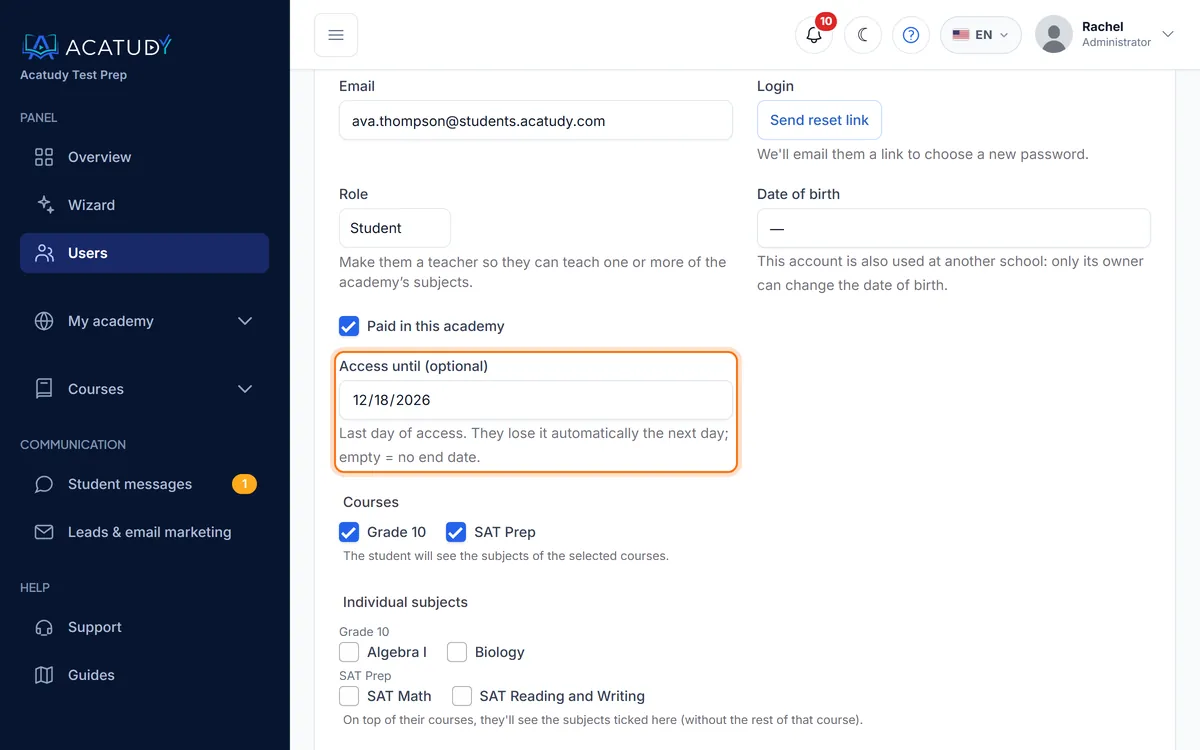
Click the edit button on the student and change Access until, next to Paid in this academy. Save.
For a whole import
When you import students from a file, the import options include Access until (optional): every imported student with access gets that last day. See Migrate from other platforms.
What students see
In My profile → My plan, students see Access granted by your academy and the date: “You have access through 12/18/2026.”
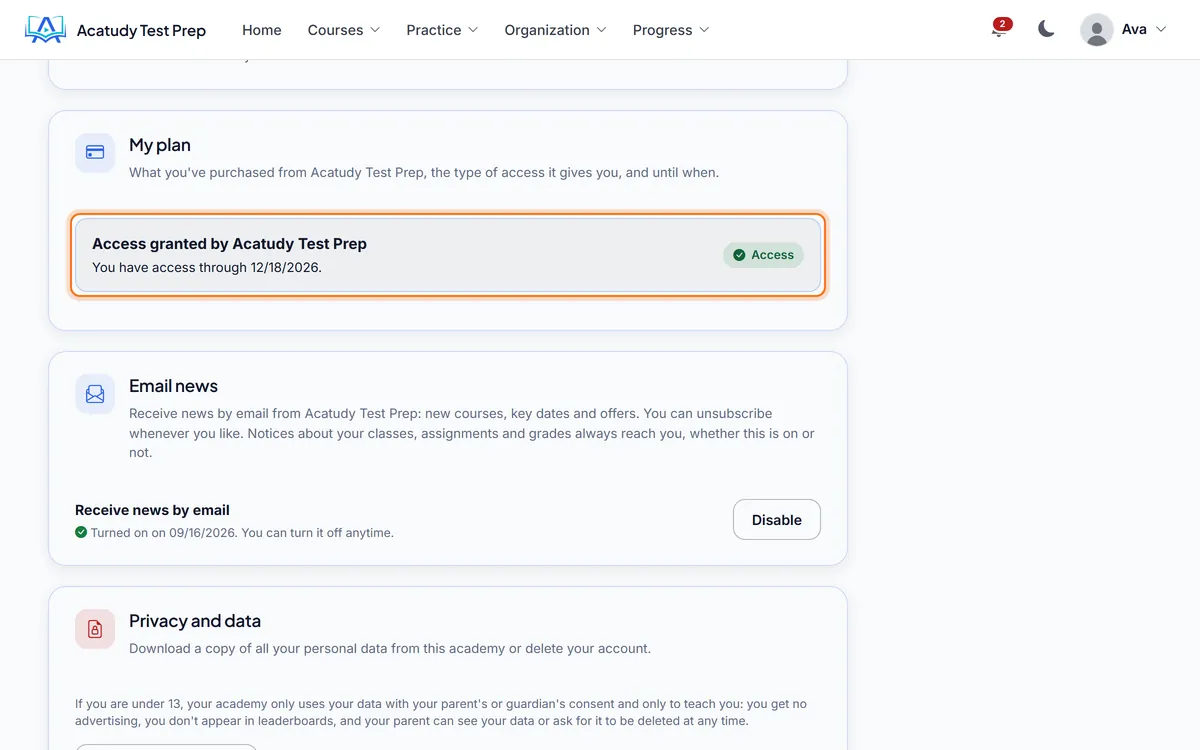
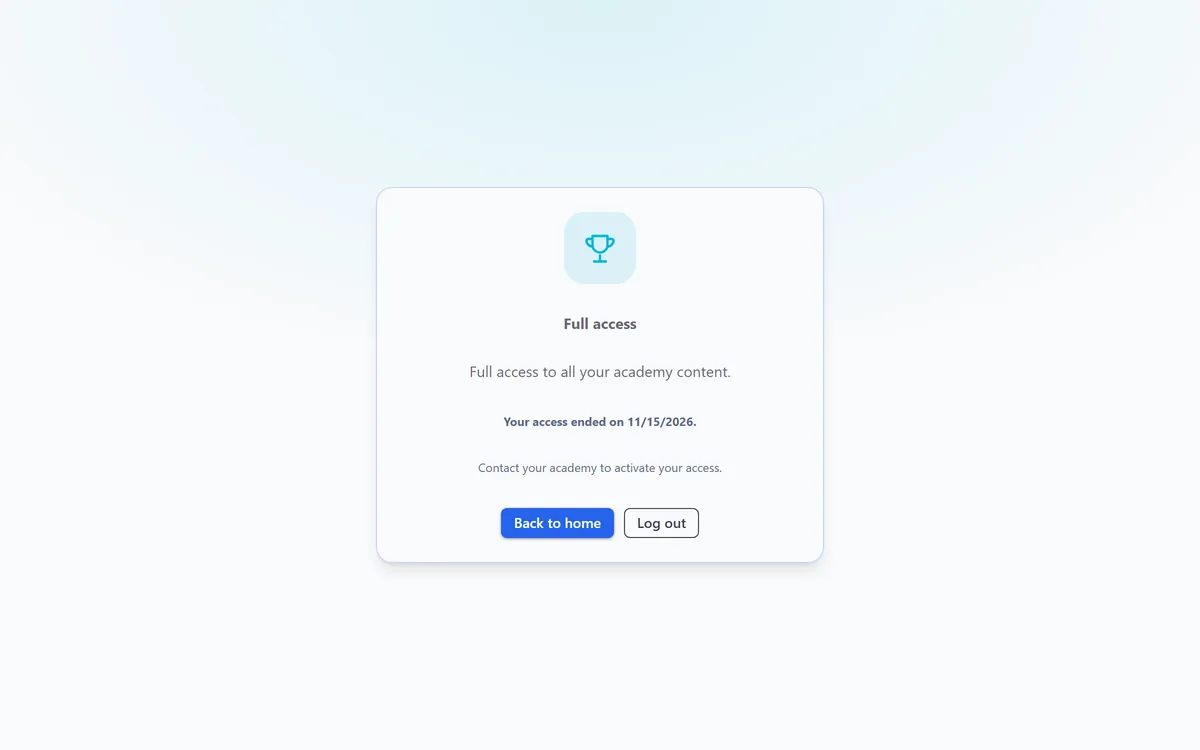
After the last day, they see the access screen with “Your access ended on” and the date, and a message to contact your academy. If they bought something online, they keep that.
Renew expired access
In Users, the student shows Expired on and the date. Edit them, set a new date (or leave it empty for no end date) and tick Paid. To renew several at once, use Give access to all with Include students whose access expired.
The date must be today or later
You can't set a date in the past. For access to end today, choose today's date: today is still the last day.
Frequently asked questions
Does the end date cancel a Stripe subscription?
No. It only affects access you granted. Online purchases follow their own payment; see Student payments: charges, subscriptions, refunds and access.
Do students get a warning before it ends?
They can see the date at any time in My plan. If you want to remind them, send a message from Communication → Student messages.
Where do I manage the rest of a student's access?
Follow this guide in your own academy
Create it free in a couple of minutes on the Free plan: it never expires and needs no credit card. Keep the dashboard open next to this guide.
Open a ticket from Help → Support in your panel: we reply within 24–48 h depending on your plan.